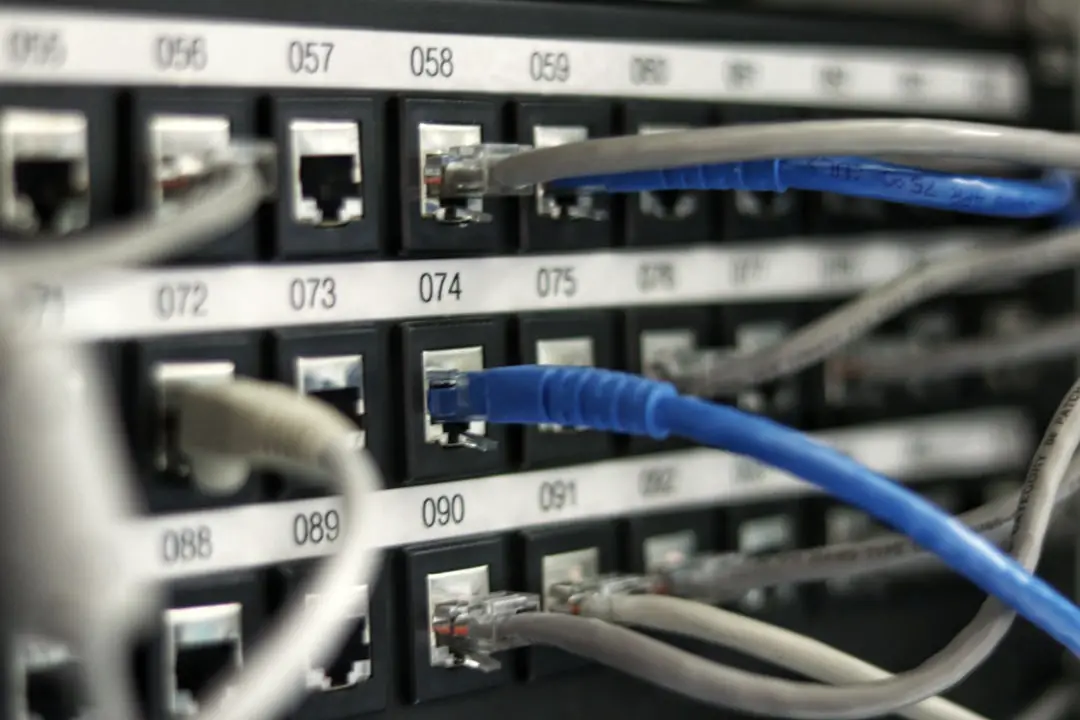
Cybersecurity is no longer optional—even in a simulated lab environment. If you’re using Cisco Packet Tracer in 2026, setting up passwords correctly is one of the most essential skills you can learn. Whether you’re a networking student, IT beginner, or preparing for certification exams, understanding how to properly secure your virtual devices will help you build real-world confidence and competence.
TLDR: Setting up passwords in Cisco Packet Tracer involves securing console access, enabling privileged EXEC mode protection, encrypting passwords, and configuring remote access security. The process includes entering global configuration mode, applying line-level passwords, and securing VTY and enable secret access. In 2026, it’s also crucial to apply layered security practices like encryption, SSH configuration, and strong password policies to simulate real-world environments effectively. Following best practices ensures your lab mirrors enterprise-grade security standards.
Why Password Configuration Matters in Cisco Packet Tracer
Cisco Packet Tracer simulates real networking devices such as routers and switches, allowing users to configure them through the Command Line Interface (CLI). If you do not secure these devices with proper passwords, anyone accessing your lab file can manipulate configurations, disrupt networks, or bypass your security settings.
In professional environments, unsecured network devices are major vulnerabilities. Learning how to configure passwords properly in Packet Tracer prepares you for certifications like CCNA and beyond.
Step-By-Step Guide: How To Set Up A Password in Cisco Packet Tracer
Step 1: Open Your Device and Enter CLI
1. Open Cisco Packet Tracer.
2. Drag a router or switch onto the workspace.
3. Click the device and navigate to the CLI tab.
4. Press Enter to begin configuration.
You should now see the default prompt:
Router>
Step 2: Enter Privileged EXEC Mode
To configure passwords, you must first access privileged EXEC mode:
enable
The prompt changes to:
Router#
Step 3: Set the Enable Password
The enable password protects privileged EXEC mode.
configure terminal
enable password yourpassword
However, in 2026, this method is considered insecure because it stores the password in plain text.
Use Enable Secret Instead (Recommended)
enable secret yourstrongpassword
Why? The enable secret command encrypts the password automatically, making it far more secure.
Step 4: Secure the Console Line
The console line controls direct physical access to the device.
line console 0
password consolepass
login
exit
This ensures anyone connecting physically must enter a password.

Step 5: Secure VTY Lines (Remote Access)
VTY lines allow Telnet or SSH remote connections.
line vty 0 4
password vtypass
login
exit
This secures up to five simultaneous remote sessions.
Step 6: Encrypt All Plain Text Passwords
Even after setting passwords, they may appear visible in the running configuration. Encrypt them using:
service password-encryption
This converts readable passwords into encrypted format within the configuration file.
Step 7: Save Your Configuration
Always save your work to prevent losing settings after reload:
write memory
or
copy running-config startup-config
Verification: Confirm Password Configuration
Check your configuration:
show running-config
Look for:
- enable secret
- console password
- vty password
- service password-encryption

Enable Password vs Enable Secret: Quick Comparison
| Feature | Enable Password | Enable Secret |
|---|---|---|
| Encryption | No (Plain Text) | Yes (Encrypted) |
| Security Level | Low | High |
| Best Practice in 2026 | No | Yes |
| Overrides Other | No | Yes |
Important: If both are configured, enable secret overrides enable password.
5+ Advanced Security Tips for 2026
1. Always Use SSH Over Telnet
Telnet sends passwords in plain text. SSH encrypts traffic.
Configure SSH:
hostname Router1
ip domain-name example.com
crypto key generate rsa
1024
username admin secret strongpass
line vty 0 4
transport input ssh
login local
This ensures encrypted remote access.
2. Create Local User Accounts
Instead of shared line passwords, use:
username netadmin secret strongpassword123
This adds accountability and better access control.
3. Implement Password Policies
In real networks (and in advanced Packet Tracer labs), follow these guidelines:
- Minimum 12 characters
- Uppercase and lowercase letters
- Numbers
- Special characters
- No dictionary words
Strong example: N3twork!Secure2026
4. Configure Login Blocking
Prevent brute-force attacks:
login block-for 120 attempts 3 within 60
This blocks login attempts for 120 seconds after 3 failures within 60 seconds.
5. Use Banner Warnings
A proper legal warning deters unauthorized access:
banner motd #Unauthorized access is prohibited and monitored#
This creates a visible warning before login.
6. Disable Unused Services
Reduce attack surface:
no ip http server
no cdp run
Minimalism increases security.
Common Mistakes to Avoid
- Using only enable password instead of enable secret
- Forgetting to type login under line configuration
- Not saving the configuration
- Using weak passwords like “cisco123”
- Leaving Telnet enabled
Learning from these mistakes will significantly boost your networking proficiency.
Real-World Relevance: Why This Skill Matters
In enterprise environments, routers and switches form the backbone of communication. Misconfigured access controls can lead to:
- Data breaches
- Network downtime
- Unauthorized configuration changes
- Compliance violations
Practicing proper password setup in Packet Tracer builds habits you’ll carry into production networks.
Final Thoughts
Setting up passwords in Cisco Packet Tracer in 2026 isn’t just about completing a lab requirement—it’s about building a security-first mindset. From configuring enable secret and console passwords to encrypting configurations and implementing SSH, each step strengthens your understanding of professional network protection.
If you combine basic password setup with advanced security features like login blocking, local user accounts, and encrypted remote access, you’re no longer just simulating networks—you’re simulating secure enterprise environments.
Master this process, practice it repeatedly, and refine your configurations. Strong foundational skills today lead to real-world expertise tomorrow.