
For professionals and digital power users, the web browser is no longer just a tool for casual surfing. It has become a multi-functional platform capable of supporting productivity, speeding up workflows, organizing research, and even securing privacy. With browser extensions, utilities, and integrated features, users can tailor their experience for efficiency and performance across various professional needs.
TLDR:
Power users and professionals can dramatically improve web efficiency with the right browser tools. From tab managers and automation utilities to security-enhancing plugins and dev tools, there are hundreds of resources designed to save time and sharpen focus. Choosing tools based on your profession—whether development, design, marketing, or research—is key. Many of these tools are cross-platform and work with Chrome, Firefox, and Brave, while some offer dedicated web apps as well.
Top Browser Tools Every Power User Should Know
1. Tab and Window Management Tools
- OneTab – This extension collapses all open tabs into a single list, reducing memory usage and decluttering your screen. Ideal for those who keep dozens of tabs open.
- Workona – Designed for professionals juggling multiple projects, Workona helps organize tabs into custom workspaces while syncing across devices.
- Toby – An intuitive tab organizer that turns commonly-used sites and documents into visual collections that are easy to access throughout your day.
These tools benefit research-heavy tasks and team collaboration by preventing tab overload and improving focus.
2. Automation and Workflow Enhancers
- Zapier Chrome Extension – Automate repetitive tasks like saving links to Slack, Trello, or Google Sheets. Great for writers, marketers, and project managers.
- Clipboard History Pro – Keeps a searchable history of your clipboard content—ideal for coding, email templates, or research notes.
- Scribe – Automatically document workflows as you perform them in your browser. Helpful for training, onboarding, and process documentation.

By automating small, frequent workflows, users can reclaim hours every week and reduce context-switching across platforms.
3. Focus and Productivity Boosters
- StayFocusd – Limits time spent on distracting websites like social media, helping professionals stay on task during deep work periods.
- Forest – Turns avoiding time-wasting sites into a game: grow a forest by staying productive, and lose trees when you visit blocked platforms.
- Noisli – Provides customizable background noise to enhance focus and reduce mental fatigue in noisy environments.
For freelancers and remote workers, these tools offer a digital barrier against common online distractions and enhance productivity during peak hours.
4. Privacy and Security Tools
- DuckDuckGo Privacy Essentials – Blocks hidden trackers, enforces HTTPS when possible, and rates websites’ privacy practices.
- Bitwarden – A secure, open-source password manager that integrates seamlessly with major browsers for fast, secure sign-ins.
- uBlock Origin – A lightweight and powerful ad and tracker blocker with more customization than most alternatives.
In a time when data privacy is top of mind, these tools ensure users are proactively protecting themselves against breaches and invasive marketing practices.
5. Developer and Designer Tools
- Web Developer Tools – Available by default in browsers like Chrome and Firefox, they enable DOM inspection, CSS editing, and network debugging on the fly.
- Wappalyzer – Instantly lets you know what CMS, framework, and third-party tools a website uses—great for competitive analysis and audits.
- PerfectPixel – Allows web designers to layer mockups on top of live pages to ensure pixel-perfect implementation.
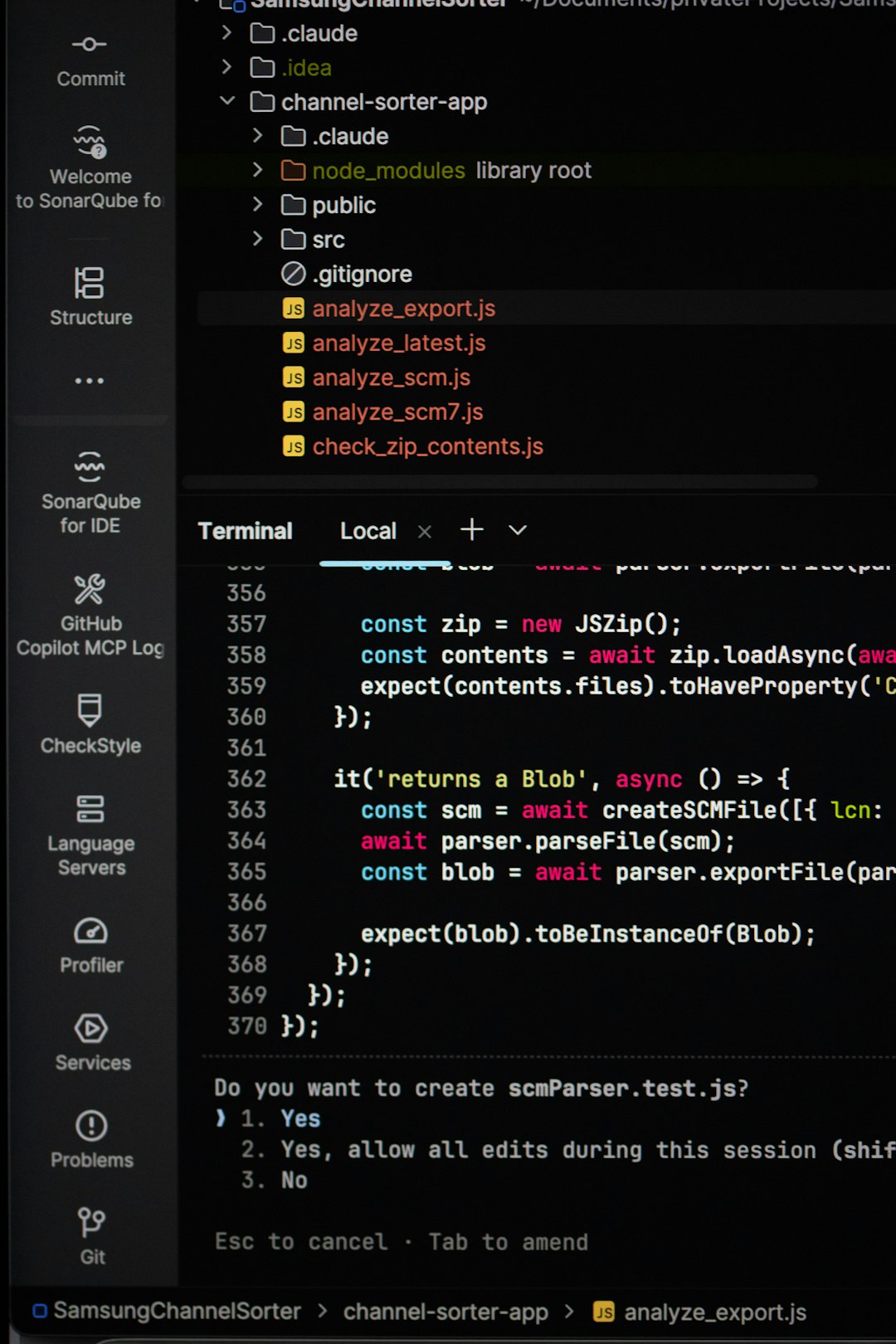
Whether refining UIs or debugging APIs, professionals trust these tools to streamline their development workflow and reduce launch errors.
6. Research and Note-Taking Tools
- Evernote Web Clipper – Save important web articles, images, and PDFs into notebooks, complete with tags and highlights.
- Notion Web Clipper – Clip content into Notion databases for ongoing projects or creative inspiration.
- LINER – Highlights and saves key sentences on webpages and PDFs for later review, ideal for academics and journalists.
These tools excel in scenarios like literature reviews, content strategy planning, or curating links for newsletters or presentations.
Cross-Browser Compatibility
Most of the mentioned tools are available across major browsers like Chrome, Firefox, Brave, and Edge. Chrome generally has the widest support and largest extension store, but Firefox and Brave offer excellent performance with added privacy features. Many tools, such as password managers or task organizers, also include mobile apps that sync with browser activity, giving professionals a unified experience across devices.
How to Choose the Right Tools
The sheer number of browser add-ons and tools can be overwhelming. To identify the best options for your workflow, consider the following questions:
- What type of work do you do? A developer may benefit more from debugging extensions, while a content writer may need clip-and-save tools.
- Do you often multitask or work across projects? Tab managers and workspace organizers are crucial in this case.
- How important is privacy to you? If protecting data is a concern, favor extensions that minimize tracking and encrypt your credentials.
FAQ
Q: What’s the best browser for using professional tools?
A: Google Chrome boasts the widest compatibility with extensions, but Firefox and Brave prioritize privacy and still support most essential tools. Edge has increasingly robust performance as well and supports Chrome extensions.
Q: Will installing many browser extensions slow down my computer?
A: It can. The more active extensions you run, the more memory your browser will consume. Choose lightweight or highly efficient tools, and disable those not in daily use.
Q: Are these tools safe to use?
A: Most popular extensions found in official marketplaces are safe, but always check reviews and permissions. Avoid tools that request more access than they need, such as reading and changing data across all websites.
Q: How do I manage my extensions effectively?
A: Most browsers allow you to easily enable/disable extensions from the extensions menu. You can also group your extensions by context—for example, productivity in one session and development in another.
Q: Do these tools work offline?
A: While most browser tools require an internet connection, some like Bitwarden, Clipboard History Pro, and certain note-takers offer limited offline functionalities.
Final Thoughts
Today’s professionals rely on browsers as much as any other application in their toolkit. From organizing information to safeguarding data, the right browser tools give users a serious edge. Regularly reviewing and refining these utilities ensures your browser evolves with your workflow—keeping you efficient, focused, and secure in your digital world.