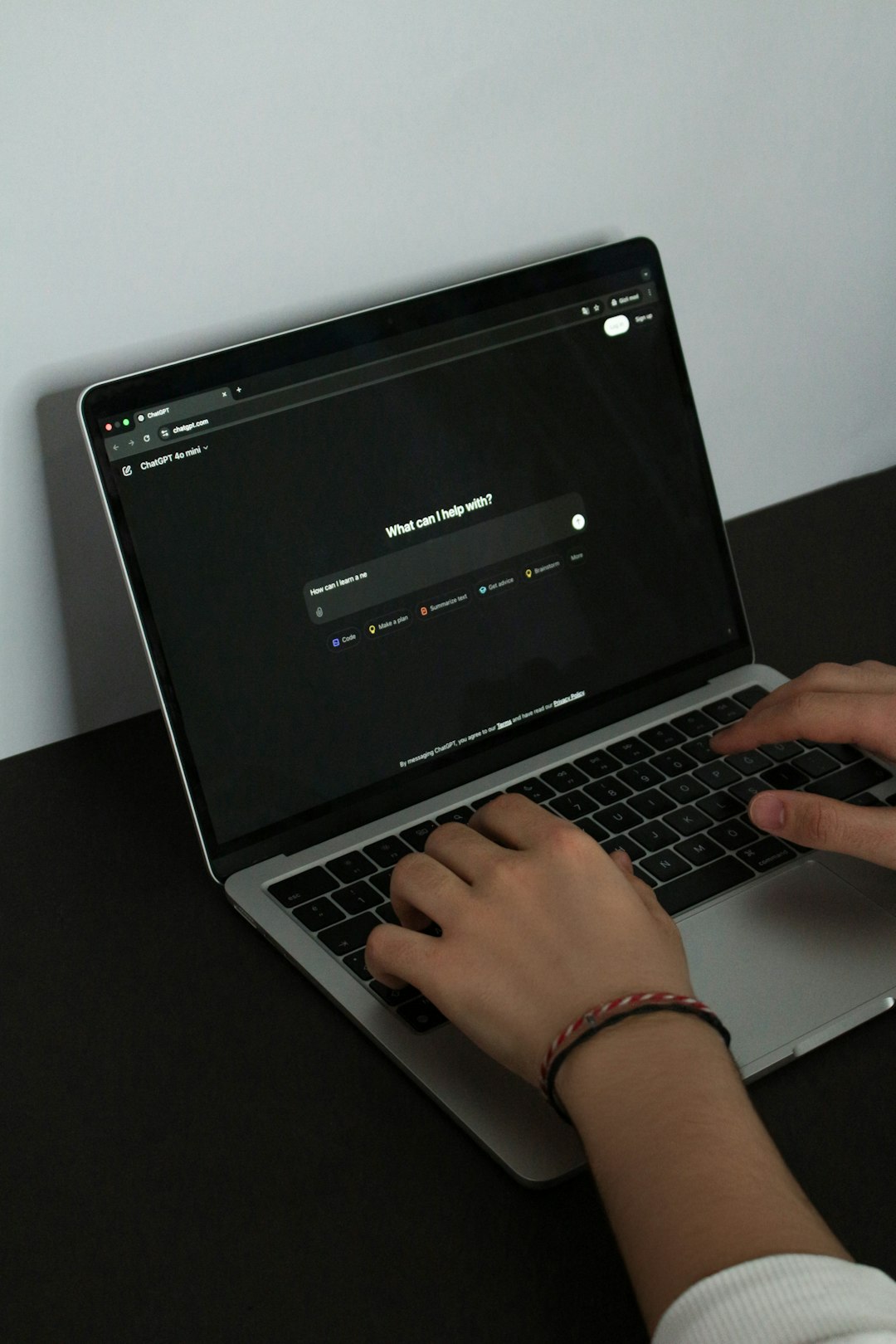
Giving feedback on ChatGPT is one of the simplest ways to influence how the product improves over time. Whether you are using ChatGPT on the web, on your phone, or through a desktop app, your reactions, suggestions, and bug reports help the system become more accurate, safer, and more useful for everyone. This guide walks you through exactly how to submit feedback across platforms, with clear step-by-step instructions and visual cues along the way.
TLDR: ChatGPT allows you to give feedback directly from the web, mobile apps, and desktop versions using built‑in tools like thumbs up or down, feedback forms, and report options. The process usually takes less than a minute and can be done after any response. By explaining what worked or what did not, you help improve future replies. This article shows you exactly where to click and what to include.
Why Feedback on ChatGPT Matters
Every response you see in ChatGPT is part of a much larger system that learns from real-world usage. When users provide feedback, it helps developers understand which answers are helpful, which are confusing, and where improvements are needed. Feedback also plays a role in identifying harmful, incorrect, or biased outputs.
Your feedback can help:
- Improve accuracy and relevance of answers
- Fix bugs or interface issues
- Enhance tone, clarity, and usefulness
- Highlight missing features or confusing behavior
Even short feedback, such as a single click on a rating icon, contributes to making ChatGPT better for millions of users.
How Feedback Works in ChatGPT
ChatGPT feedback generally comes in two forms: quick reactions and detailed reports. Quick reactions usually involve thumbs up or thumbs down buttons. Detailed reports allow you to explain what went wrong, provide context, or suggest improvements.
Depending on the platform you are using, the placement of these options may vary slightly, but the idea is the same: respond directly to a specific answer or submit general feedback from a menu or settings panel.
Giving Feedback on ChatGPT Web
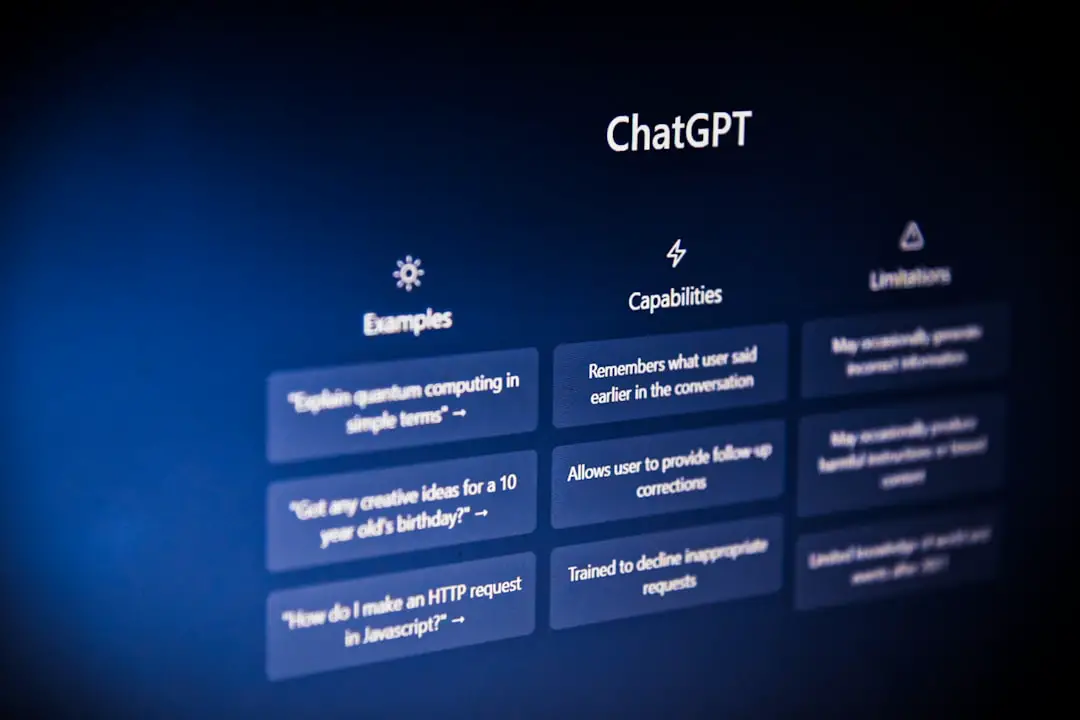
The web version of ChatGPT is the most commonly used and offers the most visible feedback tools.
[hDAI-img]
Step-by-Step: Rating a Response
- Open ChatGPT in your web browser and sign in.
- Ask a question or start a conversation.
- Look below the response you want to evaluate.
- Click the thumbs up icon if the answer was helpful.
- Click the thumbs down icon if the answer was incorrect, confusing, or unhelpful.
When you click thumbs down, you may be prompted to choose a reason or leave a short comment. This extra context is extremely valuable.
Step-by-Step: Sending Detailed Feedback
- Click on the menu or help icon, usually found in a corner of the interface.
- Select Send feedback or a similar option.
- Describe your issue, suggestion, or experience in the text box.
- Submit the feedback form.
Use detailed feedback when reporting bugs, recurring issues, or broader suggestions beyond a single response.
Giving Feedback on ChatGPT Mobile Apps
ChatGPT on mobile devices, such as iOS and Android phones, is designed for speed and convenience. Feedback tools are still present, though they are often tucked into menus to save screen space.

Step-by-Step: Rating a Response on Mobile
- Open the ChatGPT app on your phone or tablet.
- Start or continue a conversation.
- Tap and hold on a response, or look for small icons beneath it.
- Select thumbs up or thumbs down.
On some devices, tapping thumbs down will open a short form where you can select reasons like “incorrect,” “harmful,” or “not helpful.” Choose the option that best fits your experience.
Step-by-Step: Submitting App Feedback
- Tap the profile or menu icon in the app.
- Go to Settings or Help.
- Select Feedback or Report a problem.
- Write your message and submit it.
This method is ideal for reporting crashes, slow performance, or layout problems specific to mobile devices.
Giving Feedback on ChatGPT Desktop Apps
Desktop versions of ChatGPT, such as apps for Windows or macOS, combine elements of both web and mobile experiences. Feedback tools are usually integrated directly into the interface.
Image not found in postmetaStep-by-Step: Rate Responses on Desktop
- Open the ChatGPT desktop app.
- Interact with ChatGPT as usual.
- Locate the thumbs up or down icons under a response.
- Click the appropriate option.
Just like on the web, clicking thumbs down may allow you to explain what went wrong.
Step-by-Step: General Desktop Feedback
- Open the app menu or sidebar.
- Choose Help or Feedback.
- Enter detailed information about your experience.
- Submit the feedback.
Desktop feedback is especially useful for reporting keyboard issues, window behavior problems, or integration concerns.
Tips for Writing Helpful Feedback
Not all feedback is equal. Clear, specific messages are much more useful than vague reactions.
- Be specific: Mention what part of the answer was wrong or right.
- Provide context: Include the question you asked or the task you were trying to complete.
- Stay constructive: Polite, clear feedback is easier to act on.
- Highlight patterns: Mention if the issue happens repeatedly.
For example, instead of saying “This is bad,” you could say, “The answer missed an important step and used outdated information.”
Common Questions About ChatGPT Feedback
Is my feedback anonymous?
Feedback is typically collected without publicly identifying users, but it may be linked to system data to help diagnose issues.
Do I get a reply?
Most feedback does not receive a direct response, but it is reviewed and aggregated to guide improvements.
Does thumbs up really matter?
Yes. Large amounts of simple feedback help identify which responses are most helpful at scale.
Final Thoughts
Giving feedback on ChatGPT is quick, easy, and genuinely impactful. Whether you are clicking a thumbs up on a great answer or sending a detailed report about a bug, your input helps shape the future of the tool. By understanding how feedback works across web, mobile, and desktop platforms, you can make your voice heard wherever you use ChatGPT.
Next time you have a great interaction, or spot something that could be improved, take a moment to share your feedback. It only takes a few seconds but makes a lasting difference.