Every time you hop online to check the news, shop for shoes, or stream your favorite show, there’s a silent hero helping you out. It’s not your Wi-Fi. It’s not your antivirus. It’s your web browser.
Your browser is the doorway to the internet. And it does a lot more to protect you than you’d expect.
TLDR (Too Long, Didn’t Read)
Web browsers aren’t just windows to the web — they’re your first line of defense. The browser you use and how well it’s updated can protect you from scams, viruses, and data theft. Modern browsers come packed with smart security features. Use them wisely, and you’ll browse safer every day.
Why Your Browser Matters
Your browser sees it all. Passwords, credit card numbers, personal messages — it handles sensitive stuff every day. If your browser isn’t secure, neither is your data.
Most people focus on their antivirus programs and forget about browsers. But guess what? Hackers know how to exploit old versions, bad settings, and shady browser extensions.
That’s why your browser plays a bigger role in online security than you might realize.
What Makes a Secure Browser?
Let’s break it down. A secure browser has:
- Regular updates – These fix security holes fast.
- Sandboxing – Stops infected sites from harming your system.
- HTTPS enforcement – Keeps your data encrypted when visiting websites.
- Phishing protection – Warns you before sketchy sites fool you.
- Extension control – Lets you manage what add-ons can access.
Browsers like Chrome, Firefox, Edge, Safari, and Brave each bring strong tools to the table. And they’re getting smarter every year.
Tips for Everyday Browser Security
You don’t need to be a tech wizard to boost your online safety. Here are some easy things you can do today:
1. Always Keep Your Browser Updated
This is the #1 rule. Updates patch known holes hackers like to sneak through. Most modern browsers update automatically, but double-check once in a while.
2. Use Strong, Unique Passwords
Your browser often stores your passwords. That’s cool only if those passwords are strong and not reused. Better yet, use a password manager.
3. Be Cautious with Extensions
Browser extensions are handy — but some are sneaky. Always check reviews and permissions before installing.
Don’t keep extensions you don’t use. They could be collecting your data quietly.
4. Turn on “Do Not Track” (Even If It’s Not Perfect)
This setting asks websites not to follow your moves online. Not all obey, but it’s still good practice.
5. Clear Cookies and Browsing History Regularly
Cookies track where you go. Over time, lots of them pile up. Clear them every now and then to stay more private.
6. Use Incognito Mode — But Know Its Limits
Incognito (or private) mode is helpful, especially on shared devices. It stops your browser from saving history and cookies — but it doesn’t hide you from websites, internet providers, or employers.
7. Turn On HTTPS-Only Mode If Available
Most major browsers let you force HTTPS connections whenever possible. This helps encrypt the data you send and receive.
If a site doesn’t support HTTPS, your browser will warn you — a great heads-up that you’re entering risky territory.
Built-in Features That Help You Stay Safe
Modern browsers come with lots of built-in magic. Here are a few awesome examples:
- Chrome: Runs each tab in a sandbox to isolate threats. Also blocks known dangerous sites.
- Firefox: Blocks third-party trackers by default and has strong privacy settings.
- Safari: Intelligent Tracking Prevention stops websites from following you across the web.
- Edge: Built on Chromium like Chrome, but includes Microsoft Defender SmartScreen protection.
- Brave: Focuses heavily on privacy and even includes an ad/tracker blocker by default.
Whichever browser you pick, take five minutes to check its security settings. You might be surprised at what’s available — and what needs turning on.
Private Browsing vs. Secure Browsing
This part confuses a lot of people. Let’s clear it up:
- Private (or Incognito) Mode: Hides your browsing history and cookies from your device.
- Secure Browsing: Protects your data and personal info from threats on the web.
So even if you’re in Incognito mode, you still need your browser’s security features fully active.
What About Mobile Browsers?
Don’t forget your phone! Mobile browsers deserve attention too. Apps like Firefox Focus or DuckDuckGo Browser are built for privacy. Even Chrome and Safari on mobile have similar settings to their desktop versions — you just have to dig a little to find them.
Whichever one you use, make sure it updates regularly. Mobile software can be just as vulnerable as desktop browser software.
Bonus: Use Browser Profiles
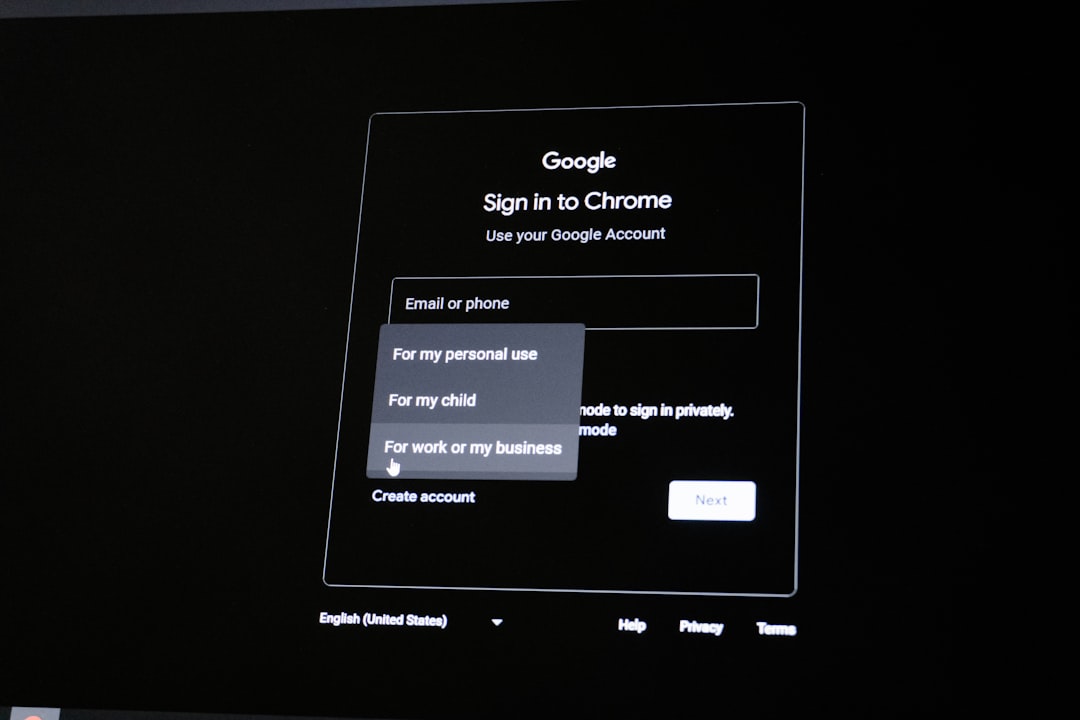
Want to take control of your web life? Try browser profiles.
Most browsers let you set up separate profiles. Each has its own bookmarks, passwords, extensions, and history. You can create one for work, one for personal stuff, or let guests use a separate one. It’s like having multiple browsers in one window.
This is a great way to protect different parts of your digital life from each other.
Things to Avoid
Let’s be honest: The web can be a sketchy place. Avoid these habits to stay safer:
- Using outdated browsers – They’re loaded with old bugs.
- Clicking on random pop-ups – Especially ones that say your computer has a virus.
- Logging into sensitive accounts on public Wi-Fi – Unless you’re using a VPN, just don’t.
- Visiting sites without HTTPS – Look for the little padlock next to the address.
Final Thoughts
Your browser does more than open cat videos and news articles. It guards your identity, your passwords, and your private life from shady actors online.
If you treat it right — by keeping it updated and tweaking a few settings — it can be your personal bodyguard for your digital world.
So next time someone asks about your online safety plan, tell them: “It starts with my browser.”