
Cutting a video should not require a complicated editing suite, especially when the goal is simple: remove unwanted sections, create shorter clips, or split a long recording into manageable parts. Boilsoft Video Splitter is designed for that kind of focused work. It offers a practical way to cut videos with minimal setup, making it useful for business users, educators, content creators, and anyone who needs quick, reliable video trimming without learning a full professional editor.
TLDR: Boilsoft Video Splitter helps you cut, trim, and split video files using a straightforward interface. You can select start and end points, preview the result, and save the new clip without going through a complex editing workflow. For many supported formats, it can cut without re-encoding, which helps preserve quality and reduce processing time. It is best suited for clean, simple cuts rather than advanced video production.
What Boilsoft Video Splitter Is Designed to Do
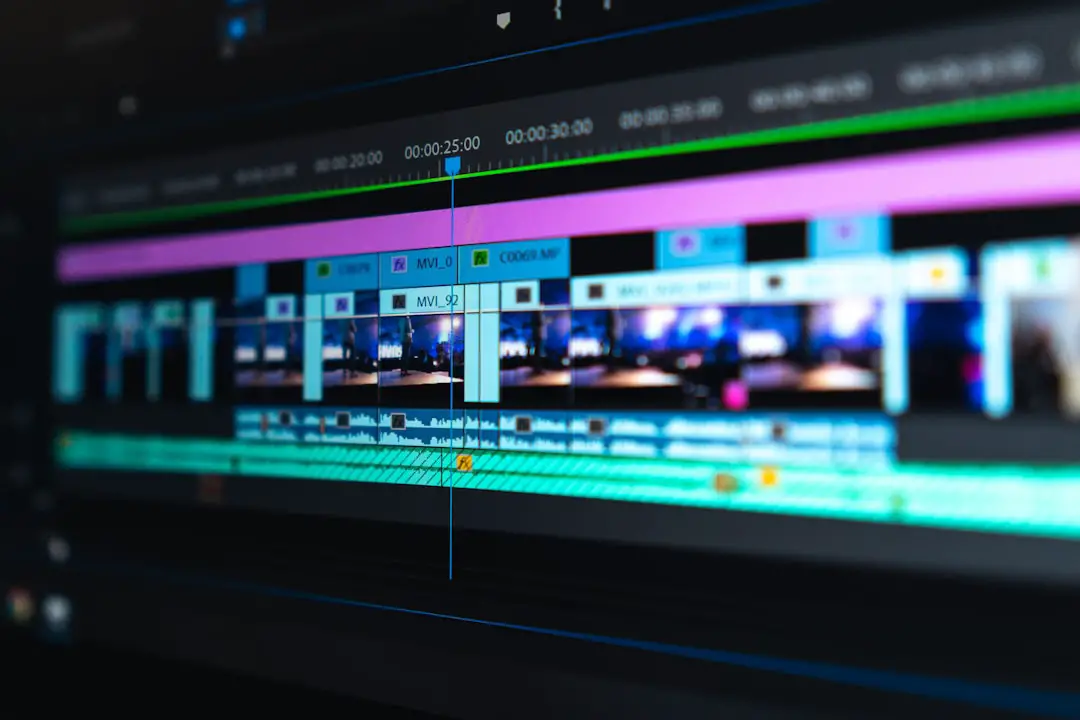
Boilsoft Video Splitter is a dedicated video cutting tool. Unlike large editing programs that include timelines, effects, transitions, layers, and audio mixing panels, this software focuses mainly on one task: splitting video files into smaller segments. That narrow focus is one of its main advantages. Users who only need to remove a beginning scene, cut out an ending, extract a specific section, or divide a file into parts do not have to work through unnecessary menus.
The software is commonly used for tasks such as cutting long lecture recordings, separating interview segments, removing unwanted footage from screen recordings, trimming downloaded clips for personal use, or creating smaller files for easier storage and sharing. It is not meant to replace a full video editor, but for straightforward cutting, it can be a faster and more practical choice.
Why Use a Dedicated Video Splitter?
Many people try to use full editing applications for basic cuts, only to find that they must import media, create a project, adjust export settings, and wait for lengthy rendering. A dedicated splitter reduces that process. In many cases, you open the file, mark the section you want, choose the output method, and save.
Another important benefit is quality preservation. When a video is re-encoded, it is processed again into a new file, which may reduce quality depending on the codec and settings. Boilsoft Video Splitter can often use a direct stream cutting method, depending on the file type and version, which means it copies the selected video segment without fully re-encoding it. This can make cutting faster and help maintain the original picture and sound quality.
Preparing Your Video Before Cutting
Before starting, it is wise to organize your source files. Place the original video in a dedicated folder and, if the file is important, create a backup copy. Cutting software is generally safe to use, but working from a copy is a responsible habit, especially when editing business recordings, legal material, training videos, or irreplaceable personal footage.
You should also check the video format. Boilsoft Video Splitter supports many common formats, but exact compatibility can depend on the version installed and the codecs available on your system. Typical formats may include files such as AVI, MPEG, WMV, ASF, RM, MP4, MKV, FLV, MOV, and others. If a file does not open correctly, the issue may be related to missing codecs, an unusual encoding profile, or file corruption.
Step 1: Install and Open the Program
To begin, install Boilsoft Video Splitter from a trusted source, preferably the software publisher’s official distribution channel. During installation, read each screen carefully and avoid adding optional components you do not need. Once installed, open the program and become familiar with the main interface.
The layout is usually simple: a file selection area, a preview window, time controls, and buttons for setting start and end points. This simplicity is helpful because the program is meant to guide you directly toward cutting rather than building a complex editing project.
Step 2: Add the Video File
Use the Open or Add File option to load the video you want to cut. After the file is loaded, the program should display basic information and allow playback in the preview area. Play the video briefly to confirm that it opens correctly and that the audio and video are synchronized.
If the file does not play smoothly, do not immediately assume the software is failing. Large files, high bitrate footage, damaged media, or unusual codecs can cause playback issues. Try another media player to confirm the file itself is healthy. If necessary, convert the video to a more standard format before splitting.
Step 3: Find the Start and End Points
The core of the process is selecting the section you want to keep. Use the playback controls to locate the beginning of the desired clip. When you reach the correct place, set the Start point. Then move forward to the end of the segment and set the End point.
For better accuracy, use the time display rather than estimating visually. If the program provides step controls or frame navigation, use them to move more precisely. This is especially important when cutting interviews, presentations, or instructional videos where you want the clip to begin cleanly at the start of a sentence or action.

Step 4: Preview the Selected Segment
Before saving, preview the selected portion. This step is simple but important. A few seconds of checking can prevent common mistakes, such as cutting off the first word of a speaker, leaving an unwanted pause, or ending too abruptly.
When reviewing the selection, pay attention to both image and sound. Sometimes the visual cut looks correct, but the audio begins too early or ends too late. A professional-looking clip depends on clean audio as much as clean visuals. If necessary, adjust the start and end markers until the segment feels natural.
Step 5: Choose the Output Method
Boilsoft Video Splitter may offer different output or splitting modes, depending on the file type and version. The most important distinction is usually between direct stream mode and encoding mode.
- Direct stream mode: This method saves the selected section without fully re-encoding the video. It is usually faster and helps preserve the original quality. However, it may have limitations depending on keyframes and format compatibility.
- Encoding mode: This method processes the video again and may allow broader compatibility or more precise cuts. It can take longer and may require choosing output settings carefully to avoid unnecessary quality loss.
If your goal is speed and preservation of the original file quality, direct stream mode is often the preferred option. If you need exact frame-level cutting or the source file is not compatible with direct cutting, encoding mode may be more appropriate.
Step 6: Save the New Clip
After selecting the desired segment and output method, choose a destination folder and file name. Use clear naming conventions, especially if you are creating several clips from one long video. For example, a training video could be split into files named by chapter, lesson number, or topic.
Click the appropriate Split, Cut, or Save button to begin processing. The time required will depend on the length of the selected segment, the file format, computer performance, and whether the video is being re-encoded. Direct stream cuts are usually much faster than full exports from traditional editing software.
Splitting a Long Video into Multiple Parts
Boilsoft Video Splitter is not limited to extracting one section. It can also be useful for dividing a long video into several smaller files. This is helpful when you need to upload content to platforms with file size limits, send recordings by email or cloud storage, organize lessons into modules, or archive footage in smaller sections.
Depending on the version, the software may allow splitting by time, file size, or selected segments. If you are splitting manually, repeat the process by choosing each start and end point in sequence. For structured content, such as a seminar or webinar, it is best to cut at natural breaks: between topics, after a slide section, or during pauses.
Practical Tips for Cleaner Results
To get the best results, work carefully and avoid rushing the cut points. A video that starts one second too early may look unpolished, while a video that starts too late may feel confusing. Always preview the first and last few seconds of the output before considering the job complete.
- Keep the original file: Never delete the source video until you have checked the final output.
- Use descriptive names: Clear file names reduce confusion when managing multiple clips.
- Cut at natural pauses: This makes the final clip feel intentional and professional.
- Check audio sync: Watch for any delay between speech and movement after exporting.
- Avoid repeated re-encoding: Each re-encode can reduce quality, so use direct stream cutting when appropriate.
When Boilsoft Video Splitter Is the Right Tool
Boilsoft Video Splitter is a strong choice when your editing needs are simple and precise. It is especially useful if you regularly deal with long recordings and need to create shorter clips without adding titles, effects, color correction, or transitions. Its serious advantage is efficiency: it reduces the number of steps between opening a file and producing a usable cut.
However, it is important to set realistic expectations. If you need advanced editing features such as multi-track timelines, subtitles, motion graphics, audio cleanup, or complex transitions, you will need a more complete video editing application. Boilsoft Video Splitter is best understood as a specialized utility, not a full post-production environment.
Common Issues and How to Avoid Them
If the output clip does not begin exactly where expected, the reason may be related to keyframes. Some formats store complete image data only at certain points, while the frames between them depend on surrounding data. Direct stream cutting may choose the nearest keyframe rather than the exact frame you selected. If exact frame accuracy is necessary, try an encoding mode or convert the file to a format that supports more precise editing.
If the audio is missing or out of sync, test the original file first. Also check whether the chosen output format supports the original audio codec. If a file fails to process, try saving to a different location, shortening the file path, or using a more standard input format.
Final Thoughts
Boilsoft Video Splitter offers a practical way to cut videos easily because it focuses on the essential task and avoids the complexity of full editing suites. By opening a file, setting start and end points, previewing the clip, and choosing a suitable output method, users can produce clean video segments quickly. For many everyday trimming and splitting jobs, that is exactly what is needed.
Used carefully, it can save time, preserve quality, and simplify video management. The key is to prepare your files properly, preview your selections, understand the difference between direct stream cutting and re-encoding, and keep your original videos safe until the final clips have been reviewed. For straightforward video cutting, Boilsoft Video Splitter remains a serious and dependable option.