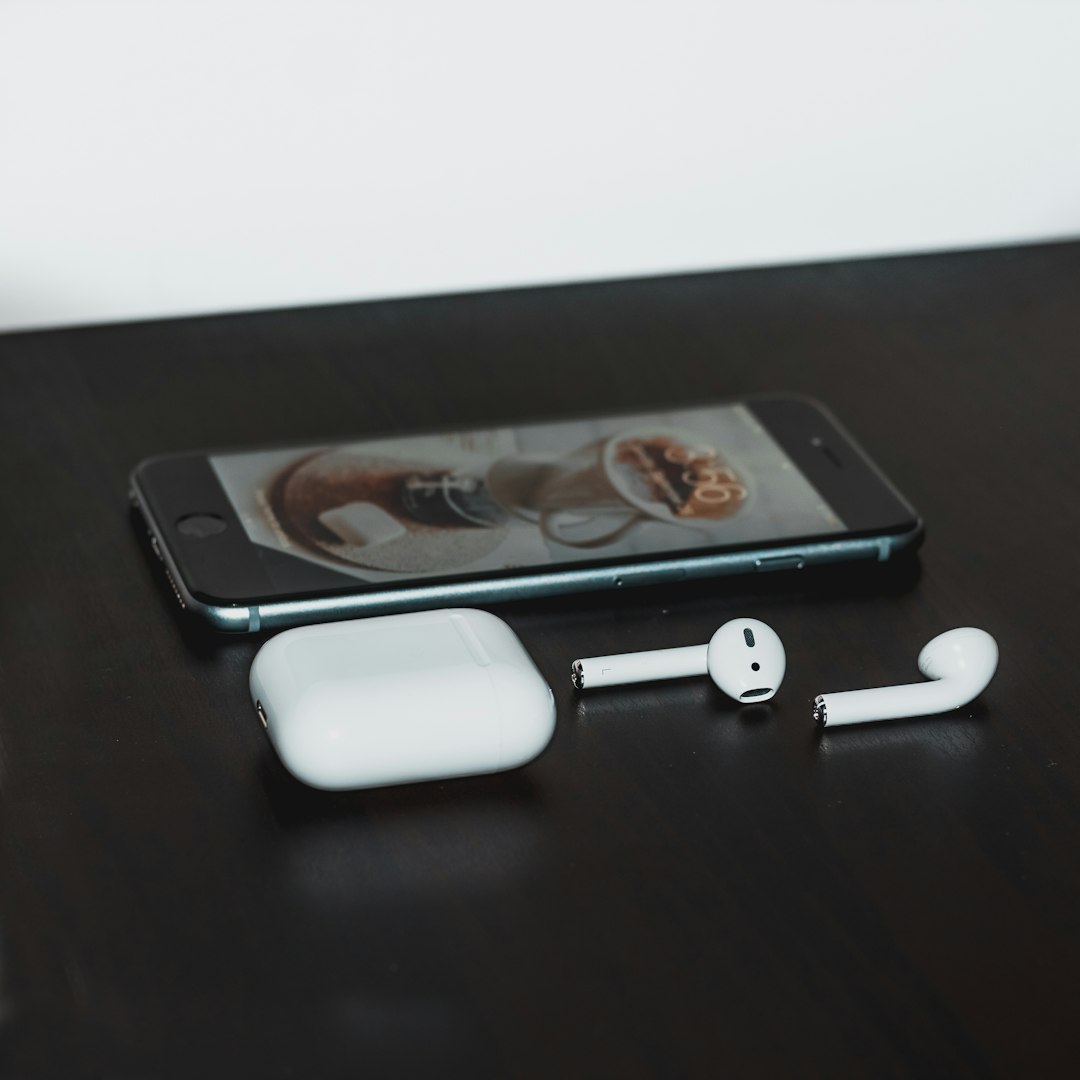
AirPods are a modern-day marvel, offering sleek design, cutting-edge audio quality, and the convenience of wireless technology. But all of that becomes less thrilling when your earbuds die unexpectedly mid-call or during your favorite song. Knowing how to check the battery level of your AirPods can save you from such frustrating moments.
TLDR: How to Check Your AirPods Battery Level
Checking the battery life of your AirPods is simple and can be done using your iPhone, iPad, Mac, Apple Watch, or even Siri. You can also use the case indicator light for quick glances. For the most accurate reading, open the case near your Apple device or check through the Batteries widget. Regardless of your Apple ecosystem, you’re only a few taps away from knowing your AirPods’ charge status.
Why Keeping Tabs on Your AirPods’ Battery is Important
Apple’s AirPods offer impressive battery life, but like any portable device, they eventually run out of juice. If you’re using them for a long phone call, an intense workout, or an extended Zoom meeting, running out of battery can throw a wrench in your plans. Monitoring battery levels gives you the advantage of charging proactively. Additionally, it helps you identify issues early if one earbud seems to be depleting power faster than the other.
Methods to Check AirPods Battery Level
Here are several ways to check your AirPods battery level across different Apple devices.
1. Using an iPhone or iPad
This is the easiest and most frequently used method by AirPods users.
- Open the Case: Bring your AirPods case close to your unlocked iPhone or iPad and open the lid. A popup will appear at the bottom of your screen showing the battery percentage for both the earbuds and the case.
- Use the Batteries Widget: Add the Batteries widget to your home or Today View screen. It displays the battery level of your AirPods whenever they’re connected.
This method is extremely useful if you’re in a hurry and need a quick glance without opening multiple settings.
2. Checking Battery with a Mac
Mac users have a couple of options too.
- Connect your AirPods to your Mac via Bluetooth.
- Click on the Bluetooth icon in the top-right menu bar.
- Hover over your AirPods in the dropdown menu.
- The battery levels for each AirPod and the case (if open) will be displayed.
This is especially useful for people who use their AirPods while working on their laptops or editing media.
3. Ask Siri
Siri can also help you check your AirPods’ battery level without swiping or tapping.
Just say:
“Hey Siri, what’s the battery life on my AirPods?”
Siri will respond with the battery percentage for each earbud and sometimes the case itself, depending on the connection status.
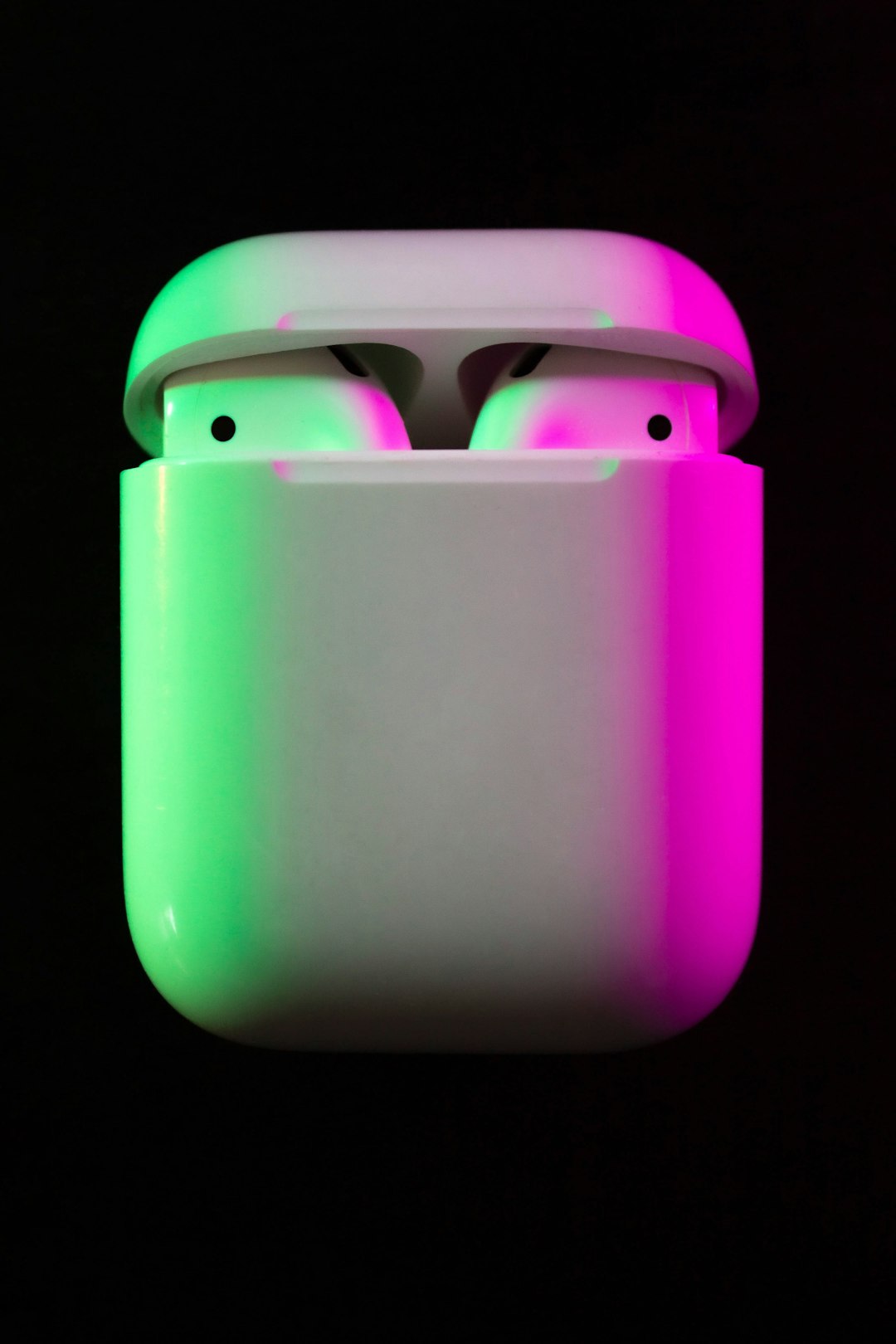
4. Look at the Charging Case LED Indicator
The light inside and outside your charging case gives you a rough idea of the battery’s charge status.
- If your AirPods are inside the case and the lid is open:
- Green: Fully charged.
- Amber: Less than one full charge remains.
- If your AirPods are not in the case and the lid is open:
- The light shows the battery status of the case itself.
- No light: The case needs to be charged.
Although this doesn’t give exact percentages, it’s perfect for quick assessments.
5. Using an Apple Watch
If you own an Apple Watch, there’s another handy way to keep tabs on your AirPods’ battery levels.
- Connect your AirPods to your Apple Watch.
- Swipe up on the watch face to access the Control Center.
- Tap the Battery percentage icon.
- The screen will show the battery level for the watch itself and connected devices like AirPods.
This is a neat way to stay informed if you’re jogging or in a scenario where checking your phone isn’t convenient.
What If One AirPod Drains Faster Than the Other?
It’s not uncommon to notice uneven battery usage between left and right AirPods. Several factors can contribute to this, such as:
- Using only one AirPod for phone calls or voice commands
- Different hardware wear or malfunctions
- Firmware issues or bugs
To try balancing the usage, alternate which earbud you use during calls or reset your AirPods to factory settings. If the issue persists, Apple Support can diagnose and possibly replace the faulty unit.
Pro Tips for Managing AirPods Battery Health
To extend the life of your AirPods and ensure accurate readings:
- Keep them clean: Debris in charging ports can disrupt connections and charging.
- Avoid full discharges: Lithium-ion batteries used in AirPods last longer when not depleted completely.
- Charge regularly: Don’t let the case or buds sit uncharged for long periods; it can lead to deep discharge and possible damage.
- Use genuine Apple charging accessories: Third-party cables and adapters may affect battery life and may not offer the same charging efficiency.

How to Add the Batteries Widget on iPhone
Want to keep battery details at your fingertips? The Batteries widget is a great tool.
- From your iPhone home screen, swipe right to reach the Today View.
- Scroll down and tap Edit.
- Tap the + icon on the top-left corner.
- Search for Batteries and pick your preferred widget size.
- Tap Add Widget.
- Place it on your Today View or home screen for easy access.
This widget will now show all Bluetooth devices currently connected to your iPhone, including AirPods and the case, with separate battery indicators.
When Your AirPods Are Not Showing Battery Info
Occasionally, AirPods may not show battery information even when connected. Here’s what you can do:
- Make sure Bluetooth is enabled on your device.
- Check that the AirPods are correctly seated in the case.
- Ensure your Apple device is running the latest iOS version.
- If needed, disconnect and then re-pair your AirPods.
Resetting the AirPods can also help if the issue persists. Simply press and hold the setup button on the back of the case until the LED flashes white, then reconnect them to your device.
Final Thoughts
Being aware of your AirPods’ battery levels is more than just a convenience—it’s a small habit that enhances your overall experience with Apple’s wireless ecosystem. Whether you’re about to hop on a video call, go for a jog, or just relax with music, you now have multiple easy and efficient ways to ensure your audio won’t be interrupted.
So next time you grab your AirPods before stepping out, take a quick look at their battery level. Because staying connected shouldn’t depend on a charge you forgot to check.