A sticky spacebar on an HP laptop can be frustrating, especially for users who rely on smooth typing for work, gaming, or school. When the spacebar fails to respond properly or feels stiff, it disrupts productivity and can even lead to typing errors. Fortunately, in most cases, the issue can be resolved with simple troubleshooting steps and basic cleaning techniques.
TLDR: A sticky spacebar on an HP laptop is usually caused by dirt, debris, or a minor mechanical misalignment under the key. Cleaning the keyboard, carefully removing and reinstalling the spacebar, or checking for hardware damage can often fix the issue. For severe cases, replacing the key mechanism or seeking professional repair may be necessary. Regular maintenance helps prevent the problem from returning.
Understanding Why an HP Laptop Spacebar Becomes Sticky
Before attempting repairs, it is important to understand why the spacebar becomes sticky. Unlike most keys, the spacebar is larger and supported by stabilizer bars beneath it. Because of its size and frequent use, it tends to accumulate more dirt and is more prone to alignment problems.
- Dirt and debris buildup
- Liquid spills
- Worn-out key stabilizers
- Broken scissor-switch mechanism
- Manufacturing defect
Identifying the root cause will determine whether a quick cleaning or more advanced repair is required.
Initial Troubleshooting Steps
Before removing any keys, the user should perform a few simple checks. Sometimes, the issue is minor and can be resolved without disassembly.
1. Restart the Laptop
Although rare, software glitches may cause delayed responses that mimic a sticky key. Restarting the laptop can rule out temporary operating system issues.
2. Check for External Debris
Using a flashlight, the user should inspect the edges of the spacebar. Crumbs, dust, or pet hair may be visible.
3. Turn the Laptop Upside Down
Gently shaking the laptop upside down can help dislodge loose debris trapped under the key.
If the spacebar remains physically sticky, the next step is cleaning.
Cleaning the Spacebar Without Removing It
In many cases, surface-level cleaning is enough to resolve the problem.
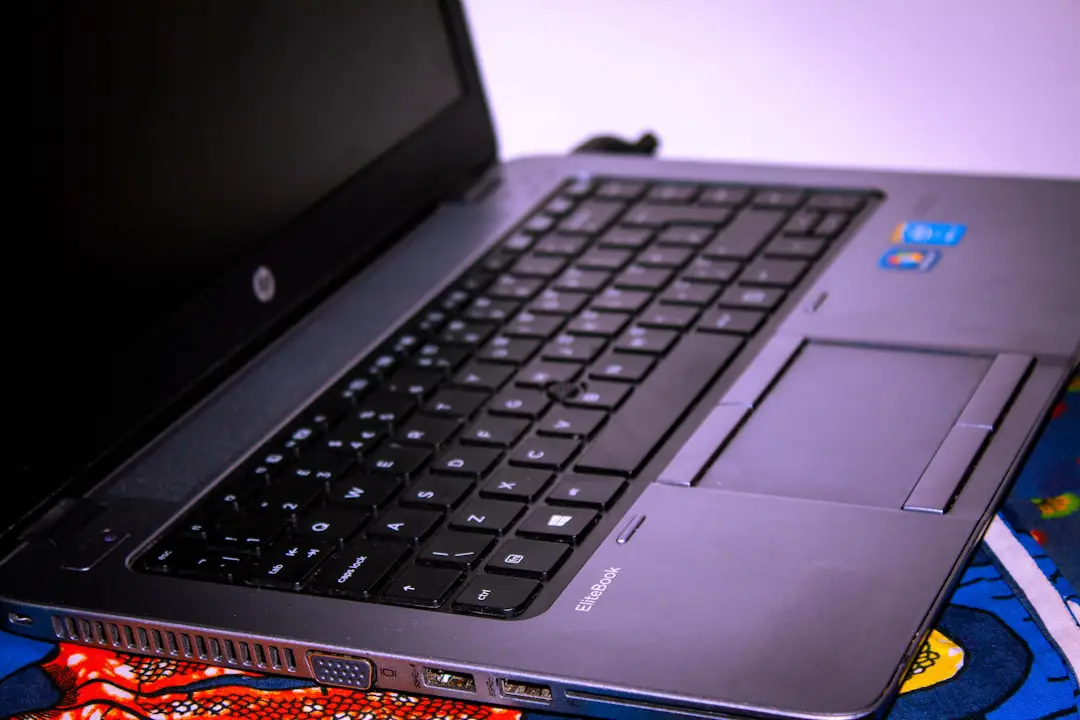
Tools Needed
- Compressed air can
- Soft microfiber cloth
- Isopropyl alcohol (70% or higher)
- Cotton swabs
Below is a quick comparison chart of common cleaning tools:
| Tool | Best For | Pros | Cons |
|---|---|---|---|
| Compressed Air | Removing loose debris | Fast and effective | Does not remove sticky residue |
| Isopropyl Alcohol | Cleaning sticky buildup | Evaporates quickly | Requires careful application |
| Microfiber Cloth | Surface cleaning | Safe and non abrasive | Limited reach under key |
| Cotton Swabs | Detail cleaning edges | Precise cleaning | Time consuming |
Cleaning Steps
- Turn off the laptop and unplug it from power.
- Use compressed air around the edges of the spacebar.
- Lightly dampen a cotton swab with isopropyl alcohol.
- Gently clean around the key edges without soaking the keyboard.
- Allow the keyboard to dry completely before turning it back on.
If the key continues sticking after cleaning, removal may be required.
Removing and Reinstalling the Spacebar
Because the spacebar is supported by stabilizer bars, it requires extra care during removal. Improper handling may break retaining clips.
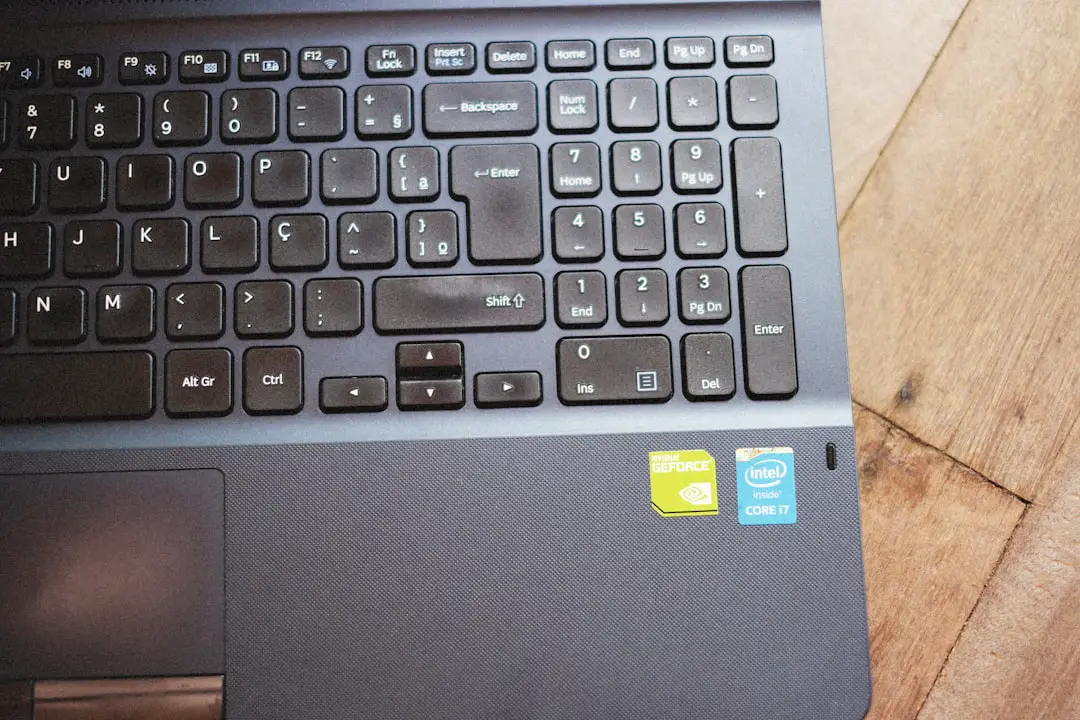
Step-by-Step Guide
- Power off the laptop completely.
- Use a plastic pry tool or a thin flat object.
- Gently lift one corner of the spacebar.
- Carefully detach the spacebar from its clips.
- Observe the metal stabilizer bar and scissor mechanisms.
Underneath, the user may find crumbs, dried liquid, or misaligned components. Using alcohol and a cotton swab, the surface can be cleaned thoroughly.
Reinstalling the Spacebar
- Ensure stabilizer bars are properly seated.
- Align the key evenly over the scissor mechanism.
- Press gently but firmly until it clicks into place.
If the stabilizer bar appears bent or broken, replacement parts may be necessary.
Fixing Liquid Damage
If the sticky spacebar resulted from a spill, deeper cleaning may be required. Sugary drinks like soda or coffee can leave residue that stiffens over time.
What To Do After a Spill
- Turn off the device immediately.
- Disconnect from power.
- Remove the spacebar and surrounding keys if necessary.
- Clean affected areas with isopropyl alcohol.
For major spills that penetrated deep into the keyboard, replacing the entire keyboard assembly might be more practical than individual repairs.
When to Replace the Spacebar Mechanism
If cleaning and reseating the key does not work, the scissor-switch or membrane beneath the key may be damaged.
Signs of Hardware Damage
- Key does not click when pressed
- Uneven or tilted key surface
- Loose stabilizer bar
- Spacebar does not register input
Replacement key kits compatible with HP laptop models are available online. These usually include:
- New spacebar keycap
- Scissor switch mechanism
- Stabilizer bar
Installation follows similar steps to removal but requires precision. If the user is unsure, professional service is recommended.
Checking Warranty Status
If the HP laptop is still under warranty, attempting DIY repairs might void coverage. Users should:
- Check warranty status on HP’s official site
- Contact HP support
- Review service options
A manufacturer repair may be free or low cost if the issue results from a factory defect.
Preventing a Sticky Spacebar in the Future
Prevention is always easier than repair. Proper maintenance significantly reduces the risk of recurring problems.
Best Practices
- Avoid eating over the keyboard
- Keep liquids away from the laptop
- Use a keyboard cover
- Clean the keyboard monthly
- Wash hands before typing
A silicone keyboard cover is particularly helpful in dusty environments or households with pets.
When to Seek Professional Repair
Professional assistance becomes necessary if:
- The spacebar remains unresponsive after repair
- Multiple keys are affected
- The keyboard shows signs of internal corrosion
- The user feels uncomfortable removing components
In some HP models, the keyboard is integrated into the palm rest assembly, making replacement more complex. A certified technician can replace the keyboard safely without damaging the motherboard.
Conclusion
A sticky spacebar on an HP laptop is usually caused by debris, residue, or minor mechanical issues under the key. In many cases, basic cleaning with compressed air and isopropyl alcohol resolves the problem. If necessary, removing and reseating the key allows for a deeper fix. For hardware damage or severe liquid spills, replacement parts or professional service may be required. With routine maintenance and cautious use, users can keep their keyboards functioning smoothly for years.
Frequently Asked Questions (FAQ)
1. Why is only the spacebar sticky and not other keys?
The spacebar is larger and used more frequently than other keys, making it more vulnerable to debris buildup and stabilizer misalignment.
2. Can a sticky spacebar fix itself?
No. While debris may occasionally shift, the issue generally requires cleaning or adjustment to fully resolve.
3. Is it safe to remove the spacebar on an HP laptop?
Yes, but it must be done carefully using a plastic tool. Forceful removal can break the stabilizer clips.
4. What type of alcohol should be used for cleaning?
Isopropyl alcohol with at least 70% concentration is recommended because it evaporates quickly and leaves minimal residue.
5. How much does it cost to replace a laptop spacebar?
Replacement key kits typically cost between $5 and $20, while full keyboard replacements may range from $40 to $150 depending on the HP model.
6. Will a sticky spacebar void my warranty?
Cleaning the surface will not, but removing internal components may affect warranty coverage. Checking with HP first is advised.
7. How can future issues be prevented?
Regular cleaning, using a keyboard cover, keeping food and liquids away, and maintaining good typing hygiene greatly reduce the risk.