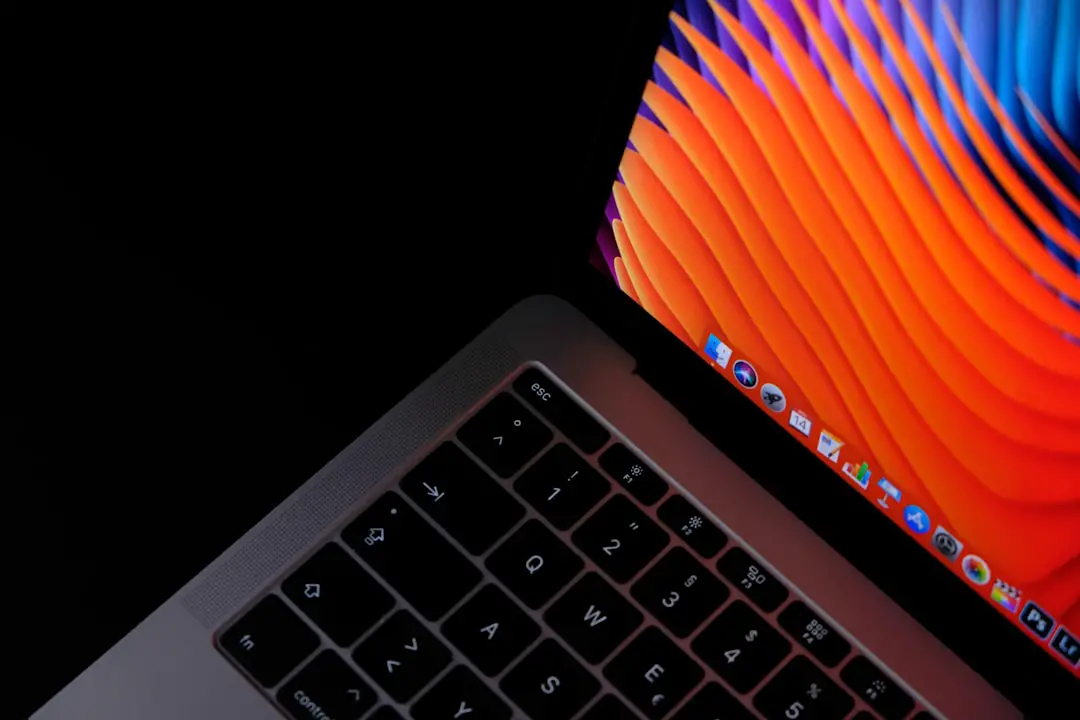
If you’ve recently spotted an unusual orange spot on your MacBook screen, you’re not alone. This issue can be both frustrating and concerning, especially on a high-end device like a MacBook. Whether it’s a faint blemish or a more prominent discoloration, understanding the cause and learning how to fix it is essential to preserving your laptop’s functionality and visual experience.
TL;DR
An orange spot on a MacBook screen is commonly caused by LCD pressure damage, overheating, or manufacturing defects. In some cases, minor issues can be resolved with simple diagnostics or settings adjustments, but persistent problems may require professional repair or screen replacement. Identifying the cause is key to choosing the right fix, and Apple Support may be necessary. Use the tips and solutions below to help determine your next steps.
Common Causes of an Orange Spot on a MacBook Screen
There are several potential reasons for an orange spot appearing on a MacBook screen. Pinpointing the root cause not only clarifies the fix but also helps prevent future occurrences. Below are the most frequent culprits:
- LCD Pressure Damage: When pressure is applied to the closed lid — from being carried in a packed bag or accidentally leaned on — it can lead to discoloration spots on the Liquid Retina Display. These may appear as orange, yellow, or brown marks.
- Heat Damage: Overheating can occasionally damage the pixels or the backlight behind the screen, leading to permanent discoloration. This can happen in hot climates or when heavy tasks overtax the system’s cooling capabilities.
- Manufacturing Defect: Some MacBooks may leave the factory with slight screen panel inconsistencies. While rare, these flaws can become more noticeable over time and appear as orange or yellow patches.
- Water or Moisture Ingress: Exposure to humidity or minor splashes of water can make their way into the screen module, creating discoloration as it reacts with inner layers.
- Delamination Issues: In older models, especially the Retina display MacBooks released before 2017, delamination of the anti-reflective coating could result in screen imperfections, including a tinted discoloration.
How to Diagnose the Issue
Before diving into fixes, it’s important to confirm the source of the problem. Here’s how to diagnose the orange spot:
- Restart the MacBook: Rule out a temporary graphics glitch by restarting the system.
- Screenshot Test: Take a screenshot of your screen and open it on another device. If the spot doesn’t appear in the screenshot, the problem is with the hardware (most likely the display).
- External Display Check: Connect your MacBook to an external monitor. If the image is clear on the external monitor, then the issue is isolated to your MacBook screen.
- Visual Inspection: With the MacBook off, shine a flashlight at the screen and inspect the area. Look for signs of pressure marks, moisture, or physical distortion.
Fixes You Can Try at Home
If the diagnosis suggests the issue is minor or temporary, you can attempt a few at-home solutions:
1. Let the MacBook Cool
If you’ve recently been using resource-heavy apps (video editing, gaming, etc.), let the MacBook rest and cool down. Sometimes, screen anomalies appear due to heat and disappear once temperatures normalize.
2. Reset NVRAM and SMC
Resetting NVRAM (non-volatile random-access memory) and SMC (System Management Controller) can resolve certain graphical glitches:
- To Reset NVRAM: Shut down and restart while holding Option + Command + P + R for about 20 seconds.
- To Reset the SMC: This varies with Mac model. For MacBooks with the T2 chip, shut down and hold Right Shift + Left Option + Left Control for 7 seconds, then press and hold the power button as well for another 7 seconds. Release all keys and wait a few more before turning it on.
3. Use Apple Diagnostics
Apple includes a built-in tool for hardware issues:
- Turn off your MacBook
- Turn it back on while holding the D key
- Follow the on-screen instructions to identify potential hardware faults
4. Clean the Screen Gently
Use a microfiber cloth lightly dampened with water (or screen-safe cleaner) to clean the area. Sometimes, stains or surface-level discoloration can appear like pixel damage but are actually residue.
When Professional Repair is Necessary
If the orange spot persists after all at-home efforts, it likely points to hardware damage. At this stage, consider professional intervention, especially in the following cases:
- LCD or backlight damage caused by pressure, heat, or accidents
- Delamination in older Retina displays — Apple used to offer limited free replacements for this issue through the Staingate Repair Program
- Out-of-warranty issues where screen replacement is the only viable option
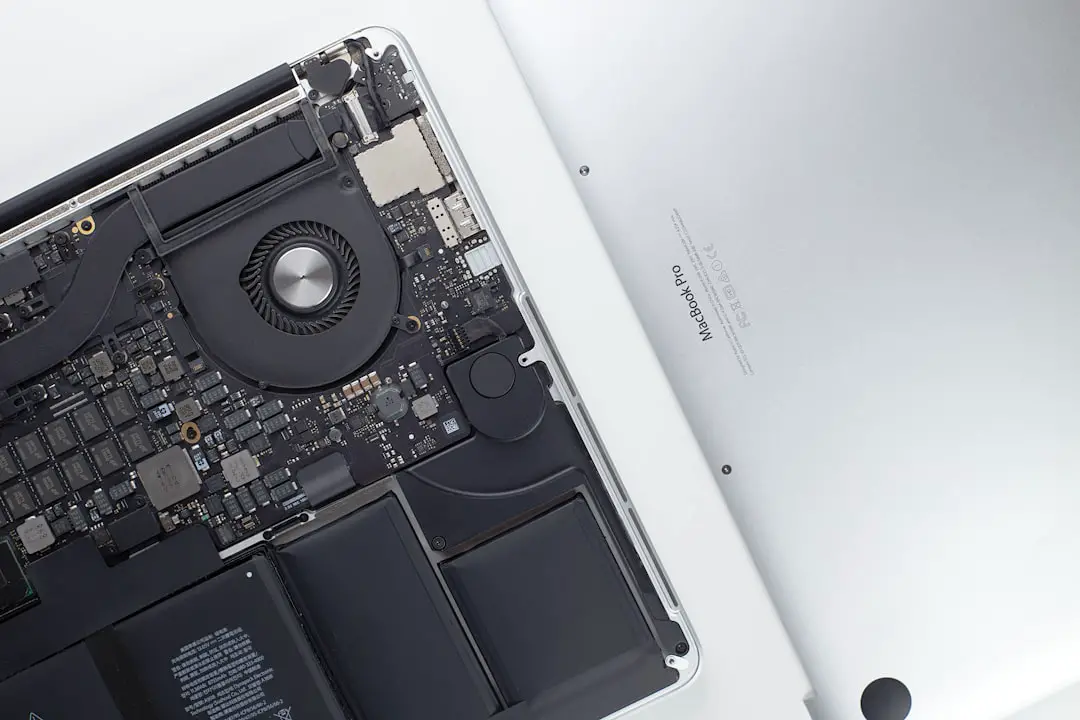
Discussing Repair & Warranty Options
If your MacBook is under warranty or covered by AppleCare+, contact Apple Support directly. Screen issues like discoloration may be covered, especially if categorized as manufacturing defects. Here’s what to do:
- Visit the Apple Support website
- Schedule a Genius Bar appointment or mail-in repair
- Back up your data before service, especially if the repair may replace the screen or logic board
Costs for out-of-warranty screen replacements can range from $300 to over $700 depending on the model and region. Third-party certified repair centers might offer slightly more affordable services but could void future Apple support.
Preventing Future Screen Issues
Prevention is the best solution. Here are some tips to protect your MacBook screen from future discoloration or damage:
- Avoid applying pressure to the lid or stacking objects on the MacBook
- Use a padded laptop sleeve when traveling with your MacBook
- Keep your workspace clean to prevent foreign particles from being trapped between screen and keyboard
- Don’t leave the MacBook in hot environments, such as in a parked car or under direct sunlight
- Keep liquids away and avoid using it in overly humid conditions
Frequently Asked Questions (FAQ)
- Q1: Is the orange spot on my screen permanent?
- It depends on the cause. If it’s due to heat or pressure damage, it may be permanent and require a screen replacement. Graphics glitches or dirt buildup may be reversible.
- Q2: Can Apple fix the orange spot for free?
- If your MacBook is under warranty or covered by AppleCare+, Apple may repair or replace the display at no cost. Delamination issues were also previously covered under a special program.
- Q3: Is it safe to continue using my MacBook with an orange spot?
- Yes, but it may interfere with your viewing experience. If the problem worsens or expands, you should seek professional repair to avoid further damage.
- Q4: Can third-party software cause screen spots?
- Not typically. Discoloration on the physical screen is almost always a hardware issue, not a software-induced one.
- Q5: How long does screen replacement take?
- Depending on the service provider, screen replacement may take 3 to 7 business days. Apple may offer faster turnaround in special cases.
While an orange spot on your MacBook screen can be alarming, identifying its cause and taking the appropriate steps can help restore your display’s integrity or