Seeing a strange watermark, shadow, or cloudy patch behind your HP laptop screen can be frustrating. It ruins movies. It makes work annoying. And it makes you wonder if your laptop is dying. The good news? Many screen shadows are fixable. And some fixes are surprisingly simple.
TLDR: Watermarks or shadows on an HP laptop screen are usually caused by pressure marks, moisture, stuck pixels, backlight bleed, or screen damage. Start with simple fixes like cleaning, pixel refresh tools, and checking display settings. If that doesn’t work, reseating cables or replacing the screen may solve the problem. Always try the easy, low-cost solutions first before jumping to repairs.
Let’s walk through the top 7 ways to fix watermark or shadow issues step by step. No tech degree needed. Just patience and care.
1. Clean the Screen the Right Way
Sometimes a “shadow” isn’t inside the screen at all. It’s just dirt, oil, or residue.
Before you panic, clean the screen properly.
What you need:
- Microfiber cloth
- Distilled water or screen-safe cleaner
- No paper towels (they scratch!)
Steps:
- Turn off your laptop.
- Unplug it.
- Lightly dampen the cloth. Not dripping.
- Wipe gently in circular motions.
If the “watermark” disappears, you’re done. Easy win.
If it remains, move to the next step.
2. Check for Pressure Marks
Did something press against your laptop lid? Maybe in a backpack?
Pressure on the screen can cause cloudy patches or shadow-like shapes.
Signs of pressure damage:
- Bright or dark blotches
- Rainbow-like spots
- Spots that change slightly when pressed
Warning: Do not press too hard. Gentle testing only.
Quick Fix Attempt:
- Turn off the laptop.
- Use a microfiber cloth.
- Massage the area very gently in small circles.
Sometimes liquid crystals shift back. Sometimes not. If the mark stays, it may be permanent LCD damage.
3. Run a Pixel Fix or Screen Repair Tool
Shadow effects can actually be stuck or dead pixels.
Stuck pixels can create faint watermark-like shapes.
The good news? Software can help.
Popular tools:
- JScreenFix
- PixelHealer
- Online RGB flashing videos
These tools rapidly flash colors. This can “unstick” frozen pixels.
| Tool | Type | Difficulty | Best For |
|---|---|---|---|
| JScreenFix | Web based | Easy | Stuck pixels |
| PixelHealer | Download | Easy | Small shadow spots |
| RGB Flash Video | Online video | Very easy | Minor pixel issues |
How to use:
- Open the tool.
- Drag the flashing box over the affected area.
- Let it run for 10–30 minutes.
This works best for small areas. Large watermarks? Probably not pixel-related.
4. Adjust Brightness, Contrast, and Color Settings
Sometimes the shadow is not damage at all.
It’s just poor display calibration.
Try this:
- Right-click on desktop.
- Open Display Settings.
- Adjust brightness.
- Check color calibration.
You can also:
- Update graphics drivers
- Switch between dark and light backgrounds
- Test an external monitor
If the shadow appears only on the laptop screen and not on an external monitor, the issue is hardware-related.
If it appears on both? It may be a graphics card problem.
5. Fix Possible Moisture Damage
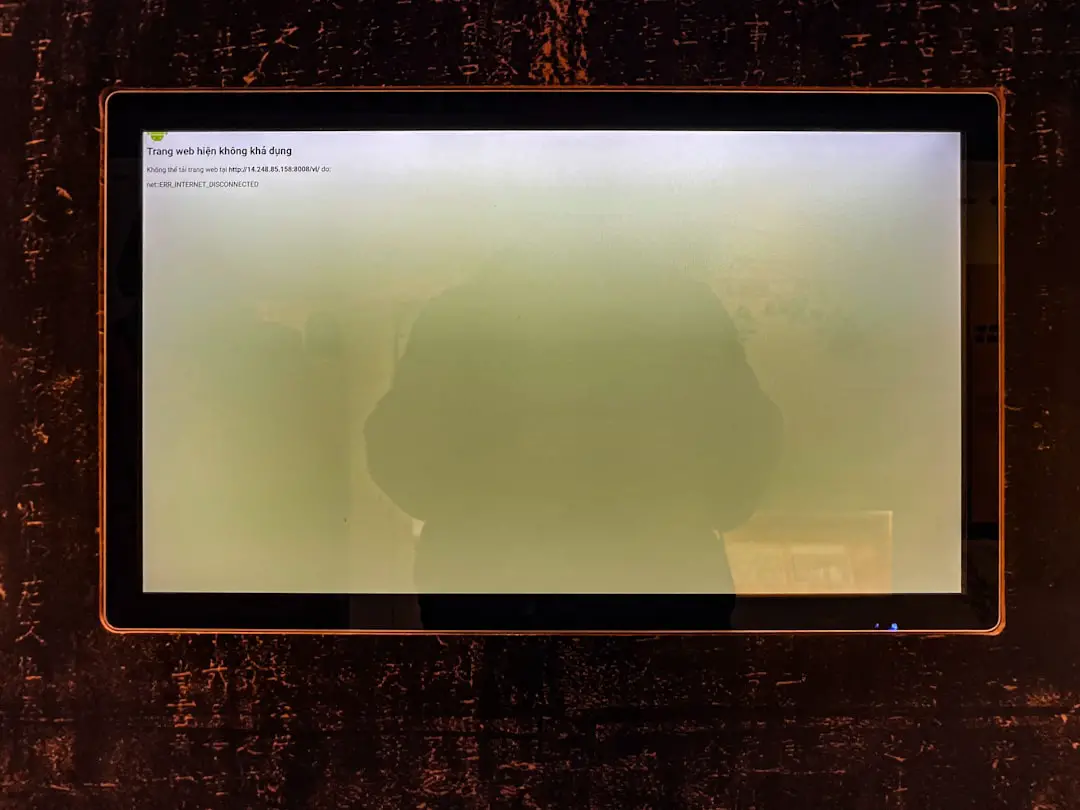
Humidity and small spills can cause watermark effects inside the screen layers.
This often looks like a faded cloud shape.
What causes it?
- Using laptop in humid rooms
- Working near steam (kitchen)
- Minor liquid splashes
What you can do:
- Turn off the laptop immediately.
- Do not charge it.
- Place it in a dry room.
- Use silica gel packs nearby.
Do not use a hair dryer. Heat can warp the screen.
Let it sit for 24–48 hours.
If the cloud fades, moisture was the cause. If not, the layers may be permanently stained.
6. Reseat the Display Cable (Advanced Fix)
If you feel comfortable opening your laptop, this might help.
A loose display cable can cause:
- Shadows
- Flickering
- Uneven brightness
Important: This may void warranty. Only proceed if confident.
Basic steps:
- Turn off laptop.
- Remove battery (if removable).
- Unscrew back panel.
- Locate display connector.
- Disconnect gently.
- Reconnect firmly.
Reassemble and test.
If the shadow changes or disappears, loose wiring was likely the issue.
If nothing changes, move to the final step.
7. Replace the Screen
Sometimes the truth is simple.
The screen is damaged.
LCD layers can separate. Backlights can bleed. Internal layers can stain.
Common permanent issues:
- Backlight bleed
- Layer separation
- Burn-in
- Liquid crystal leakage
At this point, replacement is the most reliable fix.
Your options:
- HP service center
- Local repair shop
- DIY screen replacement
| Option | Cost | Risk Level | Best For |
|---|---|---|---|
| HP Service Center | Higher | Low | Warranty users |
| Local Repair Shop | Medium | Medium | Out of warranty laptops |
| DIY Replacement | Lowest | High | Tech savvy users |
Screen replacements are often cheaper than buying a new laptop.
How to Prevent Future Watermarks or Shadows
Fixing it is good. Preventing it is better.
Smart habits:
- Use a padded laptop sleeve.
- Do not overstuff bags.
- Keep liquids away.
- Avoid high humidity rooms.
- Close laptop gently.
Also, never place heavy books on top of your laptop.
Pressure damage is more common than people think.
When Should You Worry?
Some screen shadows are harmless.
Others signal bigger issues.
Seek professional help if:
- The shadow spreads.
- The screen flickers constantly.
- There are colored vertical lines.
- The laptop overheats.
If your HP laptop is still under warranty, contact HP first. Do not open the device yourself.
Final Thoughts
A watermark or shadow behind your HP laptop screen looks scary. But it’s not always a disaster.
Start simple.
Clean it. Test pixels. Adjust settings.
Then move toward deeper fixes like checking cables or replacing the display.
Most importantly, don’t ignore it. Small screen issues can grow over time.
With careful steps and a little patience, you can often bring your screen back to life.
And if not? At least now you know exactly what to do next.
Your laptop deserves a clear view. And so do you.