If your PC suddenly feels like it is wading through wet cement, you are not imagining it. A slow computer can turn simple tasks like opening a browser, joining a video call, or saving a document into a test of patience. The good news is that most performance problems come from a handful of common hardware and software issues, and many of them are fixable without replacing the entire machine.
TLDR: A slow PC is usually caused by limited memory, an aging storage drive, too many startup programs, malware, overheating, outdated software, or overloaded hardware. Start by checking Task Manager, disabling unnecessary startup apps, scanning for malware, and freeing up storage space. If software fixes do not help, upgrading to an SSD or adding more RAM can make an older computer feel dramatically faster.
1. Too Many Programs Are Running at Startup
One of the most common reasons a PC feels slow is that it is trying to do too much the moment it turns on. Many programs quietly add themselves to your startup list when installed. Cloud storage tools, chat apps, printer utilities, game launchers, update managers, and background helpers may all start automatically, even if you rarely use them.
This can make your PC take longer to boot and leave fewer system resources available once you are at the desktop. The result is a computer that feels tired before you even open your first app.
How to fix it:
- Press Ctrl + Shift + Esc to open Task Manager.
- Go to the Startup apps tab.
- Look for apps with a High startup impact.
- Right click unnecessary items and choose Disable.
Be careful not to disable security software, touchpad utilities, or important hardware drivers. However, apps like music services, game launchers, and messaging tools can often be started manually only when needed.
2. Your PC Does Not Have Enough RAM
RAM, or random access memory, is your computer’s short-term workspace. When you open apps, browser tabs, documents, and background processes, they all use RAM. If your PC runs out of available memory, Windows starts using part of your storage drive as temporary overflow space. This is much slower, especially if you have an older hard drive.
Signs of low RAM include:
- Apps freezing when you switch between them
- Browser tabs reloading constantly
- Slow performance during video calls
- Lag when using large spreadsheets, photo editors, or design software
- High memory usage in Task Manager
For modern Windows use, 8GB of RAM is the practical minimum, while 16GB is much better for multitasking. Gamers, video editors, programmers, and creative professionals may benefit from 32GB or more.
How to fix it: First, close apps and browser tabs you do not need. Then check whether your computer supports a RAM upgrade. Desktop PCs are usually easier to upgrade than laptops, though many laptops still allow memory expansion. If your machine has only 4GB or 8GB of RAM and feels slow even after cleanup, a memory upgrade can be one of the most cost-effective improvements.
3. You Are Still Using an Old Hard Drive
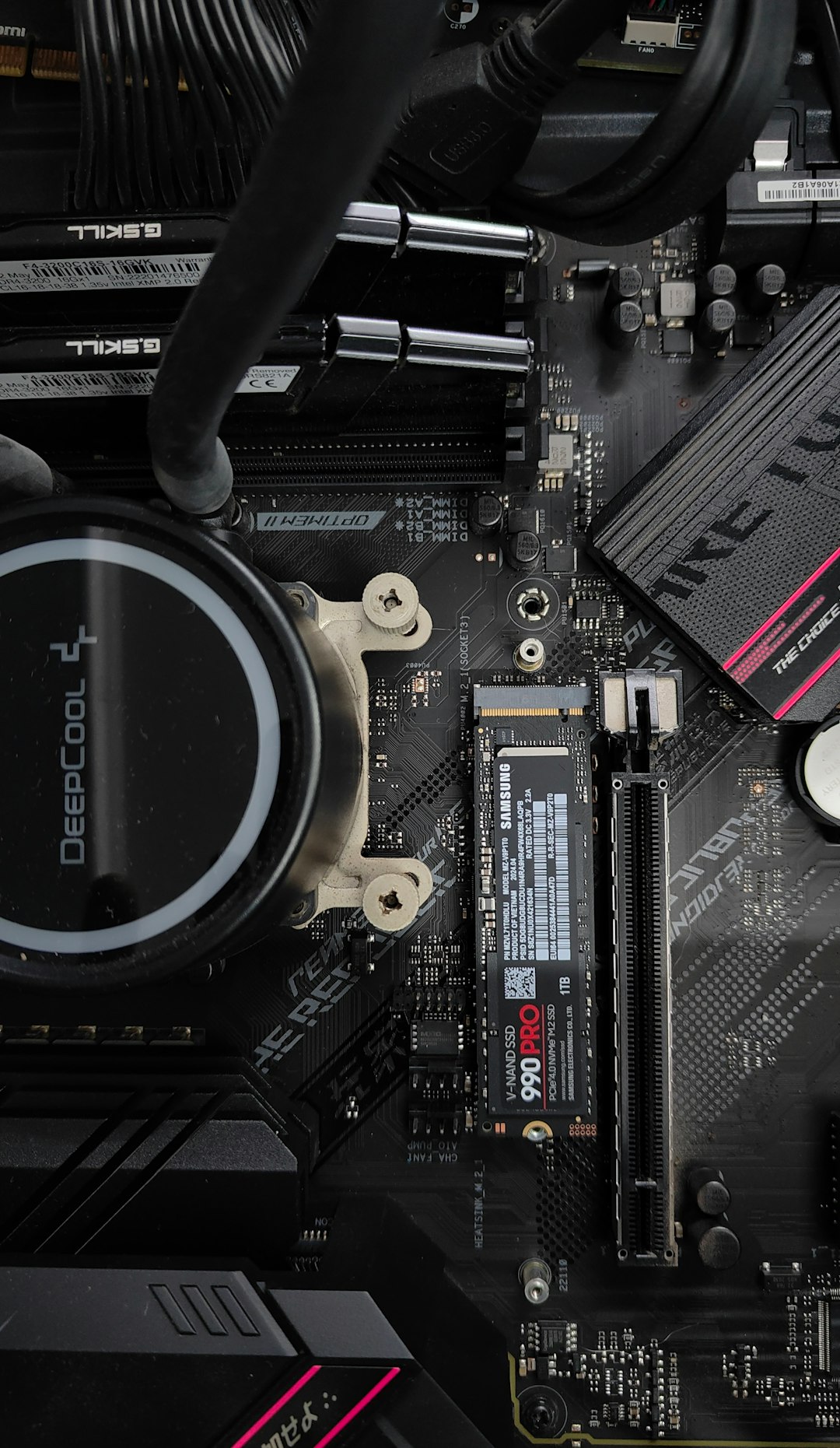
If your PC uses a traditional mechanical hard drive, also called an HDD, that may be the biggest reason it feels slow. Hard drives rely on spinning disks and moving read-write heads. They are affordable and useful for bulk storage, but they are much slower than modern solid state drives, or SSDs.
An SSD has no moving parts and can access data much faster. Upgrading from an HDD to an SSD often makes a computer boot faster, open apps quicker, and feel more responsive overall. In many cases, it is the single most noticeable upgrade you can make to an older PC.
Think of it this way: RAM helps your PC juggle tasks, while the storage drive determines how quickly it can find and load the files needed for those tasks.
How to fix it:
- Check whether your PC has an HDD or SSD by opening Task Manager and viewing the Performance tab.
- If your system drive is an HDD, consider replacing it with an SSD.
- Clone your existing drive or reinstall Windows fresh on the new SSD.
- Keep the old hard drive as extra storage if your computer has room for it.
This upgrade can breathe new life into a computer that otherwise seems outdated.
4. Your Storage Drive Is Nearly Full
Even if you already have an SSD, your PC can slow down when storage space gets tight. Windows needs free space for updates, temporary files, virtual memory, system restore points, and app caches. When your drive is almost full, the operating system has less room to work efficiently.
A good rule is to keep at least 15% to 20% of your main drive free. If your C drive is constantly in the red, performance may suffer.
How to fix it:
- Open Settings, then go to System and Storage.
- Use Temporary files cleanup to remove old update files, caches, and recycle bin contents.
- Uninstall apps and games you no longer use.
- Move large videos, photos, installers, and archives to an external drive or cloud storage.
- Enable Storage Sense to automatically clean temporary files.
Do not randomly delete files from system folders, especially anything inside Windows, Program Files, or System32. Stick to built-in cleanup tools and your own personal files.
5. Malware or Unwanted Software Is Draining Resources
Malware does not always announce itself with scary pop-ups. Sometimes it simply runs in the background, using your processor, memory, disk, or network connection. Even non-malicious unwanted software can slow things down. Toolbars, adware, browser extensions, “free” system cleaners, and bundled utilities can quietly consume resources.
Common signs include:
- Your browser opens strange pages or search engines
- Pop-ups appear even when you are not browsing
- Unknown programs show up in Task Manager
- Your fan runs loudly for no clear reason
- Performance drops suddenly after installing something
How to fix it: Run a full scan with Windows Security or another trusted antivirus tool. Then review your installed apps and browser extensions. Remove anything you do not recognize or no longer need. Be especially suspicious of programs that claim to “boost” your PC but run constantly in the background.
Also, keep your browser clean. A few useful extensions are fine, but a crowded extension list can slow down page loading and increase security risks.
6. Your PC Is Overheating
Computers are designed to slow themselves down when they get too hot. This protective behavior is called thermal throttling. It prevents hardware damage, but it also causes sluggish performance. If your PC runs well at first and then becomes slower after several minutes, heat may be the reason.
Overheating can happen because of dust buildup, blocked vents, failing fans, dried thermal paste, poor airflow, or heavy workloads in a warm room. Laptops are especially vulnerable because their cooling systems are compact.
How to fix it:
- Shut down the PC and unplug it before cleaning.
- Use compressed air to gently clear dust from vents, fans, and filters.
- Place laptops on hard, flat surfaces rather than blankets or pillows.
- Make sure desktop PCs have space around the case for airflow.
- Check whether fans are spinning normally and not making grinding noises.
If temperatures remain high, you may need deeper maintenance, such as replacing thermal paste or improving case airflow. For laptops, a cooling pad can help, but it will not fix clogged vents or a failing fan.
7. Your Software, Drivers, or Operating System Need Attention
Sometimes the problem is not old hardware but messy or outdated software. Windows updates, driver issues, corrupted system files, and poorly optimized apps can all affect performance. A graphics driver glitch can make games stutter. A buggy printer driver can create background errors. An outdated operating system can miss important performance and security improvements.
How to fix it:
- Run Windows Update and install important updates.
- Update graphics drivers from your GPU manufacturer if you play games or use creative software.
- Restart your PC regularly instead of leaving it in sleep mode for weeks.
- Uninstall old software you no longer trust or use.
- Use System File Checker by running sfc /scannow in an administrator Command Prompt.
If your PC has been upgraded through several versions of Windows, filled with years of old apps, and still runs poorly after cleanup, a fresh Windows installation may help. Back up your files first, make a list of essential programs, and ensure you have any required license information before reinstalling.
How to Diagnose the Problem Quickly
You do not need to guess blindly. Start with Task Manager. Press Ctrl + Shift + Esc and look at the Processes tab. Sort by CPU, Memory, Disk, and Network usage. If one app is using an unusually high amount of resources, you may have found the culprit.
Here is a simple troubleshooting order:
- Restart the PC to clear temporary glitches.
- Check Task Manager for resource-heavy apps.
- Disable unnecessary startup programs.
- Free up storage space.
- Scan for malware.
- Check temperatures and clean dust.
- Consider hardware upgrades, especially RAM or SSD.
This approach helps you separate quick software fixes from hardware limitations.
When Is It Time to Replace the PC?
Not every slow PC needs to be replaced. If your computer has a decent processor, supports more RAM, and can run an SSD, it may still have years of useful life. However, replacement may make more sense if the machine is very old, cannot run a supported operating system, has failing components, or costs more to repair than it is worth.
For basic browsing, email, documents, and streaming, an SSD plus 8GB to 16GB of RAM can be enough. For gaming, video editing, 3D work, and heavy multitasking, the processor and graphics card matter much more. If those are outdated, upgrades may be limited or expensive.
Final Thoughts
A slow PC is frustrating, but it is rarely a mystery once you know where to look. Begin with the simple fixes: reduce startup apps, remove junk software, free up storage, update your system, and scan for malware. Then investigate hardware: RAM, storage type, and cooling.
The biggest performance gains usually come from two upgrades: adding more RAM and switching from an old hard drive to an SSD. Combine those with good maintenance habits, and your PC can feel faster, cleaner, and more reliable without the expense of buying a brand-new machine.