If you have noticed a purple light on your iPhone, the cause is usually harmless, but the meaning depends on where you see it: near the front camera, on the screen, in photos, or as a glow seen through another camera. Because iPhones use several sensors, privacy indicators, and camera technologies, a purple-looking light can be confusing. In most cases, it is related to infrared Face ID hardware, camera reflections, display behavior, or a third-party app using certain phone functions.
TLDR: A purple light on an iPhone is most often caused by the phone’s infrared Face ID sensors, especially if you only see it through another camera. If the purple color appears on the screen or in photos, it may be related to display damage, camera lens flare, software glitches, or lighting conditions. A purple light is usually not a sign that someone is spying on you, but you should still check app permissions and privacy indicators. If the light is constant, spreading, or accompanied by screen problems, contact Apple Support or an authorized repair provider.
What People Usually Mean by a “Purple Light” on an iPhone
The phrase “purple light” can describe several different things. Before assuming your iPhone is defective or compromised, it is important to identify exactly what you are seeing. Users commonly report one of the following:
- A small purple or violet glow near the front camera, often visible in a dark room or when viewed through another phone’s camera.
- A purple dot, haze, or flare appearing in photos or videos, especially when shooting toward bright lights.
- A purple tint on the display, either across the whole screen or along one edge.
- A colored status indicator near the top of the screen that may be mistaken for purple.
- A flashing or pulsing light that appears when unlocking the phone or using Face ID.
Each of these has a different explanation. The most common and least concerning explanation is related to Face ID and infrared light.
The Most Common Cause: Face ID Infrared Light
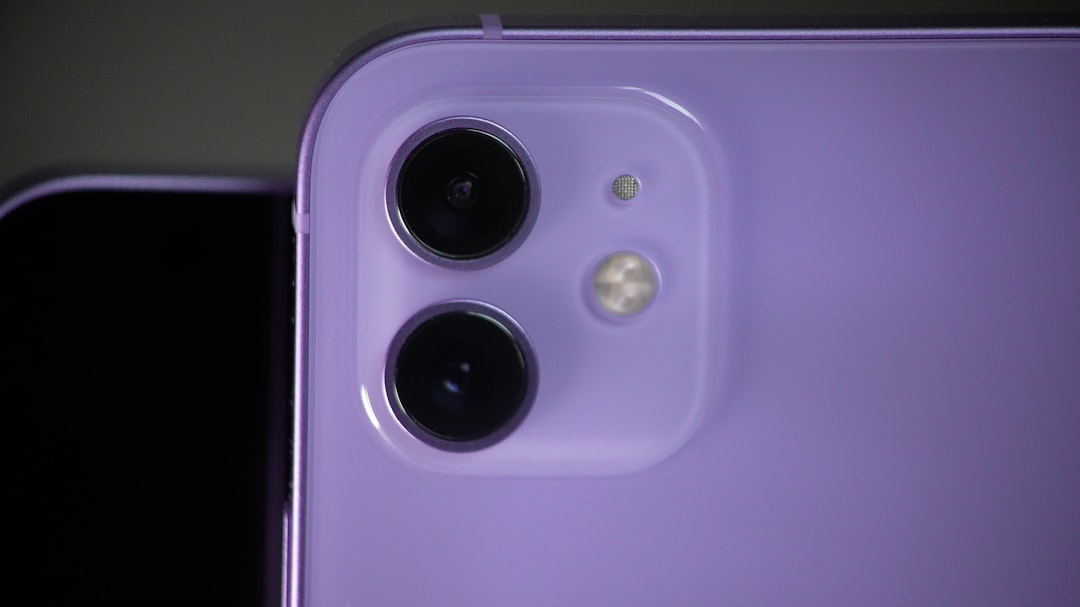
Modern iPhones with Face ID use a TrueDepth camera system located near the top of the display. This system includes components such as an infrared camera, flood illuminator, and dot projector. These parts help the phone recognize your face securely, even in low light.
Infrared light is normally invisible to the human eye. However, smartphone cameras and some digital cameras can detect certain infrared wavelengths. As a result, if you look at your iPhone through another camera while Face ID is active, you may see a faint purple, pink, or violet light near the front camera area.
This is normal. It does not mean your iPhone is recording you secretly. It usually means the Face ID system is checking for your face, adjusting attention awareness, or supporting features that rely on the TrueDepth sensors.
When Face ID May Activate the Purple Infrared Glow
You may notice the purple-looking infrared light during several ordinary actions, including:
- Unlocking your iPhone with Face ID
- Opening apps that require facial authentication, such as banking apps or password managers
- Using Apple Pay
- Looking at notifications on the lock screen
- Using Animoji, Memoji, or FaceTime features
- Using attention-aware features, such as keeping the screen awake while you are looking at it
Because these functions rely on facial detection, the sensors may turn on briefly. If you only notice the purple light through another camera, and it appears briefly near the front camera area, this is almost certainly normal behavior.
Is the Purple Light an Apple Privacy Indicator?
Apple uses privacy indicators to show when your microphone or camera is active. On recent versions of iOS, these indicators appear near the top of the screen:
- Green dot: An app is using the camera, or the camera and microphone.
- Orange dot: An app is using the microphone.
There is no standard Apple privacy indicator that is officially purple. However, depending on your wallpaper, brightness, display settings, or eyesight, the orange or green dot may appear slightly different. Some users describe the indicator as yellow, amber, reddish, or even purple under certain conditions.
If the “purple light” appears as a small dot on the screen rather than a physical glow from the phone hardware, you should check whether an app is using your microphone or camera. Swipe down from the top-right corner to open Control Center. At the top, iOS may show which app recently used the camera or microphone.
Could an App Be Using the Camera?
If you see a colored dot on the display and suspect an app is accessing your camera, it is worth reviewing your privacy settings. This is especially important if the dot appears when you are not intentionally using the camera, FaceTime, Instagram, TikTok, Zoom, or another camera-based app.
To check camera permissions:
- Open Settings.
- Tap Privacy & Security.
- Tap Camera.
- Review the list of apps with camera access.
- Turn off access for any app that does not clearly need it.
You can do the same for the microphone by going to Settings > Privacy & Security > Microphone. If you are not sure why an app needs access, deny it temporarily. A legitimate app will ask again when the feature is needed.
Purple Light or Purple Flare in iPhone Photos
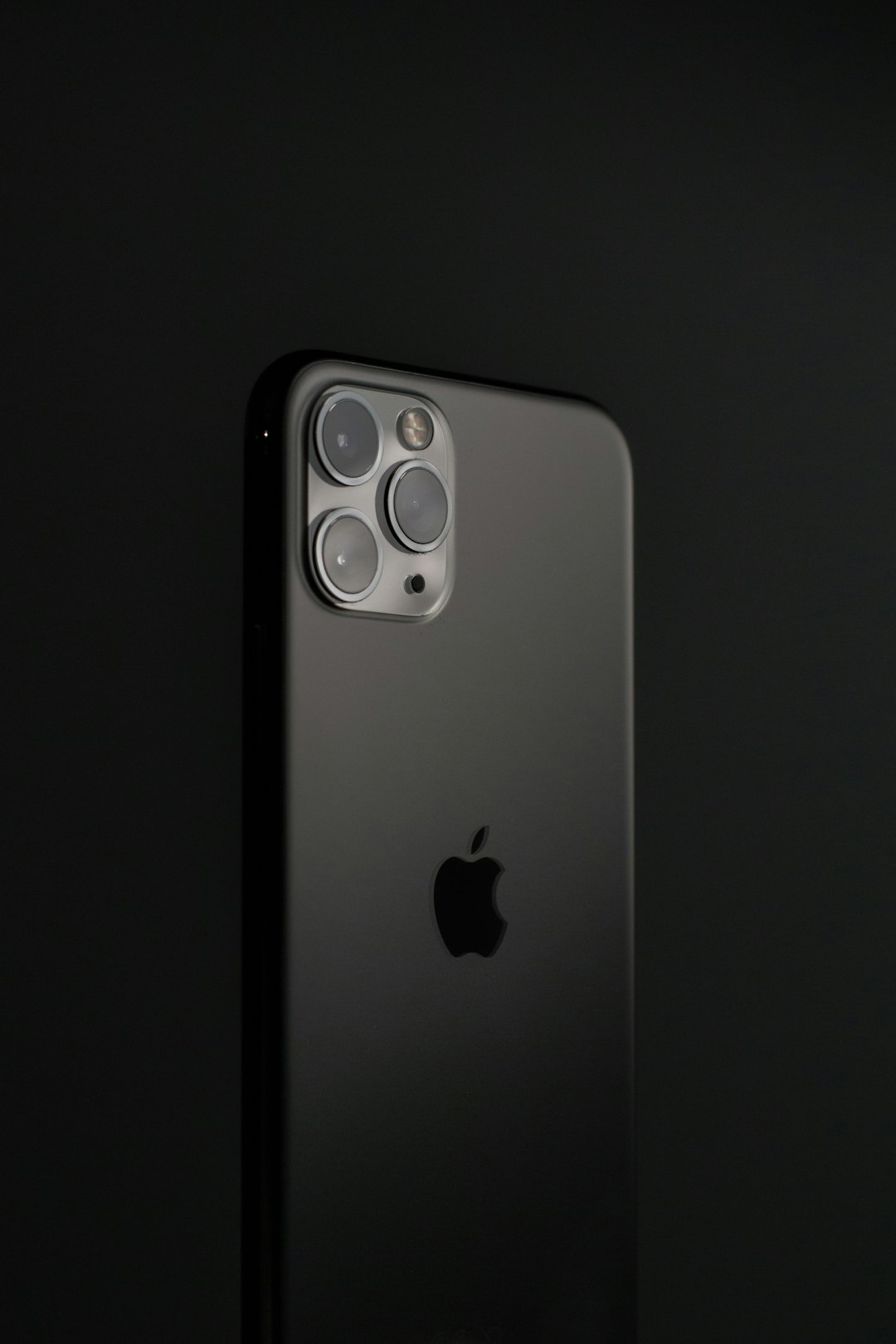
If the purple light appears in photos or videos rather than on the device itself, the issue is probably lens flare or sensor reflection. iPhone cameras are very compact and use multiple lens elements. When a bright light source enters the lens at certain angles, it can reflect internally and create colored spots, streaks, or haze.
This often happens when photographing:
- The sun or strong sunlight
- Streetlights at night
- Car headlights
- Stage lighting
- Bright lamps indoors
Purple or green flares are common in digital photography. They are not usually a sign that the camera is broken. To reduce them, slightly change the angle of the phone, shade the lens with your hand, clean the lens glass, or avoid placing bright lights near the edge of the frame.
Purple Tint on the iPhone Screen
A purple tint on the display is a different matter. If your iPhone screen itself looks purple, blotchy, or discolored, the cause may be display-related. This can happen after a drop, pressure damage, liquid exposure, overheating, or failure of the OLED or LCD panel.
Common signs of a display problem include:
- Purple patches that remain visible on all screens
- Lines or bands running vertically or horizontally
- A spreading purple area after impact
- Flickering or touch responsiveness problems
- Screen burn-in or uneven color
If the purple area is always visible, even after restarting the phone, it is likely hardware-related. In that case, back up your iPhone as soon as possible and arrange a repair assessment. A spreading purple mark can indicate damage beneath the glass, even if the outer screen is not visibly cracked.
Software Settings That Can Make the Screen Look Purple
Not every purple-looking display issue means the screen is broken. Some settings can alter the color of your iPhone display. Before seeking repair, check the following:
- Night Shift: Go to Settings > Display & Brightness > Night Shift. This changes screen warmth and can affect how colors appear.
- True Tone: In Display & Brightness, True Tone adjusts the display based on ambient light.
- Color Filters: Go to Settings > Accessibility > Display & Text Size > Color Filters. If enabled, this can significantly change screen colors.
- Reduce White Point: Also under Accessibility, this can affect contrast and perceived color.
If turning these features off fixes the purple tint, the phone is probably functioning normally. If the tint remains unchanged, the cause is more likely to be physical display damage or a software problem requiring further troubleshooting.
Restart and Update Your iPhone
For unexplained visual behavior, a restart is a sensible first step. Temporary software glitches can affect the display, camera, or privacy indicators. Restart your iPhone, then check whether the purple light or tint remains.
You should also install the latest available iOS update. Apple regularly fixes bugs related to camera behavior, display performance, Face ID, and privacy notifications. To update, go to Settings > General > Software Update.
If the issue began immediately after an update, give the phone a restart and check your settings. If the issue continues, monitor whether it appears only in specific apps. App-specific problems may be resolved by updating or reinstalling the app.
When the Purple Light Is Normal
A purple light is usually normal if:
- It appears near the front camera area.
- You mainly see it through another phone’s camera.
- It appears briefly when Face ID is active.
- Your iPhone works normally otherwise.
- There are no screen lines, spreading marks, or camera failures.
In this situation, the purple light is likely infrared illumination from the TrueDepth system. This is part of how the iPhone securely recognizes your face and supports related features.
When You Should Be Concerned
You should take the issue more seriously if the purple light or color appears in any of these ways:
- A purple stain is spreading across the screen.
- The screen flickers, freezes, or becomes unresponsive.
- The camera shows purple artifacts in every photo.
- The privacy indicator appears constantly when no camera or microphone app should be active.
- The phone recently suffered a drop, liquid exposure, or overheating.
- Face ID stops working at the same time the light appears.
These symptoms may indicate hardware damage, a failing display, camera module problems, or an app permission issue. If the phone is under warranty or covered by AppleCare, contact Apple Support before attempting any repair.
How to Protect Your Privacy
Although a purple infrared glow is usually harmless, it is reasonable to review privacy settings if you are worried. Apple provides several tools to help you control app access.
- Check Camera and Microphone permissions under Privacy & Security.
- Remove apps you do not recognize or no longer use.
- Look in Control Center when a privacy indicator appears.
- Keep iOS updated.
- Use a strong passcode and enable Face ID only for trusted functions.
You can also review Settings > Privacy & Security > App Privacy Report if it is enabled. This feature can show how often apps access sensitive data and sensors.
Should You Cover the Camera or Sensors?
Some users consider covering the front camera or Face ID sensors after noticing a purple light. While this may seem reassuring, it can interfere with normal iPhone functions. Covering the TrueDepth area may prevent Face ID from working correctly, affect calls, reduce screen attention features, or cause repeated authentication failures.
If you are concerned about privacy, it is better to manage app permissions rather than physically block sensors. The iPhone’s privacy indicators and permission controls are designed to give you visibility and control without disabling important hardware.
Final Answer: Why Is There a Purple Light on Your iPhone?
In most cases, a purple light on your iPhone is caused by infrared light from the Face ID TrueDepth camera system. This light is normally invisible, but another camera may capture it as a purple or violet glow. If the purple color appears in photos, it is likely lens flare. If it appears on the screen itself, it may be a display setting, software issue, or hardware damage.
The safest approach is to identify where the purple light appears, check app permissions, restart and update your iPhone, and inspect the display for signs of damage. If the light is brief and linked to Face ID, it is almost certainly normal. If it is constant, spreading, or affecting performance, seek professional support from Apple or an authorized service provider.