OMNY has rapidly become a cornerstone of public transportation in New York City, offering riders a contactless and convenient way to pay fares. However, like any digital payment system, it is not immune to occasional issues. One of the most frustrating problems users encounter is the “Unexpected Error” message, which can appear when tapping a card or mobile device at a turnstile or while managing an OMNY account online. Understanding why this error occurs and how to fix it can help you avoid delays and unnecessary stress during your commute.
TL;DR: The OMNY “Unexpected Error” usually appears due to payment authorization failures, network connectivity issues, outdated app or device software, or temporary system outages. In many cases, the problem can be fixed by checking your payment method, ensuring your device has an internet connection, updating software, or contacting your bank. If the issue persists, OMNY customer support can review your account and resolve backend restrictions. Acting quickly can prevent commute interruptions and repeat errors.
What Does the OMNY “Unexpected Error” Mean?
The phrase “Unexpected Error” is intentionally broad. It does not always point to one specific failure. Instead, it signals that the system was unable to process your request successfully. This can happen at physical turnstiles, on buses, or while accessing your OMNY account online.
Typically, the error falls into one of these categories:
- Payment authorization failure
- Card communication issue
- Insufficient funds
- Backend account flag
- Temporary system outage or maintenance
Identifying which scenario applies to you is the first step toward resolving the issue efficiently.
1. Payment Authorization Problems
The most common cause of the OMNY “Unexpected Error” is a payment authorization failure. OMNY relies on your bank or card issuer to approve charges in real time. If your bank declines the transaction, OMNY cannot proceed.
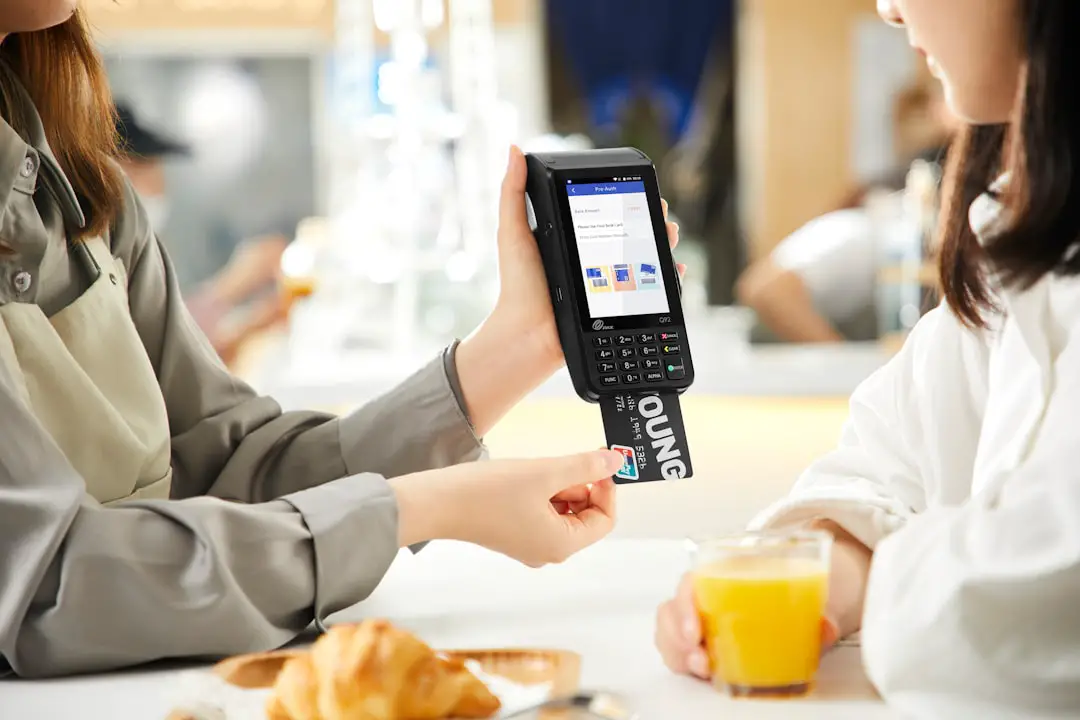
Common triggers include:
- Insufficient funds in checking account
- Expired debit or credit card
- Fraud prevention lock by your bank
- Daily transaction limits exceeded
- Incorrect billing details for linked payment method
How to Fix It
- Check your bank account balance.
- Verify that your card is not expired.
- Review your bank’s mobile app for declined transactions.
- Contact your bank to confirm no fraud hold is in place.
- Remove and re-add your card in your OMNY account if necessary.
If your bank confirms approval but the error continues, the issue may be on OMNY’s side.
2. Network or Connectivity Issues
Although OMNY readers are designed to work quickly and efficiently, they still rely on network connections. A weak connection at the turnstile or a brief outage on the MTA network can trigger a generic error message.
Additionally, if you are using:
- Apple Pay
- Google Wallet
- Samsung Wallet
Your device must be functioning correctly and, in some cases, recently authenticated.
How to Fix It
- Wait a few seconds and try tapping again.
- Ensure your phone’s NFC feature is enabled.
- Restart your phone if the error repeats.
- Make sure your device has battery power above critical levels.
In cases of a broader outage, you may need to use an alternative payment method temporarily.
3. Conflicts With Express Transit Settings
Modern smartphones offer an “Express Transit” or similar feature that allows tap-to-pay without unlocking the device. If multiple cards are stored in your digital wallet, the wrong card may be selected automatically.
This can lead to unexpected denials if the default card is:
- Expired
- Locked
- Not funded
How to Fix It
- Open your phone’s wallet settings.
- Verify your designated express transit card.
- Remove outdated or invalid cards.
- Reassign the correct payment method.
After adjusting these settings, attempt another tap at the reader.
4. OMNY Account Flags or Suspension
In some cases, OMNY may temporarily restrict an account after repeated failed transactions. For example, if multiple taps were attempted without successful payment authorization, the system may block further attempts until the issue is resolved.

This often happens when:
- A prior charge was reversed or disputed
- Bank payment was returned unpaid
- There are unresolved negative balances
How to Fix It
- Log into your OMNY online account.
- Check for unpaid fares or notifications.
- Update your payment method.
- Pay any outstanding balance immediately.
If you cannot identify the issue online, contacting OMNY customer support directly is the safest and most reliable next step.
5. Card Damage or Tap Recognition Failure
Physical cards can wear out over time. Bent cards, damaged NFC chips, or even interference from other contactless cards in your wallet may prevent proper communication with the OMNY reader.
How to Fix It
- Remove your card from your wallet before tapping.
- Avoid stacking multiple contactless cards together.
- Inspect the card for visible damage.
- Request a replacement card from your bank if needed.
Simple physical adjustments often resolve the issue instantly.
6. Browser or Online Account Errors
The “Unexpected Error” message may also appear when accessing your OMNY account via a web browser. This typically stems from session timeouts, outdated browser versions, or cookie conflicts.
How to Fix It
- Refresh the page.
- Clear browser cache and cookies.
- Try a different browser.
- Ensure your browser is fully updated.
- Disable browser extensions temporarily.
If the problem persists across multiple browsers and devices, the issue may be related to server-side maintenance.
Quick Comparison: Common Causes and Solutions
| Cause | Symptoms | Primary Fix |
|---|---|---|
| Bank Decline | Immediate tap rejection | Contact bank and verify funds |
| Device Wallet Error | Phone tap fails repeatedly | Check express transit card settings |
| Account Suspension | Multiple failed taps after prior issue | Pay outstanding balance |
| Damaged Card | Reader does not recognize card | Replace or tap card alone |
| System Outage | Multiple users affected | Wait and use backup payment |
When to Contact OMNY Support
If you have:
- Confirmed your bank approved the charge
- Verified your card or wallet is functioning
- Cleared any outstanding balances
- Attempted multiple valid taps
And the error still appears, it is time to escalate the matter.
Image not found in postmetaWhen contacting support, be prepared to provide:
- Date and time of failed tap
- Station or bus route
- Last four digits of your card
- Screenshots if applicable
This information accelerates the investigation process and improves your chances of a swift resolution.
Preventing Future “Unexpected Error” Messages
While not all errors are avoidable, proactive steps can significantly reduce your risk.
- Regularly monitor your bank account for declining transactions
- Keep your mobile wallet updated
- Replace expired cards promptly
- Avoid repeated rapid taps after a failure
- Maintain a backup payment method during travel
Consistency and routine account checks make a substantial difference.
Final Thoughts
The OMNY “Unexpected Error” can be inconvenient, particularly during peak commuting hours. However, it is rarely random. In most cases, it reflects a solvable issue tied to payment authorization, connectivity, device settings, or account status. By approaching the situation methodically—checking your bank, reviewing your wallet setup, and verifying your OMNY account—you can typically restore normal function quickly.
A reliable commute depends on more than infrastructure; it also depends on understanding how modern payment systems work. With the right troubleshooting steps and timely support when needed, you can ensure that OMNY continues to serve as the seamless transit solution it was designed to be.