
PC benchmarking plays a critical role in understanding how well a computer performs under pressure. Whether someone is a gamer, content creator, or hardware enthusiast, testing CPU, GPU, and overall system performance helps identify bottlenecks and compare results against industry standards. While 3DMark is one of the most recognized benchmarking suites, there are several powerful alternatives that provide equally valuable insights into hardware performance.
TLDR: Several benchmarking tools offer functionality similar to 3DMark for testing system performance. Unigine Heaven, Cinebench, and PCMark are three excellent alternatives that evaluate different aspects of a PC, including graphics, CPU strength, and real-world usability. Each tool provides detailed performance metrics and comparison scores. Choosing the right one depends on whether the focus is gaming, rendering, or overall system productivity.
Why Use Benchmarking Tools?
Benchmarking software stresses hardware components under controlled conditions to measure performance, stability, and thermal behavior. These tests provide:
- Standardized performance scores for comparison with other systems
- Insight into GPU and CPU limitations
- Evidence of thermal throttling or stability issues
- Data to support overclocking adjustments
While 3DMark is widely popular for GPU-heavy benchmarking, alternatives can focus more deeply on specific components or simulate real-world workloads.
1. Unigine Heaven
Best for: GPU stress testing and gaming performance evaluation
Unigine Heaven is one of the most well-known graphics benchmarking tools available. It tests the GPU using a visually rich fantasy environment filled with dynamic lighting, complex textures, and advanced tessellation effects. Designed with DirectX and OpenGL support, it pushes graphics cards to their limits in a manner similar to 3DMark’s Time Spy or Fire Strike tests.

Key Features of Unigine Heaven
- Advanced GPU stress testing
- Real-time temperature and FPS monitoring
- Customizable resolutions and graphic settings
- Support for DirectX and OpenGL
- Detailed scoring system
Unigine Heaven is particularly useful for gamers who want to assess performance after installing a new graphics card or overclocking an existing one. Because the benchmark renders a continuous 3D environment, users can visually identify stutters, artifacts, or instability.
Unlike synthetic tests that present short bursts of load, Heaven provides a longer, sustained stress test. This helps evaluate thermal stability and throttling behavior, which are critical for high-performance gaming systems.
Who Should Use It?
This tool is ideal for:
- PC gamers
- Overclocking enthusiasts
- Users upgrading their GPU
- System builders validating hardware stability
2. Cinebench
Best for: CPU performance testing and rendering benchmarks
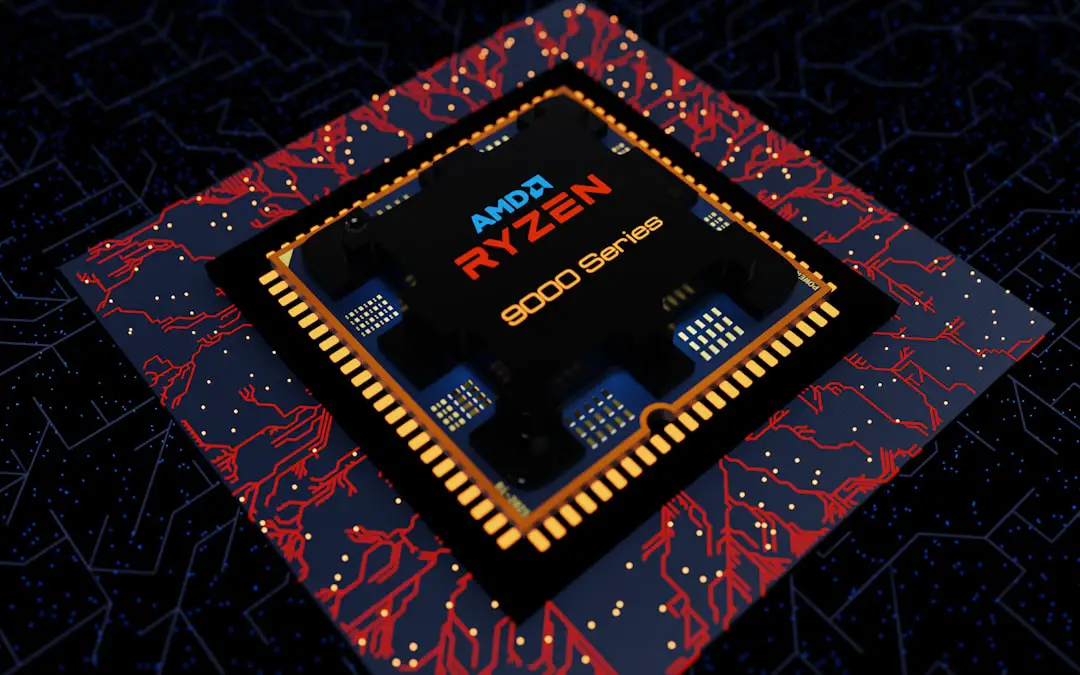
Unlike GPU-focused tools, Cinebench concentrates on evaluating CPU rendering capabilities. Developed around Maxon’s Cinema 4D engine, it measures how efficiently a processor handles complex 3D rendering tasks. It is one of the most reliable tools for testing both single-core and multi-core CPU performance.
Key Features of Cinebench
- Single-core and multi-core performance tests
- Real-world rendering workload simulation
- Cross-platform compatibility
- Simple and intuitive interface
- Industry-respected scoring metrics
Cinebench stands out because it mirrors real production rendering tasks. Rather than creating artificial stress scenarios, it renders a complex 3D image, distributing the load across available cores. The final score reflects how quickly the processor completes the task.
This makes Cinebench particularly valuable for:
- Video editors
- 3D artists
- Engineers using simulation software
- Developers testing workstation builds
For users comparing CPUs, Cinebench provides a straightforward comparison metric. A processor with more cores and efficient architecture will typically outperform models with lower thread counts in multi-core testing.
Tip: When evaluating gaming performance specifically, users should pay attention to single-core scores, as many games still prioritize strong individual core performance.
3. PCMark
Best for: Overall system performance testing
While tools like Unigine Heaven and Cinebench focus on individual components, PCMark evaluates the complete system. It simulates real-world tasks such as web browsing, document editing, video conferencing, photo editing, and digital content creation.
Key Features of PCMark
- Comprehensive system-wide testing
- Real-world application simulations
- Storage performance evaluation
- Battery life benchmarks for laptops
- Detailed performance breakdowns
PCMark differs from synthetic gaming benchmarks by emphasizing everyday productivity scenarios. This makes it ideal for office computers, business laptops, and home systems that prioritize multitasking over raw gaming performance.
Instead of measuring just frame rates or rendering times, PCMark tests how quickly systems complete common operations like:
- Launching applications
- Editing spreadsheets
- Rendering lightweight images
- Browsing with multiple tabs open
The final score reflects real-world usability rather than peak theoretical output. This approach helps buyers determine whether a PC is suitable for professional workloads.
Comparing These Tools to 3DMark
Each of these alternatives mirrors certain aspects of 3DMark but serves slightly different goals:
- Unigine Heaven focuses heavily on GPU stress testing and gaming visuals.
- Cinebench specializes in CPU rendering performance.
- PCMark measures system-wide performance using everyday tasks.
3DMark is often considered a hybrid benchmark with multiple test categories. However, users seeking more specific metrics may prefer specialized tools that isolate CPU or productivity workloads.
In practice, experienced hardware testers often use multiple benchmarking applications rather than relying on a single test suite. Combining GPU, CPU, and full-system benchmarks provides a more complete evaluation of performance.
How to Choose the Right Benchmarking Tool
Selecting the right benchmarking software depends on the user’s goal:
For Gaming:
- Choose Unigine Heaven for extended GPU analysis.
- Use alongside Cinebench to ensure CPU bottlenecks are identified.
For Content Creation:
- Cinebench is ideal for rendering-heavy workflows.
- PCMark can assess creative task performance.
For General Productivity:
- PCMark offers the most relevant everyday performance insights.
It’s also important to consider system compatibility, operating system support, and whether the tool provides customizable test parameters.
Best Practices for Accurate Benchmarking
To achieve reliable results, users should follow a few best practices:
- Close background applications before testing.
- Ensure drivers are updated.
- Run multiple tests and average the results.
- Monitor temperatures during the benchmark.
- Avoid running benchmarks immediately after system startup.
Environmental factors such as room temperature and airflow can influence scores, especially during GPU-heavy tests. Consistency is essential when comparing results over time.
Final Thoughts
While 3DMark remains a leading benchmarking suite, alternatives like Unigine Heaven, Cinebench, and PCMark offer robust and specialized testing options. Each tool excels in a specific performance domain, from gaming graphics to CPU rendering or everyday productivity.
By understanding what each benchmark measures, users can make informed decisions about hardware upgrades, system optimization, and performance expectations. In many cases, combining multiple tools provides the clearest picture of a PC’s real capabilities.
Frequently Asked Questions (FAQ)
1. Are these benchmarking tools free to use?
Many benchmarking tools offer free versions with core functionality. Some advanced features, extended tests, or professional editions may require payment.
2. How often should someone benchmark their PC?
Benchmarking is typically recommended after hardware upgrades, overclocking adjustments, major driver updates, or when diagnosing performance issues.
3. Can benchmarking damage a computer?
Benchmarking itself does not damage hardware if the system is properly cooled and stable. However, stress testing can reveal cooling deficiencies or instability in overclocked systems.
4. Why do benchmark scores vary between runs?
Scores may vary due to background processes, thermal differences, driver changes, or minor fluctuations in system activity. Running multiple tests and averaging results improves accuracy.
5. Should gamers rely on a single benchmarking tool?
No. Using multiple benchmarking applications provides a more comprehensive performance assessment, identifying both GPU and CPU bottlenecks.
6. Do higher benchmark scores always mean better gaming performance?
Not necessarily. While higher scores generally indicate stronger hardware, real-world gaming performance also depends on game optimization, driver support, and resolution settings.