
Adding a printer to a Mac is usually straightforward, but the exact steps depend on whether the printer connects by USB, Ethernet, Wi Fi, AirPrint, or a manufacturer’s setup utility. macOS includes reliable built-in printer support, so in many cases you do not need to install anything manually. Still, taking a careful approach helps prevent connection problems, duplicate printer entries, and missing features such as scanning or double-sided printing.
TLDR: To add a printer on a Mac, open System Settings, go to Printers & Scanners, and click Add Printer, Scanner, or Fax. For wired printers, connect the USB or Ethernet cable first; for wireless printers, make sure the printer and Mac are on the same network. Choose the printer from the list, confirm the correct driver or AirPrint option, and click Add. If the printer does not appear, restart the devices, check the network, and install the latest software from the manufacturer if needed.
Before You Add the Printer
Before starting, confirm that the printer is powered on and ready. If it has a display panel, check that there are no hardware errors such as paper jams, empty trays, or low ink warnings. A printer that appears offline or unavailable often has a simple physical issue rather than a Mac configuration problem.
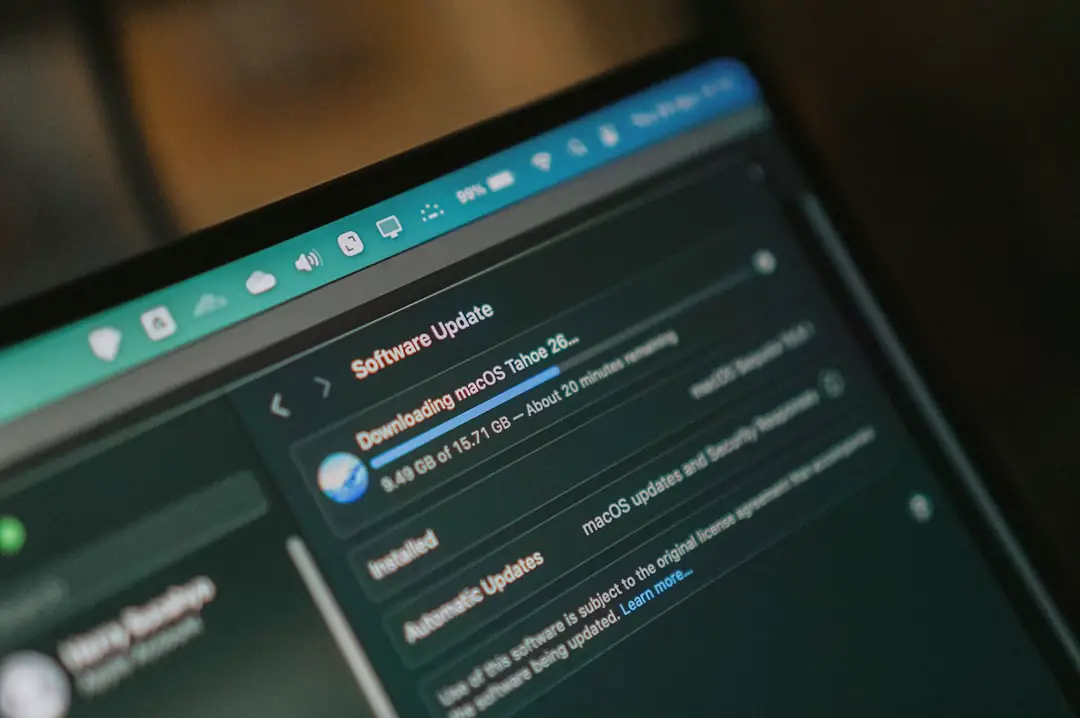
You should also make sure your Mac is updated. Apple regularly improves printer compatibility through macOS updates, especially for AirPrint and driver handling. To check for updates, open System Settings, select General, then choose Software Update. Install any available update if you can safely do so.
- For USB printers: have a suitable cable and any required adapter ready.
- For Ethernet printers: confirm the printer is connected to your router or network switch.
- For wireless printers: connect the printer to the same Wi Fi network as your Mac.
- For office printers: ask your IT department whether you need an IP address, print queue name, or authentication details.

How to Add a Wired USB Printer on Mac
A USB connection is often the simplest and most stable option, especially for home printers or small office devices. In many cases, macOS detects the printer automatically as soon as it is connected.
- Turn on the printer and wait until it finishes starting up.
- Connect the printer to your Mac using a USB cable. If your Mac only has USB C ports, use a reliable USB C adapter or hub.
- If a message appears asking whether you want to download or install printer software, follow the prompt.
- Open System Settings from the Apple menu.
- Click Printers & Scanners in the sidebar.
- Click Add Printer, Scanner, or Fax.
- Select your printer from the list.
- Check the Use field. In most cases, AirPrint or the suggested printer driver is appropriate.
- Click Add.
After the printer is added, print a test page or a simple document. If it prints correctly, the setup is complete. If it does not, remove the printer from Printers & Scanners, disconnect the cable, restart both the Mac and printer, then try again.
How to Add a Wired Ethernet Printer on Mac
An Ethernet printer connects directly to your network rather than directly to your Mac. This is common in offices and is often more reliable than Wi Fi because the printer remains connected to the router or network switch with a physical cable.
First, connect the printer to the network using an Ethernet cable. Many printers will automatically receive an IP address from the router. You can usually find this address by printing a network configuration page from the printer’s control panel.
- Open System Settings on your Mac.
- Select Printers & Scanners.
- Click Add Printer, Scanner, or Fax.
- Look for the printer in the Default tab.
- Select it, confirm the correct driver under Use, and click Add.
If the printer does not appear automatically, you may need to add it by IP address:
- In the Add Printer window, click the IP tab.
- Enter the printer’s IP address.
- Choose a protocol. AirPrint, IPP, or LPD may be used depending on the printer and network.
- Give the printer a clear name, such as Office Printer or Reception Laser Printer.
- Choose the recommended driver in the Use menu.
- Click Add.
If you are in a managed workplace, avoid guessing settings. Incorrect protocols or queue names can cause print jobs to disappear or remain stuck. Ask your administrator for the official printer address and configuration details.
How to Add a Wireless Printer on Mac
Wireless printers are convenient because they can be placed almost anywhere within Wi Fi range. However, they also depend on a stable network connection. The most important rule is simple: your Mac and printer must be connected to the same Wi Fi network, unless your organization uses a more advanced print server setup.
Start by connecting the printer to Wi Fi. The process varies by model, but most printers offer one of the following methods:
- Printer touchscreen: choose your Wi Fi network and enter the password directly on the printer.
- Manufacturer app: use the printer company’s setup app to send Wi Fi settings to the printer.
- WPS button: press the WPS button on the router and then activate WPS on the printer, if supported.

Once the printer is connected to Wi Fi, add it to your Mac:
- Open System Settings.
- Go to Printers & Scanners.
- Click Add Printer, Scanner, or Fax.
- Wait a few moments for macOS to search the network.
- Select the wireless printer when it appears.
- Check the Use field. If AirPrint is available, it is often the safest choice for basic printing.
- Click Add.
If you need advanced features such as stapling, secure printing, special color profiles, or detailed scanning controls, AirPrint may not expose every option. In that case, download the latest macOS software package from the printer manufacturer’s official website and install the recommended driver.
Using AirPrint on Mac
AirPrint is Apple’s driverless printing technology. It allows Macs, iPhones, and iPads to print without installing separate drivers. Many modern printers support it, and it is the preferred method for simple, reliable printing.
AirPrint is especially useful because it reduces compatibility problems after macOS updates. Instead of relying on an older manufacturer driver, macOS communicates with the printer using supported network printing standards.
However, AirPrint is not always the best option for every environment. If you use a business printer with finishing options, account codes, locked print jobs, or advanced scanning, the manufacturer’s driver may provide more complete functionality. The best choice depends on what you need the printer to do.
How to Set the Default Printer
After adding a printer, you may want to set it as the default so your Mac automatically selects it when you print.
- Open System Settings.
- Select Printers & Scanners.
- Find the Default printer option.
- Choose the printer you want to use most often.
You may also see an option called Last Printer Used. This tells macOS to remember the printer you used most recently. It can be convenient if you regularly move between home and office printers, but it can also cause accidental printing to the wrong device. For a fixed workspace, selecting a specific default printer is usually more dependable.
How to Print a Test Page
macOS does not always provide a prominent “print test page” button in the same way some other operating systems do, but you can still test the printer easily. Open a simple document in TextEdit, Pages, Preview, or Safari. Then select File and Print. Choose the printer, confirm the page settings, and click Print.
If the test page prints normally, check that the output matches your expectations. Look at paper size, orientation, color, margins, and double-sided settings. A printer can be technically connected while still using the wrong defaults, so this quick verification is worthwhile.
Adding a Printer for Scanning
Many all-in-one printers include scanning. When you add the printer in Printers & Scanners, macOS may also add scanner capability automatically. Select the printer from the list and look for an option such as Open Scanner.
You can also use Apple’s Image Capture app, which is included with macOS. Open Image Capture, select the scanner in the sidebar, choose your scan settings, and start the scan. If the scanner does not appear, install the manufacturer’s full software package, as scanning often requires additional components beyond basic printing.
Troubleshooting: Printer Does Not Appear
If your printer does not show up when you try to add it, proceed methodically. Randomly changing settings can create more confusion, especially on business networks.
- Restart everything: restart the printer, Mac, and router if appropriate.
- Check the connection: confirm USB, Ethernet, or Wi Fi is working correctly.
- Verify the network: make sure the Mac and printer are on the same Wi Fi network, not separate guest or extender networks.
- Move closer to the router: weak wireless signal can prevent discovery.
- Update macOS: newer printer support may be delivered through system updates.
- Install official software: use the manufacturer’s website, not third-party driver sites.
Troubleshooting: Printer Is Offline or Jobs Are Stuck
A printer listed as offline may still be powered on, but unreachable. For wireless printers, this often means the printer lost its network connection or changed IP address. For USB printers, it may indicate a cable, adapter, or driver issue.
Open Printers & Scanners, select the printer, and check the print queue. Cancel stuck jobs, then try printing again. If the queue repeatedly pauses, remove the printer and add it again. For network printers, assigning a reserved IP address through your router can improve long-term reliability, particularly for printers used by multiple people.
If printing fails only from one application, test from another app. For example, try printing a PDF from Preview. If that works, the issue may be related to the original document, page setup, fonts, or application-specific print settings.
When to Use Manufacturer Software
For many users, macOS and AirPrint are enough. However, manufacturer software can be necessary when the printer includes specialized functions. These may include duplex presets, borderless photo printing, ink management, maintenance tools, firmware updates, scanning utilities, or enterprise authentication.
Only download software from the printer manufacturer’s official support site. Avoid unofficial driver websites, which may provide outdated, incorrect, or unsafe downloads. Before installing, confirm that the software supports your version of macOS and your exact printer model.
Removing and Re-Adding a Printer
If a printer was added incorrectly or no longer works, removing and re-adding it can resolve many problems.
- Open System Settings.
- Go to Printers & Scanners.
- Select the printer.
- Click Remove Printer or the minus button, depending on your macOS version.
- Restart your Mac.
- Add the printer again using the appropriate wired or wireless method.
This process is safe in most situations, but if you are using a workplace printer with special accounting or security settings, record the existing configuration first or consult IT support.
Final Checks
Once the printer is installed, review the print dialog carefully the first few times you use it. Confirm the correct printer, paper size, color mode, and double-sided options. If several printers have similar names, rename yours in Printers & Scanners so it is easy to identify.
Adding a printer on a Mac is generally reliable when the connection is stable and the correct driver method is selected. For basic printing, AirPrint is usually the cleanest and most dependable choice. For advanced features, use the manufacturer’s official software. By checking the physical connection, network status, and macOS settings in order, you can set up both wired and wireless printers with confidence.