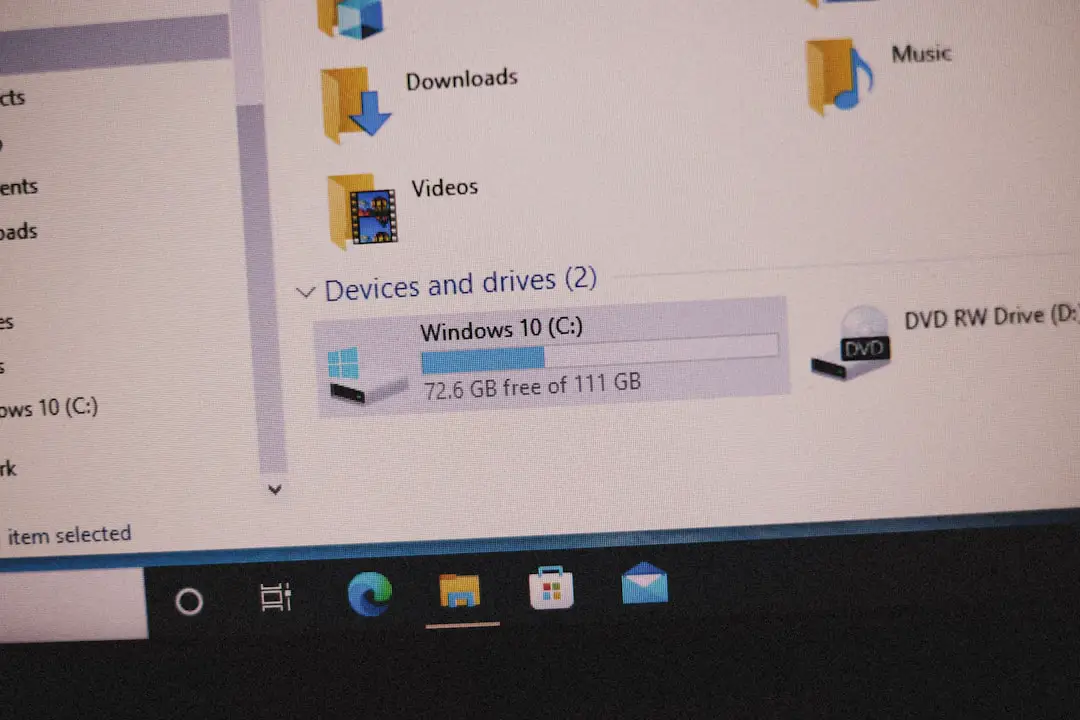
Over time, every computer accumulates clutter. Temporary files, cached data, leftover installation files, and old system logs quietly build up in the background. While much of this data is harmless, it can consume valuable storage space and, in some cases, affect overall system performance. System cleanup utilities like CCleaner have emerged as popular tools designed to scan, identify, and remove unnecessary files safely and efficiently.
TLDR: System cleanup utilities such as CCleaner help remove temporary files, cached data, and other digital clutter that builds up over time. They can free up storage space, potentially improve system performance, and simplify maintenance tasks. While generally safe, users should understand what they are deleting and choose reputable tools. When used responsibly, these utilities can support a smoother and more organized computing experience.
What Are System Cleanup Utilities?
System cleanup utilities are specialized software applications designed to analyze a computer’s storage and identify files that are no longer needed. These tools typically target:
- Temporary files created by operating systems and applications
- Browser caches and cookies
- Recycle Bin contents
- Log files and crash reports
- Leftover files from uninstalled programs
Programs like CCleaner have become widely recognized for bringing these features together in an intuitive interface. Instead of manually searching through folders and system directories, users can perform a full scan with just a few clicks.
Why Junk Files Accumulate
Modern operating systems are designed to prioritize speed and efficiency. To achieve this, they constantly generate temporary data. For instance:
- Web browsers store cached images to load websites faster.
- Installers create temporary packages to complete setup processes.
- Applications log activity to assist with troubleshooting.
- Operating systems save update backups in case a rollback is needed.
While these processes are essential, the system does not always remove temporary files automatically. Over weeks and months, gigabytes of unnecessary data can accumulate.
In devices with limited storage capacity—such as older laptops or entry-level desktops—this buildup may significantly reduce available space. In extreme cases, it can slow down system processes or prevent software updates from installing properly.
How CCleaner and Similar Tools Work
System cleanup utilities follow a multi-step process designed to be both comprehensive and safe:
- Scanning: The software scans predefined areas of the system where junk files typically accumulate.
- Analysis: It categorizes detected data, such as temporary internet files, memory dumps, or thumbnail caches.
- User Review: Users are shown a breakdown of what will be deleted before confirming removal.
- Cleanup: Selected files are permanently removed to free up space.
Many cleanup tools also provide customization options, allowing users to exclude certain categories or include additional directories. Advanced users appreciate this flexibility, as it enables more precise control over system maintenance.
Key Features of CCleaner
While several cleanup tools exist on the market, CCleaner is often highlighted for its feature set. Some of its commonly used functions include:
- Custom Cleaner: Allows selection of specific file types and applications to clean.
- Registry Cleaner: Identifies outdated or broken Windows registry entries.
- Startup Manager: Displays and manages programs that launch at startup.
- Software Updater (in certain versions): Detects outdated installed programs.
- Health Check: Provides a simplified scan for general users.
The combination of simple and advanced tools makes it accessible for beginners while still offering value for experienced users.
Do Cleanup Utilities Improve Performance?
This is one of the most frequently debated topics. The answer depends on the system’s condition.
Storage Space: Removing junk files undeniably frees up storage space. On systems close to capacity, this alone can restore smoother operation.
Boot Speed: By disabling unnecessary startup programs, users may notice faster boot times.
General Responsiveness: While deleting temporary files may not dramatically boost processing power, it can help reduce background clutter and minor inefficiencies.
However, modern operating systems are increasingly optimized to manage temporary files automatically. On high-performance machines with ample storage, the difference may be minimal.
Understanding Registry Cleaning
One notable feature offered by CCleaner and similar software is registry cleaning. The Windows Registry is a complex database storing configuration settings. Over time, installing and uninstalling programs can leave behind orphaned entries.
Registry cleaning tools aim to remove outdated or invalid entries. However, experts often caution against excessive registry cleaning because:
- The performance gain is usually negligible.
- Improper deletion can cause software issues.
- Modern systems tolerate minor registry inconsistencies well.
Users who choose to use registry cleaning features should always back up the registry first—something reputable utilities typically offer as an option.
Security and Privacy Considerations
Cleanup utilities can also enhance privacy by removing:
- Browsing history
- Saved form data
- Tracking cookies
- Recently opened file lists
For users who share devices or prioritize digital privacy, this feature can be particularly valuable. However, deleting cookies may log users out of websites and remove saved preferences.
It is also crucial to download cleanup utilities from official, trusted sources. In the past, some system tools have faced scrutiny over bundled software or data collection practices. Reading installation prompts carefully and reviewing privacy settings can help avoid unwanted extras.
Built-In Alternatives to Third-Party Tools
Many operating systems now include built-in cleanup tools. For example:
- Windows Disk Cleanup and Storage Sense
- macOS Storage Management
These native utilities can remove temporary files and manage storage without requiring third-party software. While they may lack some advanced features, they are sufficient for many users.
The choice between built-in tools and applications like CCleaner often depends on the user’s preference for simplicity, control, and additional features.
Best Practices for Using Cleanup Utilities
To maximize safety and benefits, users should follow these guidelines:
- Create backups before performing deep clean operations.
- Review scan results rather than accepting automatic deletion blindly.
- Avoid aggressive registry cleaning unless necessary.
- Download from official sources to reduce security risks.
- Use the tool periodically, not obsessively.
Running a cleanup once every few weeks or months is typically sufficient for most home users.
Who Benefits Most from System Cleanup Utilities?
While nearly anyone can use these tools, certain groups may benefit more significantly:
- Users with older hardware and limited storage space
- Gamers needing to free space for large installations
- Office environments managing multiple shared computers
- Privacy-conscious individuals wanting quick browsing data removal
For high-end systems with ample storage and automatic maintenance enabled, cleanup utilities are more about convenience than necessity.
Conclusion
System cleanup utilities like CCleaner offer a straightforward way to manage digital clutter. By removing temporary files, optimizing startup programs, and supporting privacy protection, these tools can help maintain a healthy and organized computer environment. While they are not miracle performance boosters, they remain practical solutions for freeing up storage and simplifying routine maintenance.
Used responsibly and combined with good digital hygiene habits—such as regular updates and backups—cleanup utilities can play a valuable role in long-term system care.
Frequently Asked Questions (FAQ)
1. Is CCleaner safe to use?
When downloaded from the official source and used carefully, CCleaner is generally considered safe. Users should review suggested deletions and avoid unnecessary registry changes.
2. How often should a cleanup utility be used?
For most users, running a cleanup once a month is sufficient. Systems with limited storage may benefit from more frequent checks.
3. Will removing junk files make a slow computer fast again?
It can improve responsiveness if the slowdown is caused by low storage space or too many startup programs. However, it will not fix hardware limitations or major software problems.
4. Are built-in operating system tools enough?
Built-in tools are adequate for many people. Third-party utilities offer additional customization and convenience but are not always necessary.
5. What are the risks of registry cleaning?
The potential performance benefits are small, and deleting the wrong entry can cause issues. Always back up the registry before making changes.
6. Do cleanup utilities delete personal files?
They are designed to remove temporary and unnecessary files only. Still, users should carefully review selected items before confirming deletion.