VLC Media Player is best known as the dependable app that opens almost any video file you throw at it. But hidden inside this familiar player is a simple recording feature that many people use as a quick video cutter. If you need to trim a clip, save a short section from a longer video, or extract a scene without installing a heavy editor, VLC can look like a surprisingly convenient option.
TLDR: VLC Video Cutter is good for basic, fast trimming when you only need to save a segment from a video and do not care about frame-perfect accuracy. It is free, lightweight, and works with many file formats, but it is not a full editing tool. For quick personal tasks, it can be useful; for professional edits, precise cuts, or polished results, dedicated video editing software is a better choice.
What Is the VLC Video Cutter?
The phrase VLC Video Cutter usually refers to VLC’s built-in ability to record a portion of a video while it is playing. Strictly speaking, VLC does not have a traditional “cut” tool like professional editing software. Instead, it lets you start recording at one point in the video and stop recording at another point. The recorded portion is then saved as a new video file.
This makes VLC more of a video clip extractor than a true editor. It does not show a timeline, does not offer drag handles for trimming, and does not give you advanced controls for transitions, audio balancing, subtitles, or effects. Still, for someone who simply wants to isolate a short scene, remove unnecessary parts from a lecture, or save a funny moment from a longer recording, VLC can do the job with minimal effort.
Why People Use VLC for Quick Editing
The biggest reason people consider VLC for cutting videos is convenience. Many users already have VLC installed because it is one of the most reliable media players available. It supports a huge range of file formats, including MP4, AVI, MKV, MOV, WMV, FLV, and many others. That means you often do not need to convert your video before opening it.
Another reason is cost. VLC is completely free and open source. There are no subscriptions, watermarks, trial limits, or export restrictions. For users who only need to cut a clip once in a while, installing a full video editing suite can feel unnecessary. VLC offers a simple workaround that is already available on Windows, macOS, and Linux.
It is also relatively lightweight. Compared with large editing applications that may take time to install and demand more system resources, VLC starts quickly and runs smoothly on many older computers. This makes it attractive for quick, practical tasks where speed matters more than creative control.
How VLC Cutting Actually Works
To cut a video in VLC, you typically enable the advanced controls, play the video, click the record button at the beginning of the section you want, and click it again when the section ends. VLC saves the captured segment automatically, usually in the Videos folder or another default location depending on your operating system.
The process is simple, but it is also a little unusual if you are used to standard editors. You are essentially recording playback rather than setting edit points on a timeline. This has a few important consequences:
- You must play through the section you want to capture, which can take time for longer clips.
- Cut points may not be perfectly exact, especially if you press the record button a fraction of a second too early or too late.
- The output location may not be obvious to first-time users, so you may need to check VLC settings or your default video folder.
- There is no visual timeline to help you fine-tune the beginning and ending of the cut.
For small edits, these limitations may not matter. If you are saving a 20-second clip from a webinar or cutting out a short reference scene from a movie file for personal use, the process is manageable. But if you need a polished edit with clean timing, VLC can start to feel clumsy.
The Strengths of VLC Video Cutter
VLC’s cutting feature is useful because it keeps things simple. You do not have to learn video editing terminology or navigate a complex interface. For many everyday users, that simplicity is its strongest advantage.
1. It Is Fast for Simple Clips
If your goal is to grab a short segment from a longer file, VLC can be faster than opening a full editor. You launch the video, find the moment, start recording, stop recording, and you are done. There is no need to create a project, import media into a timeline, configure export settings, or render a complicated sequence.
2. It Supports Many Formats
VLC is famous for format compatibility. This is especially helpful when dealing with videos from older cameras, downloaded files, screen recordings, or unusual containers. Some editing apps may reject certain files or require conversion first, while VLC often opens them immediately.
3. It Is Free and Without Watermarks
Many free video editors limit exports or add watermarks unless you pay. VLC does not. If it records your clip successfully, the saved segment is yours without branding stamped across the screen. For students, casual users, and people working on quick personal projects, this is a major benefit.
4. It Works on Multiple Operating Systems
Because VLC is available for Windows, macOS, and Linux, the basic workflow is accessible to a wide range of users. The interface may vary slightly, but the core idea remains similar. This makes VLC a practical option when you are working across different computers.
The Weaknesses You Should Know
Despite its convenience, VLC is not designed to compete with proper video editing tools. Its cutting feature is more like a hidden bonus than a central function. Understanding its weaknesses will help you decide whether it is right for your task.
1. It Is Not Frame Accurate
For precise video work, timing matters. You may need a cut to happen exactly before a word, after a gesture, or on a specific frame. VLC does not give you that level of control. Since you manually start and stop recording during playback, the result may include extra frames or miss a tiny part of the moment you wanted.
2. The Workflow Can Feel Awkward
Most video cutters let you mark a start point and an end point, preview the selection, and export it. VLC’s record-based method is less intuitive. If you make a mistake, you often have to try again. This is fine for a single short clip, but frustrating if you need to create multiple clips from one long video.
3. Limited Editing Features
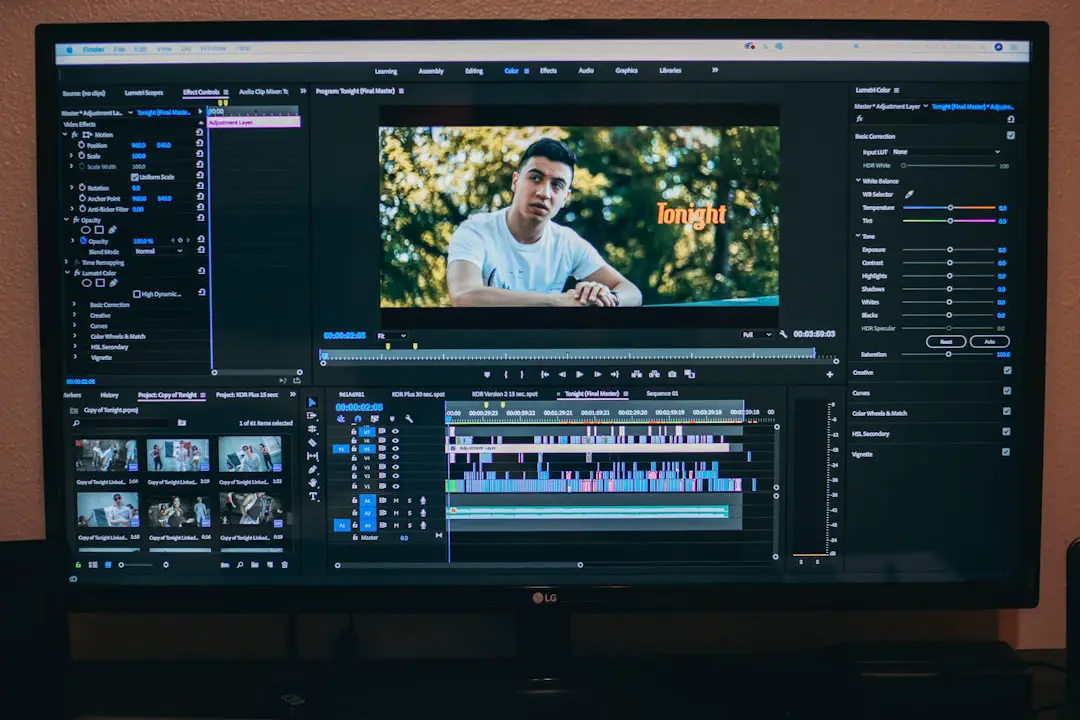
VLC cannot combine clips into a polished montage in a user-friendly way. It does not provide easy trimming handles, transitions, title cards, color correction panels, audio cleaning tools, or a multi-track timeline. If your idea of “quick editing” includes adding text, music, captions, or branding, VLC is not the right tool.
4. Output Can Be Confusing
Some users are surprised when they cannot immediately find the saved clip. Others may notice that the recorded file format or codec behavior depends on VLC settings and the original media. While this is usually manageable, it is less straightforward than pressing a clear “Export” button in a dedicated editor.
Best Uses for VLC Video Cutter
VLC is best suited for casual, practical tasks where speed and accessibility matter more than perfection. It can be a good fit for scenarios such as:
- Saving a short moment from a longer personal video.
- Extracting part of a recorded lecture for later review.
- Clipping a section of a meeting recording for internal reference.
- Creating a rough sample to show someone before doing a proper edit.
- Removing the need for extra software when the task is very small.
In these cases, the result does not need to be cinematic. You simply need a usable clip, and VLC can often provide it quickly.
When VLC Is Not the Best Choice
If you need accuracy, repeatability, or professional-style output, VLC is not ideal. For example, editing YouTube videos, promotional clips, tutorials, presentations, music videos, or client work usually requires more control. A proper editor allows you to cut precisely, arrange clips, adjust sound, add captions, and export with predictable settings.
VLC is also inefficient if you need to cut many clips from one source. Because you may need to play through sections and record them manually, the process becomes time-consuming. A timeline editor or dedicated lossless cutter can handle multiple selections more cleanly.
Another issue is consistency. If you are preparing content for social media, you may need specific resolutions, aspect ratios, file sizes, or audio levels. VLC is not built around those production needs. It can play and capture video, but it does not guide you through modern publishing requirements.
Image not found in postmeta
VLC vs. Dedicated Video Cutters
Dedicated video cutters are usually better for trimming because they are designed around that one task. They often provide a timeline, start and end markers, preview controls, and faster exporting. Some even support lossless cutting, which means they can trim without re-encoding the video. This helps preserve quality and saves time.
VLC, on the other hand, wins when you value availability. It is already installed on many computers, opens almost anything, and handles quick extraction without much setup. The trade-off is that it lacks precision and polish.
A simple way to think about it is this: VLC is a pocketknife, not a workshop. It has a blade that can cut, but if cutting is the whole job, a specialized tool will probably do it better.
Tips for Better Results in VLC
If you decide to use VLC as a video cutter, a few habits can improve your results:
- Pause near the starting point before recording, then play and record as carefully as possible.
- Use keyboard shortcuts if they feel faster and more accurate than mouse clicks.
- Test with a short clip first so you know where VLC saves the output file.
- Leave a little extra footage at the beginning and end if you plan to refine the clip later in another editor.
- Check the saved video immediately to make sure the audio and video are correct.
These tips will not turn VLC into a professional editor, but they can make the simple cutting process less frustrating.
So, Is VLC Video Cutter Good for Quick Editing Tasks?
Yes, VLC Video Cutter is good for quick editing tasks if your definition of editing is limited to capturing a basic segment from a video. It is especially useful when you need a no-cost, no-install, no-fuss solution for a small job. Its broad format support and lightweight design make it a handy emergency tool.
However, it is important to keep expectations realistic. VLC is not a true replacement for video editing software. It lacks frame precision, a visual timeline, advanced export control, and creative features. For one-off clips, it can be excellent. For anything polished, repeated, or professional, it quickly shows its limits.
The best approach is to treat VLC as a quick utility. Use it when you need to grab a moment fast. Switch to a dedicated editor when the edit needs to look clean, intentional, and ready for an audience.
Final Verdict
VLC’s cutting feature is a useful bonus inside an already excellent media player. It is not elegant, and it is not powerful, but it is practical. For simple trimming, casual sharing, and fast extraction, it can absolutely be good enough.
If you already have VLC installed, it is worth trying before downloading another app. Just remember that its strength is convenience, not precision. For quick edits, VLC is a helpful shortcut; for serious editing, it is only the starting point.