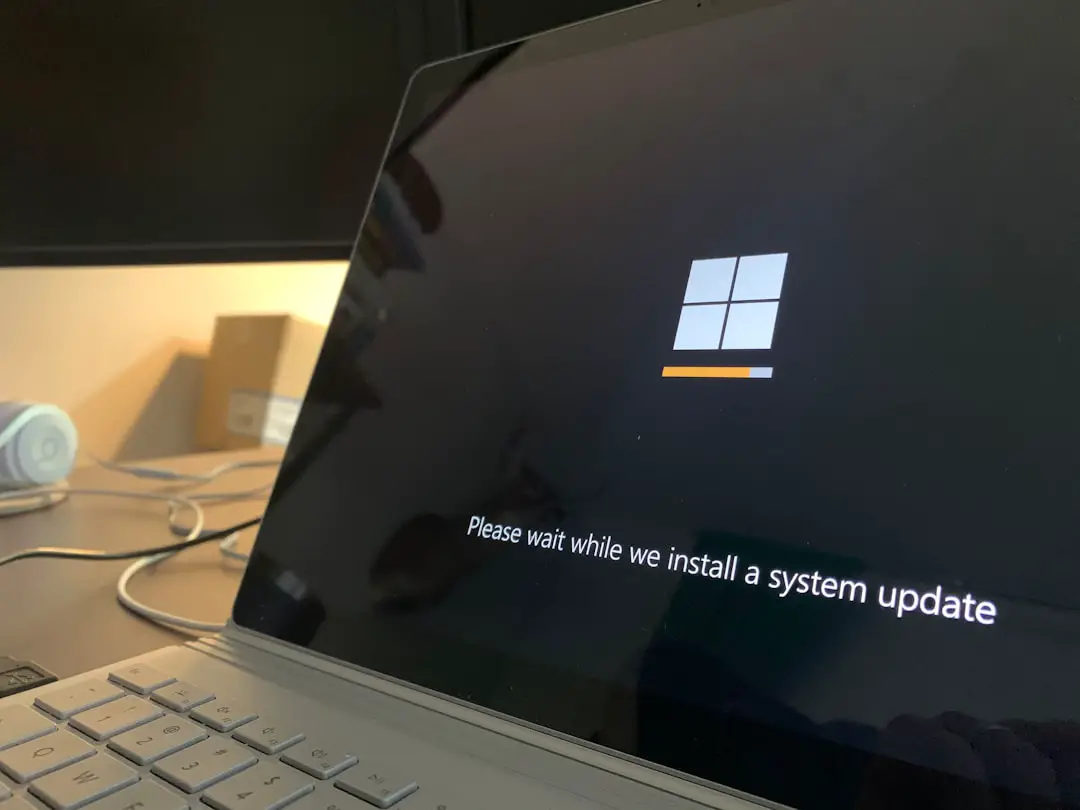
macOS Sierra installation errors can interrupt what should be a straightforward upgrade or clean installation, especially on older Macs or systems that have not been maintained for some time. These errors may appear as frozen progress bars, failed downloads, “macOS could not be installed” messages, missing startup disks, or repeated restarts that never complete the setup process.
TLDR: The most common causes of macOS Sierra installation errors include incompatible hardware, insufficient disk space, corrupted installers, damaged storage drives, poor internet connections, and incorrect system date settings. Problems can also occur when using an expired installer certificate or a faulty bootable USB drive. In most cases, the issue can be resolved by checking compatibility, freeing storage, downloading a fresh installer, repairing the disk, and confirming the Mac’s date and network settings.
Common Causes of macOS Sierra Installation Errors
macOS Sierra was a major release that introduced features such as Siri on Mac, improved iCloud integration, Apple Pay in Safari, and storage optimization tools. However, because it was designed for specific generations of Mac hardware, installation problems are common when the operating system is installed on aging machines, poorly prepared drives, or using outdated installer files.
Installation failures usually do not happen without a reason. They often indicate that the Mac cannot complete one of the required steps: verifying the installer, preparing the disk, copying system files, connecting to Apple’s servers, or restarting into the new operating system. Understanding the underlying cause makes troubleshooting much easier.
1. Incompatible Mac Hardware
One of the most frequent reasons for macOS Sierra installation failure is hardware incompatibility. Sierra does not support every Mac model, especially very old systems that lack the required processors, firmware, or graphics capabilities.
macOS Sierra generally supports models such as:
- MacBook from late 2009 or newer
- MacBook Pro from mid 2010 or newer
- MacBook Air from late 2010 or newer
- Mac mini from mid 2010 or newer
- iMac from late 2009 or newer
- Mac Pro from mid 2010 or newer
If a Mac is older than the supported range, the installer may refuse to run or may display an error stating that the operating system cannot be installed on that computer. In some cases, unofficial installation methods may appear to work temporarily, but they often cause driver problems, poor performance, or boot failures.
Before installation, the user should confirm the Mac model and compare it with Sierra’s supported hardware list.
2. Not Enough Free Disk Space
Another common cause is insufficient storage space. macOS Sierra requires enough room not only for the downloaded installer, but also for temporary installation files, system expansion, recovery tools, and post-installation setup.
If the Mac’s drive is nearly full, installation may stop midway or fail during the preparation stage. A user may see a message such as “There is not enough free space on the selected volume” or the installation may simply restart without finishing.
Common space-related problems include:
- Large photo or video libraries consuming most of the drive
- Old iOS backups stored in iTunes
- Duplicate files and forgotten downloads
- Large application caches
- Time Machine local snapshots
For a safer installation, the Mac should have considerably more free space than the minimum requirement. Leaving at least 20 GB to 30 GB free can help prevent installation interruptions and improve performance after Sierra is installed.
3. Corrupted or Incomplete Installer File
A damaged installer is another major source of macOS Sierra errors. The installer may become corrupted if the download is interrupted, the internet connection drops, the Mac sleeps during the download, or the file is copied incorrectly from another device.
When an installer is corrupted, the Mac may display errors such as:
- “This copy of the Install macOS Sierra application is damaged.”
- “The application cannot be used.”
- “An error occurred while preparing the installation.”
- “The installer payload failed signature check.”
Because macOS installers are verified before installation, even a small file corruption can stop the process. The best solution is usually to delete the installer from the Applications folder and download a fresh copy from a reliable source, such as Apple’s official distribution channels or the user’s previous App Store purchase history if available.
4. Expired Installer Certificate
Older macOS installers, including macOS Sierra, can fail because of expired security certificates. Apple signs macOS installers with certificates that prove the software is authentic. When the certificate expires, the Mac may refuse to install the system even if the installer itself is legitimate.
This issue is especially common when a user tries to install Sierra years after its original release. The error message may say that the installer is damaged or cannot be verified, even though the file was downloaded correctly.
In some cases, setting the Mac’s date to a time period when the certificate was valid may allow the installation to continue. However, the better long-term solution is to obtain a newer copy of the installer that has an updated certificate. Incorrect date settings can also create similar verification problems, so the system clock should always be checked during troubleshooting.
5. Incorrect Date and Time Settings
macOS installation depends on certificate checks, secure connections, and file verification. If the Mac’s date and time are incorrect, the installer may believe that a valid certificate is expired or not yet valid.
This often happens after:
- A Mac has been stored unused for a long time
- The internal battery has weakened
- The user erased the drive before installation
- The Mac cannot connect to Apple’s time servers
- The system was reset during recovery mode
In macOS Recovery or a bootable installer environment, the user can usually check and correct the date using Terminal. Once the correct date is set, the installer may proceed normally. This is a small issue, but it can create confusing errors that appear to point to a damaged installer.
6. Disk Errors or Failing Storage Drive
A damaged file system or failing hard drive can also prevent macOS Sierra from installing successfully. Older Macs often use mechanical hard drives, and these drives become more likely to fail over time. Even solid-state drives can develop errors or have partition map problems.
Disk-related causes include:
- Corrupted startup volume
- Invalid partition map
- Bad sectors on a mechanical hard drive
- Failing SSD cells
- Improper formatting
- Interrupted previous installations
When the target disk is unhealthy, the installer may freeze while copying files, fail to detect the drive, or report that macOS cannot be installed on the selected volume. Disk Utility can often repair minor file system problems, but serious hardware failure usually requires drive replacement.
For macOS Sierra, the drive is commonly formatted as Mac OS Extended Journaled with a GUID Partition Map. Using the wrong format or partition scheme can prevent the installer from recognizing the volume as a valid destination.
7. Problems With a Bootable USB Installer
Many users install macOS Sierra from a bootable USB drive, especially when performing a clean installation or installing on a Mac with no working operating system. However, USB installers can introduce their own problems.
Common USB-related causes include:
- A low-quality or failing USB flash drive
- An installer that was not created correctly
- Using the wrong Terminal command
- Removing the USB drive before the process completed
- Formatting the USB drive incorrectly
- A damaged USB port on the Mac
If a bootable installer fails to appear in Startup Manager, restarts unexpectedly, or freezes during installation, the USB drive may be the cause. Recreating the installer on a reliable flash drive often resolves the problem.
8. Poor or Unstable Internet Connection
Some macOS Sierra installations require an internet connection, especially when using macOS Recovery, downloading additional components, verifying software, or restoring system files. If the connection is unstable, the installation may pause, fail, or display messages about missing components.
Wi-Fi can be unreliable during installation if the signal is weak or the router is unstable. A wired Ethernet connection, when available, generally provides a more dependable installation environment. Network restrictions, captive portals, school networks, workplace firewalls, and public Wi-Fi can also interfere with Apple server communication.
Internet-related installation errors may include messages such as “The recovery server could not be contacted” or “An error occurred while preparing the installation.” These messages do not always mean Apple’s servers are down; they may indicate local network, date, DNS, or certificate problems.
9. Apple Server or App Store Issues
Older macOS versions are sometimes harder to retrieve through normal App Store methods. A user may have difficulty finding Sierra, downloading it, or accessing it from purchase history. Apple server availability, regional differences, and changes in distribution methods can all affect access.
If the installer stops while downloading or the App Store reports that the item is temporarily unavailable, the cause may be server-side or account-related. In such cases, waiting, signing in with the correct Apple ID, checking Apple’s system status page, or using a direct official installer link may help.
10. Third-Party Software Conflicts
Third-party system tools can sometimes interfere with a macOS upgrade. Antivirus software, disk cleaners, virtualization tools, old kernel extensions, and low-level utilities may prevent the installer from modifying system files correctly.
This is more common during an in-place upgrade than during a clean install. If the existing macOS environment has many outdated utilities or modified system components, Sierra may fail during the upgrade process.
Examples of software that may interfere include:
- Old antivirus programs
- Disk optimization utilities
- Unsupported drivers
- Legacy audio or graphics extensions
- System customization tools
Starting in Safe Mode before running the installer, removing outdated utilities, and disconnecting unnecessary peripherals can reduce the risk of conflicts.
11. Peripheral and Hardware Conflicts
External devices can occasionally trigger installation problems. Printers, external drives, audio interfaces, USB hubs, card readers, and third-party displays may interfere with startup or installation detection.
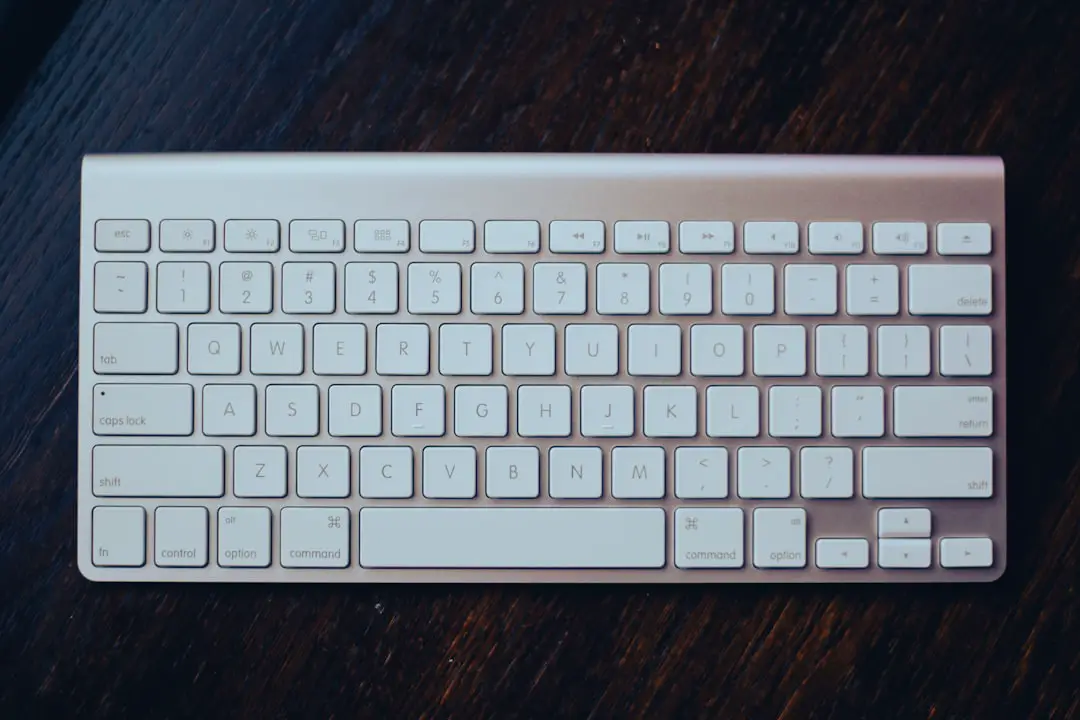
During installation, a minimal setup is best. The Mac should usually have only the keyboard, mouse or trackpad, power adapter, and installation media connected. Removing unnecessary peripherals helps eliminate variables and makes it easier to determine whether the issue is caused by the Mac or by an attached device.
12. Interrupted Installation Process
An installation can fail if the Mac loses power, is forced to shut down, overheats, or is restarted during a critical phase. Once the process is interrupted, the disk may be left in a partially prepared state, resulting in boot loops or repeated installer screens.
For portable Macs, the power adapter should remain connected throughout the process. For desktop Macs, a stable power source is important. If the installation has already been interrupted, Disk Utility repair, reinstalling from Recovery, or erasing and reinstalling may be necessary.
How Installation Problems Are Usually Resolved
Although macOS Sierra installation errors can seem serious, many are resolved through basic preparation and verification. A careful troubleshooting process usually includes:
- Confirming compatibility with macOS Sierra.
- Backing up the Mac with Time Machine or another reliable method.
- Freeing disk space before starting the installation.
- Running Disk Utility First Aid on the target drive.
- Downloading a fresh installer if the existing one appears damaged.
- Checking the date and time in macOS or Recovery mode.
- Using a stable network connection when online components are required.
- Disconnecting unnecessary devices before installation.
If these steps do not resolve the issue, the underlying cause may be hardware failure, particularly on older Macs. In those cases, drive diagnostics, memory testing, or professional service may be required.
FAQ
Why does macOS Sierra say the installer is damaged?
This usually happens because the installer is corrupted, incomplete, or signed with an expired certificate. It can also occur when the Mac’s date and time are incorrect.
Can macOS Sierra be installed on any Mac?
No. macOS Sierra only supports specific Mac models. Older unsupported Macs may reject the installer or experience serious performance and driver issues.
How much free space is needed for macOS Sierra?
The minimum requirement is lower, but having at least 20 GB to 30 GB of free space is recommended to avoid installation errors and allow room for temporary files.
Why does the installer get stuck on the progress bar?
A stuck progress bar may be caused by slow storage, disk errors, insufficient space, a corrupted installer, or an interrupted installation process. On older Macs, some installation stages can also take much longer than expected.
Can a bad internet connection cause installation failure?
Yes. If the installer needs to download components or contact Apple’s servers, an unstable connection can cause errors such as “The recovery server could not be contacted.”
Should the disk be erased before installing macOS Sierra?
Erasing the disk is not always necessary for an upgrade. However, a clean installation may help when the existing system is corrupted, heavily modified, or affected by persistent software conflicts.
What should be checked first when Sierra will not install?
The first checks should include Mac compatibility, available storage, installer integrity, disk health, system date and time, and network reliability.