
Age of Empires Mobile, the much-anticipated mobile adaptation of the classic real-time strategy (RTS) franchise, has taken the mobile gaming world by storm. While it offers an immersive experience tailored for touchscreen devices, many players still yearn for the expansive control and broader screen of a PC. Fortunately, running Age of Empires Mobile on PC is not only possible—it’s actually quite easy and accessible with the right tools.
TLDR (Too long, didn’t read)
You can play Age of Empires Mobile on your PC using Android emulators like BlueStacks or LDPlayer. These programs emulate an Android environment on your computer, allowing the game to run as though it were on a phone or tablet. Installing and configuring them is simple, and the added flexibility of keyboard and mouse controls significantly enhances the gameplay experience. Compatibility and performance are generally excellent if your PC meets basic system requirements.
Why Play Age of Empires Mobile on PC?
Though designed for smartphones, Age of Empires Mobile can often feel cramped or limited due to small screen sizes and touch controls. Playing on PC offers several advantages:
- Better control: Using a physical mouse and keyboard provides more precise and responsive control over units and commands.
- Larger display: A PC monitor offers a much broader view of the battlefield, ideal for real-time strategy gameplay.
- Multitasking: It’s easier to play while doing other activities on your computer compared to mobile.
- Performance: PCs generally have more processing power and better graphics capabilities for smoother gameplay.
Those accustomed to the classic Age of Empires experience will appreciate these enhancements when diving into the mobile version from a PC environment.
What You Need to Get Started
To play Age of Empires Mobile on your computer, you need:
- An Android emulator. These are programs that mimic Android OS on your PC.
- The game APK or access to the Google Play Store.
- A Google account. Required if you’re downloading the game through the Play Store.
Your PC should meet at least the following basic requirements for smooth emulation:
- Windows 7 or higher (64-bit recommended)
- 4GB RAM (8GB or more preferred)
- Intel or AMD processor
- At least 5-10 GB of free disk space
Best Android Emulators for Playing Age of Empires Mobile
Several emulators are available, but for a game like Age of Empires Mobile, which involves complex UI and controls, reliability and performance are key. Below are the top emulator choices:
1. BlueStacks
BlueStacks is arguably the most popular Android emulator. It is user-friendly, has excellent performance, and supports advanced control mapping for games.
- Customizable key mappings
- Gamepad support
- Turbo and macro features for advanced users
2. LDPlayer
LDPlayer is a lightweight emulator optimized for gaming. It often runs faster on older systems and features good control customization.
- Optimized for performance
- Easy-to-use interface
- Supports multi-instance gaming
3. MEmu Play
MEmu is another solid emulator with powerful functionality and solid performance. It’s particularly good for running multiple games simultaneously.
- Supports multiple game tabs
- Decent graphics rendering
- Good game compatibility

Installing Age of Empires Mobile on PC
Here is a step-by-step guide to installing the game:
- Download and install an emulator:
- Go to the official website of the emulator (e.g., BlueStacks).
- Download and install the software on your PC.
- Set up your Google account:
- Upon launching the emulator, sign in or create a Google account.
- This is necessary to access the Play Store.
- Search for the game:
- Open the Google Play Store within the emulator.
- Search for “Age of Empires Mobile.”
- Click Install.
- Launch and configure controls:
- Once installed, launch the game.
- Use the emulator’s control editor to assign keyboard mappings.
MOST emulators have recommended game settings for popular games, potentially including Age of Empires Mobile. If presets are unavailable, take a few minutes to customize them to your liking.
Troubleshooting Tips
If you encounter issues while starting or playing the game on your emulator, here are some quick fixes:
- Lag or frame drops: Lower the emulator’s resolution or dedicate more resources via emulator settings.
- Game crashes: Update the emulator or use a different emulator for compatibility.
- Graphical glitches: Switch between OpenGL and DirectX in emulator engine settings.
Is It Safe and Legal?
Yes, playing Age of Empires Mobile on an Android emulator is legal, provided the game is freely available on the Play Store or you’re abiding by its terms of service. Emulators like BlueStacks are used by millions and are endorsed by major developers. However, always download emulators and game files from legitimate sources to avoid malware or violations of user agreements.
Enhancing Your Experience
Use these tips to get more out of your PC-based Age of Empires Mobile game:
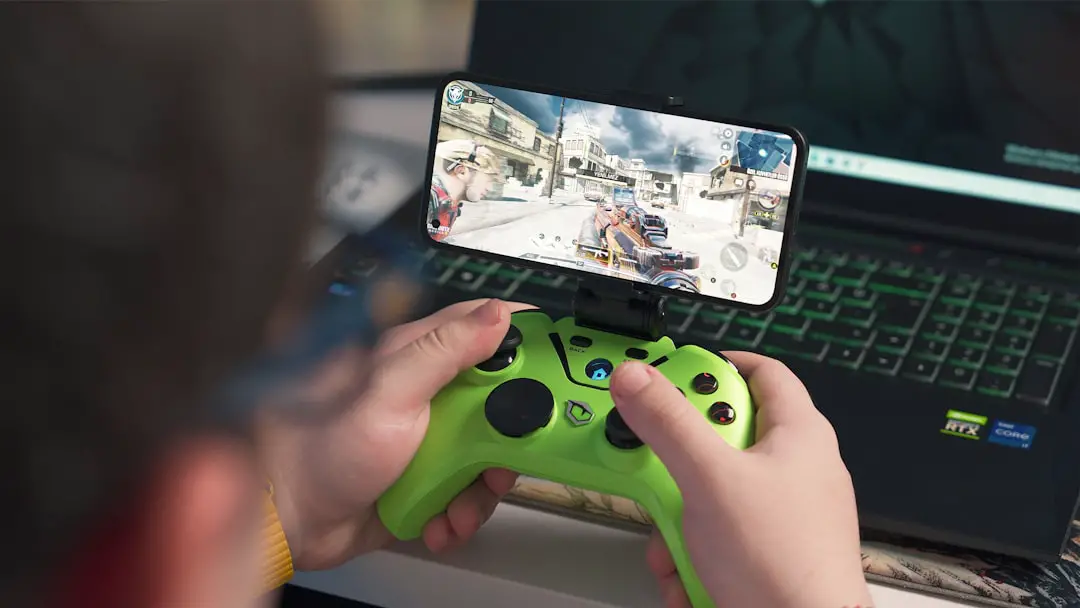
- Connect a controller: Some emulators allow gamepad integration for a more console-like experience.
- Record your gameplay: Use integrated screen recorders in emulators to save epic replays or tutorials.
- Multitask with multi-instance: Try managing multiple accounts or running other apps without interrupting gameplay.
Conclusion
Playing Age of Empires Mobile on PC transforms the mobile experience into a more immersive and strategically rich adventure. Whether you’re managing resources, commanding armies, or expanding your empire, doing it with mouse-click precision and full-screen glory makes a noticeable difference. With a variety of dependable Android emulators available and a straightforward setup process, there’s no reason not to level up your gameplay from phone to PC.
FAQ
- Can I play Age of Empires Mobile on PC without an emulator?
- No, emulators are the safest and easiest way to run mobile games on PC unless a native PC version becomes available.
- Is BlueStacks safe to use?
- Yes, BlueStacks is a reputable emulator used by millions of gamers worldwide. It’s safe when downloaded from the official website.
- Can I sync my mobile progress with the PC version?
- Yes, if the game supports cloud syncing or social media login, you can continue your progress across devices.
- Do emulators support multiplayer features?
- Yes, most features including multiplayer, chat, and in-game purchases work the same as on mobile devices.
- Does it cost anything to play on PC?
- No additional cost as most emulators are free and Age of Empires Mobile itself is free to play.