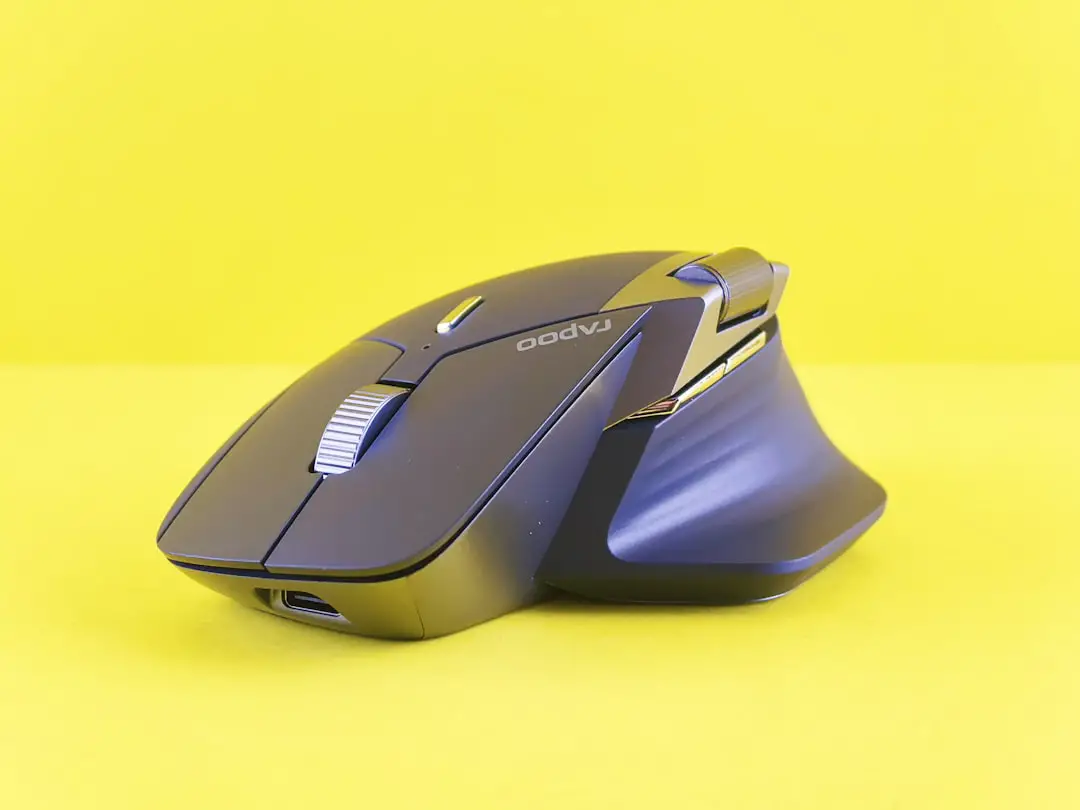
The Razer Viper V3 Pro is an elite wireless gaming mouse that boasts cutting-edge technology and exceptional performance. However, even premium peripherals can run into issues—especially when it comes to connectivity. If you’re experiencing problems with your Viper V3 Pro wireless dongle not connecting, this guide will walk you through tested and validated solutions to help restore optimal functionality quickly and efficiently.
TL;DR
If your Viper V3 Pro wireless dongle isn’t connecting, don’t panic. Start by checking USB ports and verifying that Razer Synapse is fully updated. Re-pairing the mouse and dongle, ensuring firmware compatibility, and avoiding signal interference are common fixes. If these steps fail, Razer’s customer support may offer a replacement if you’re still under warranty.
1. Understand the Problem Before You Start
The Viper V3 Pro connects wirelessly using a dedicated HyperSpeed USB dongle. When the dongle fails to connect, the mouse will not function in wireless mode, and you may not see any activity in Razer Synapse.
Before jumping to solutions, ask yourself:
- Have you recently updated your operating system?
- Was the dongle or mouse dropped or mishandled?
- Are you using a USB hub or directly connecting to the PC?
Answers to these questions can point to a possible root cause and help tailor the proper fix.
2. Start with Basic Troubleshooting
Begin with the simplest checks before diving into more advanced methods:
- Try a Different USB Port: Connect the dongle to a different USB-A port, ideally directly on the motherboard’s rear I/O panel.
- Reboot Your PC: You’d be surprised how often a reboot resolves unrecognized device issues.
- Inspect for Physical Damage: Check both your dongle and mouse receiver port for visible signs of damage.
If these basic steps don’t work, move on to software-level fixes.
3. Update or Reinstall Razer Synapse
Razer Synapse often acts as the command center for the Viper V3 Pro. A corrupted or outdated version can block connectivity.
- Uninstall Razer Synapse from your system via Control Panel or Apps & Features.
- Download the latest version directly from the Razer website.
- Restart your PC after installation and reconnect the dongle.
Note: Ensure you’re also signed in to your Razer ID account within Synapse for all settings to sync correctly.
4. Re-Pair the Mouse and Dongle Using Razer Pairing Utility
If Synapse recognizes neither your dongle nor mouse, you may need to re-pair them using Razer’s dedicated pairing utility.
- Download the Razer Mouse Pairing Utility.
- Plug in the dongle and connect the mouse via USB cable.
- Run the utility and follow the on-screen instructions.
- Once pairing completes, unplug the cable and test wireless functionality.
This often resolves issues caused by accidental unpairing or mismatched firmware between mouse and dongle.
5. Check for Firmware Updates
Sometimes, outdated firmware may prevent proper operation, especially after operating system upgrades.
To update firmware:
- Visit Razer’s official support page and locate the firmware updater for the Viper V3 Pro.
- Connect your device via USB and run the updater tool.
- Ensure both your mouse and dongle firmware are on the latest supported version.
Pro Tip: Keep your BIOS chipset drivers updated too, as outdated system drivers can limit USB device recognition.
6. Eliminate Wireless Interference
Even if everything seems to be set up correctly, your Viper V3 Pro might still not connect due to interference from nearby electronic devices.
- Move routers, Bluetooth speakers, or RF devices away from your dongle.
- Avoid using USB 3.0 ports nearby, as they can emit interfering frequencies.
- For testing, place the dongle on a USB extension cable closer to the mouse.

7. Try a Clean Boot
Some background programs can interfere with peripheral connections. Use a clean boot to eliminate this possibility.
- Open the Run dialog (Windows Key + R), then type
msconfig. - Click the Services tab, check “Hide all Microsoft services”, then click Disable all.
- Go to the Startup tab and open Task Manager. Disable all non-essential startup items.
- Restart your computer and test the dongle connection.
This diagnostic method checks for potential application-level conflicts without altering critical system functions.
8. Test on Another Computer
If the dongle still doesn’t connect on your primary PC, try it on a different computer. This will help you determine if the issue is specific to your system or the hardware itself.
- If it works on another machine: your current OS installation might be the bottleneck.
- If it still doesn’t work: the dongle may be faulty and require replacement.
9. Use the Mouse in Wired Mode Temporarily
While not ideal for those looking for a lag-free wireless experience, the Viper V3 Pro functions perfectly over a direct USB connection. This can serve as a workaround while you wait for a replacement or support resolution.
10. Contact Razer Support as a Last Resort
If every solution above fails, Razer’s support team is your final line of assistance. Before you contact them, be sure to:
- Collect proof of purchase, serial number, and firmware version.
- Document all troubleshooting steps you’ve tried.
Having this information ready will speed up the replacement or repair process substantially. Razer is known for honoring their warranty for defective units when reasonable evidence is provided.
Final Thoughts
Wireless connectivity issues, especially with high-performance gaming gear like the Razer Viper V3 Pro, can be incredibly frustrating. However, most dongle communication failures can be resolved with a systematic approach—starting with basic port checks all the way to software updates and re-pairing utilities. By understanding the root causes and following the steps outlined above, you’ll be well on your way to restoring smooth, lag-free performance.
Take preventive measures to avoid future disconnects, such as keeping firmware and software updated, avoiding interference sources, and safely handling the dongle to prevent physical damage.
The Viper V3 Pro is an investment in your gaming performance. Keep it running as intended with these essential troubleshooting steps.