
The Kindle Paperwhite is one of the most popular e-readers in the world—and for good reason. It’s lightweight, glare-free, and designed specifically for comfortable reading anywhere, anytime. Whether you’re an avid bookworm or someone trying to get back into reading, the Kindle Paperwhite offers a distraction-free and highly portable way to carry an entire library in your hands.
TLDR: The Kindle Paperwhite is a lightweight, waterproof e-reader with a glare-free display designed to mimic real paper. It allows you to buy, download, and store thousands of books from Amazon’s Kindle Store. You can customize fonts, lighting, and layout for comfortable reading day or night. It’s simple to set up, easy to use, and ideal for beginners who want a focused digital reading experience.
What Is the Kindle Paperwhite?
The Kindle Paperwhite is a digital reading device developed by Amazon. Unlike tablets such as an iPad or Android device, it is designed specifically for reading eBooks. It uses E Ink technology, which mimics the appearance of real ink on paper and reduces eye strain compared to traditional backlit screens.
Its main goal? To provide a reading experience that feels as close to a physical book as possible—without the bulk.

Key Features at a Glance
- 6.8-inch glare-free display that reads like paper, even in sunlight
- Adjustable warm light for comfortable nighttime reading
- Waterproof design (IPX8) for reading by the pool or in the bath
- Weeks of battery life on a single charge
- Access to millions of books through the Kindle Store
- Lightweight and compact design
How Is It Different from a Tablet?
Many beginners wonder: why not just read on a tablet or smartphone? While you certainly can, the Kindle Paperwhite offers advantages specifically tailored for reading.
| Feature | Kindle Paperwhite | Tablet |
|---|---|---|
| Screen Type | E Ink (paper-like) | LCD/LED (backlit) |
| Eye Strain | Minimal | Higher over long sessions |
| Battery Life | Weeks | Hours to a day |
| Distractions | None (reading-focused) | Apps, notifications |
| Outdoor Visibility | Excellent | Glare issues |
If your primary goal is comfortable, immersive reading, the Kindle Paperwhite offers a more focused and enjoyable experience.
How to Set Up Your Kindle Paperwhite
Setting up your Kindle for the first time is quick and beginner-friendly.
Step 1: Turn It On
Press and hold the power button located at the bottom edge of the device.
Step 2: Connect to Wi-Fi
Select your Wi-Fi network and enter the password. A Wi-Fi connection allows you to download books and sync your account.
Step 3: Sign In to Your Amazon Account
Use your existing Amazon account or create a new one. This connects your Kindle to the Kindle Store and your digital purchases.
Step 4: Start Browsing or Downloading Books
Once logged in, you can browse the Kindle Store directly on the device or purchase books via Amazon’s website.
That’s it—you’re ready to read.
How to Buy and Download Books
One of the biggest advantages of the Kindle Paperwhite is instant access to millions of titles.
Option 1: Buy Directly from the Device
- Tap the Store icon
- Search for a book by title or author
- Tap Buy Now
- The book automatically downloads to your library
Option 2: Buy from Amazon’s Website
- Visit Amazon on your computer or phone
- Select the Kindle edition of the book
- Choose your Kindle device as the delivery option
- The book syncs automatically when your Kindle connects to Wi-Fi
You can also subscribe to Kindle Unlimited, a monthly subscription service offering access to a vast catalog of books and audiobooks.
How to Read and Navigate on Kindle Paperwhite
Using the Kindle Paperwhite is extremely intuitive.
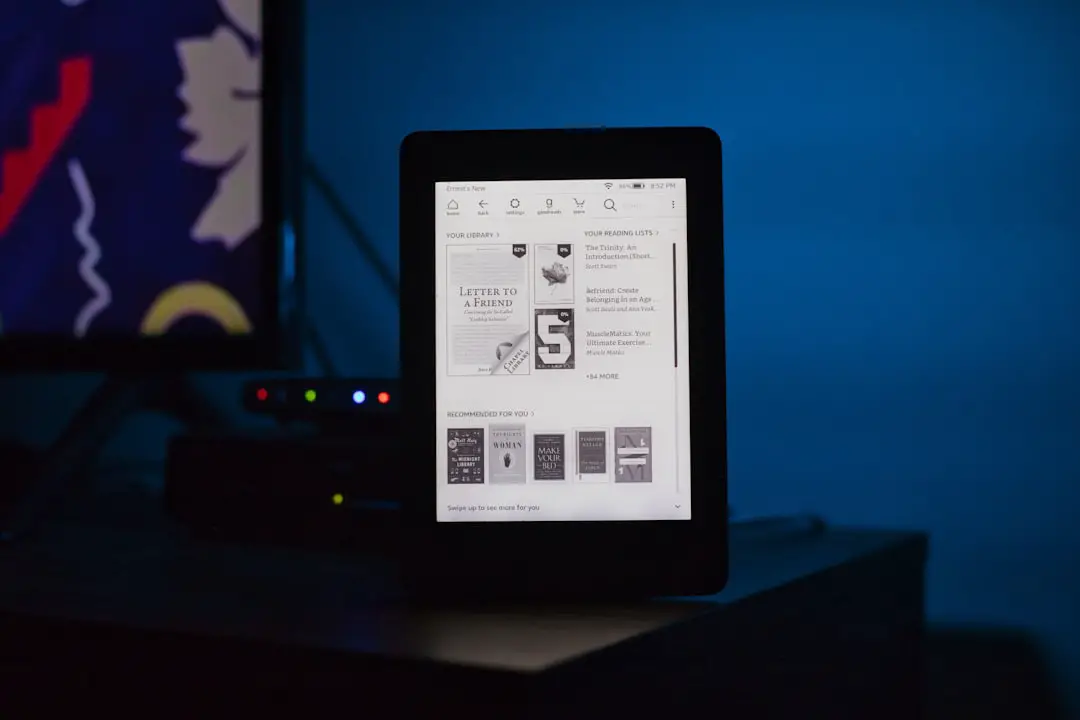
Basic Controls
- Tap right side: Next page
- Tap left side: Previous page
- Swipe down from top: Access settings menu
- Tap top of screen: Show reading toolbar
Adjusting Text and Display
You can fully customize your reading experience:
- Change font style and font size
- Adjust line spacing and margins
- Switch between light mode and dark mode
- Modify screen brightness and warm light
This flexibility makes it perfect for readers of all ages, including those who need larger or clearer text.
Highlighting, Notes, and Dictionary Features
The Kindle Paperwhite isn’t just for passive reading—it’s also a powerful learning tool.
Highlight Text
Press and drag your finger across text to highlight passages.
Add Notes
After highlighting, you can attach personal notes—ideal for students or book club discussions.
Built-In Dictionary
Press and hold a word to instantly see its definition. You can also access:
- Wikipedia summaries
- Translation tools
- Vocabulary Builder (tracks words you look up)
This makes it especially helpful for language learners.
Battery Life and Charging
One of the standout features of the Kindle Paperwhite is its remarkable battery life. Unlike phones that need daily charging, the Kindle can last up to 10 weeks on a single charge (depending on usage).
Charging is simple:
- Use the included USB-C cable
- Plug into a wall adapter or computer
- Full charge takes about 2.5 hours
This long battery life makes it excellent for travel.
Is the Kindle Paperwhite Waterproof?
Yes. The Kindle Paperwhite is rated IPX8 waterproof, meaning it can survive immersion in fresh water up to 2 meters deep for up to 60 minutes.

This makes it safe to use:
- By the pool
- At the beach
- In the bath
- During travel
However, it’s not designed for saltwater or high-pressure water exposure.
How to Manage Your Library
As your digital collection grows, organization becomes important.
Create Collections
Group books by genre, author, or reading status.
Cloud Storage
Your purchases are stored in Amazon’s cloud, so you can remove books from your device without losing access.
Sync Across Devices
If you use the Kindle app on your phone or tablet, Amazon automatically syncs your reading progress.
Who Is the Kindle Paperwhite Best For?
The Kindle Paperwhite is ideal for:
- Book lovers who read frequently
- Travelers who want a lightweight library
- Students who highlight and annotate
- Nighttime readers who need adjustable warm lighting
- Minimalists who prefer distraction-free devices
It may not be ideal if you want color illustrations, interactive apps, or multimedia browsing. For that, a tablet might suit you better.
Pros and Cons at a Glance
Pros
- Easy on the eyes
- Extremely long battery life
- Lightweight and portable
- Waterproof design
- Minimal distractions
Cons
- No color display
- Limited web browsing
- Not ideal for graphic-heavy books
Tips for New Kindle Users
If you’re just getting started, keep these tips in mind:
- Adjust brightness and warm light for nighttime comfort
- Explore Kindle Unlimited before buying many individual books
- Use airplane mode to extend battery life further
- Experiment with fonts to find your most comfortable reading setup
- Set reading goals in the Kindle app for motivation
Final Thoughts
The Kindle Paperwhite is more than just a gadget—it’s a doorway to millions of stories, ideas, and perspectives. Its paper-like display, long battery life, and lightweight design make it one of the most convenient reading tools available today. For beginners especially, it offers simplicity without sacrificing powerful features.
If you love books but want the convenience of carrying an entire library in one hand, the Kindle Paperwhite might just become your favorite everyday companion. Whether you’re commuting, traveling, relaxing at home, or reading by the beach, it allows you to focus on what truly matters: getting lost in a great book.