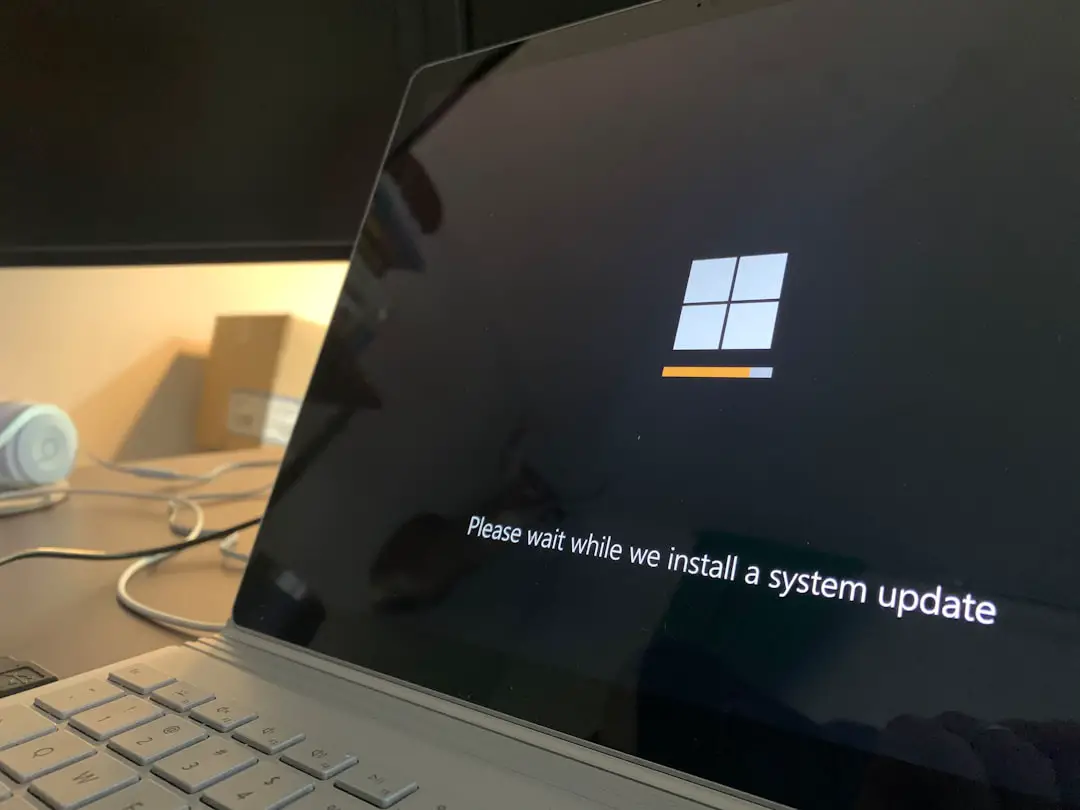
Your HP laptop is stuck on the loading screen. The spinning circle will not stop. The HP logo just sits there. It is frustrating. But don’t panic. This is a common issue in 2026, and in most cases, you can fix it yourself at home.
TLDR: If your HP laptop is stuck on the loading screen, start with a hard reset. Then try Safe Mode and Startup Repair. If needed, check your disk, update drivers, or reset Windows. In worst cases, reinstall Windows or replace a failing drive.
Let’s walk through it step by step. Keep it simple. Follow along.
Why Your HP Laptop Gets Stuck on Loading
Before fixing it, it helps to know why it happens.
Common causes include:
- Corrupted Windows updates
- Broken system files
- Failing hard drive or SSD
- Driver conflicts
- Malware
- Faulty RAM
- Sudden power loss
Now let’s fix it.
Step 1: Perform a Hard Reset
This is the easiest fix. And it often works.
A hard reset clears temporary power and resets hardware components.
Here’s how:
- Turn off the laptop.
- Unplug the charger.
- Remove the battery (if removable).
- Hold the power button for 15–20 seconds.
- Reconnect battery and charger.
- Turn it back on.
If your HP boots normally, you’re done.
If not, continue.
Step 2: Disconnect All External Devices
USB devices can block startup.
Remove:
- USB drives
- External hard drives
- Printers
- Docking stations
- SD cards
Now restart your laptop.
If it boots, one of those devices was the problem.
Step 3: Boot Into Safe Mode
Safe Mode loads Windows with minimal drivers.
If your laptop works in Safe Mode, software is likely the issue.
How to enter Safe Mode (Windows 11 / 10):
- Turn the laptop on.
- When the HP logo appears, hold the power button to force shutdown.
- Repeat this 3 times.
- Windows will enter Recovery Mode.
- Select Troubleshoot.
- Click Advanced Options.
- Choose Startup Settings.
- Click Restart.
- Press 4 for Safe Mode.
If it boots into Safe Mode:
- Uninstall recent updates
- Remove new drivers
- Run antivirus scan
- Update Windows properly
Restart normally after.
Step 4: Run Startup Repair
Startup Repair automatically fixes boot problems.
To run it:
- Enter Recovery Mode (same method as above).
- Click Troubleshoot.
- Select Advanced Options.
- Choose Startup Repair.
Windows will scan and repair boot files.
This can take several minutes.
Restart and check.
Step 5: Check Your Disk for Errors
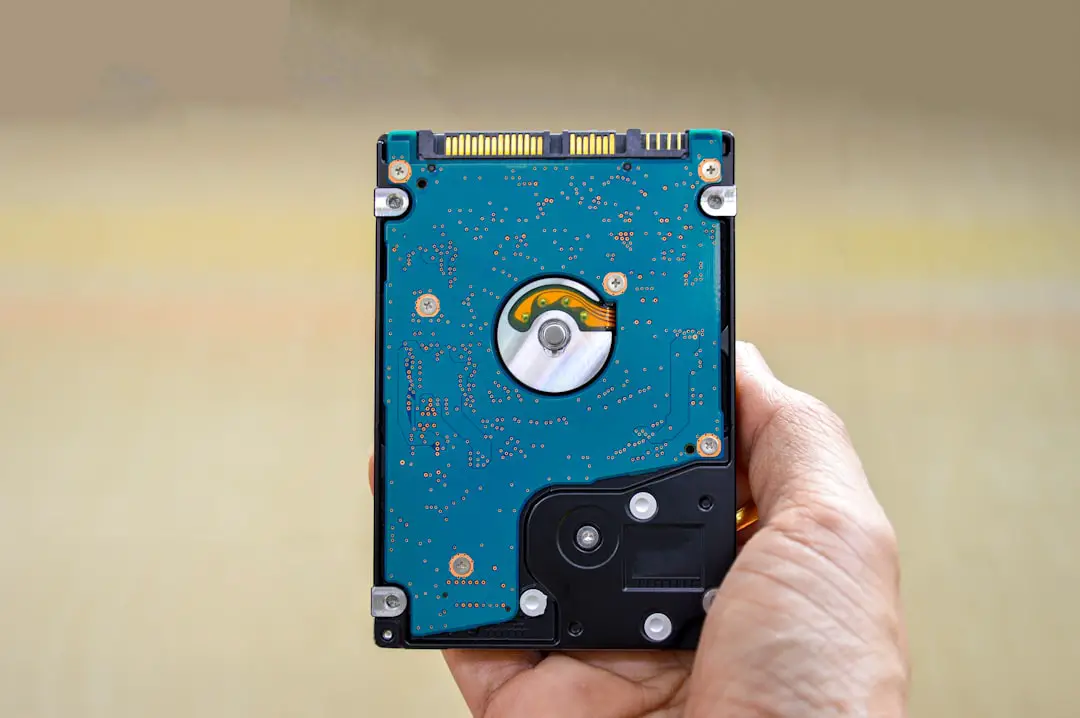
A failing hard drive or SSD can freeze the loading screen.
You can scan for errors using Command Prompt.
Steps:
- Go to Recovery Mode.
- Select Advanced Options.
- Click Command Prompt.
- Type: chkdsk c: /f /r
- Press Enter.
This scan may take a long time.
If it finds bad sectors, your drive might be failing.
Back up your data as soon as possible.
Step 6: Rebuild Boot Configuration
If boot files are corrupted, rebuild them.
In Command Prompt (Recovery Mode), type:
bootrec /fixmbr
bootrec /fixboot
bootrec /scanos
bootrec /rebuildbcd
Press Enter after each command.
Restart your laptop.
This solves many stubborn loading screen issues.
Step 7: System Restore
If the issue started recently, System Restore can undo changes.
It will not delete personal files.
How:
- Go to Recovery Mode.
- Select Advanced Options.
- Click System Restore.
- Choose a restore point before the issue started.
Let it complete.
This often fixes update-related problems.
Step 8: Reset Windows
If nothing else works, reset Windows.
You have two options:
- Keep my files
- Remove everything
To reset:
- Enter Recovery Mode.
- Click Troubleshoot.
- Select Reset this PC.
This reinstalls Windows.
It fixes deep system corruption.
Choose “Keep my files” first.
Step 9: Check Hardware (RAM & Drive)
If software fixes do not work, check hardware.
Check RAM
- Turn off the laptop.
- Open the back panel.
- Remove RAM sticks.
- Reinsert them firmly.
You can also test one stick at a time.
Check Storage Drive
- Listen for clicking sounds (HDD).
- Slow performance before freezing is a bad sign.
- Use HP Hardware Diagnostics (press F2 at startup).
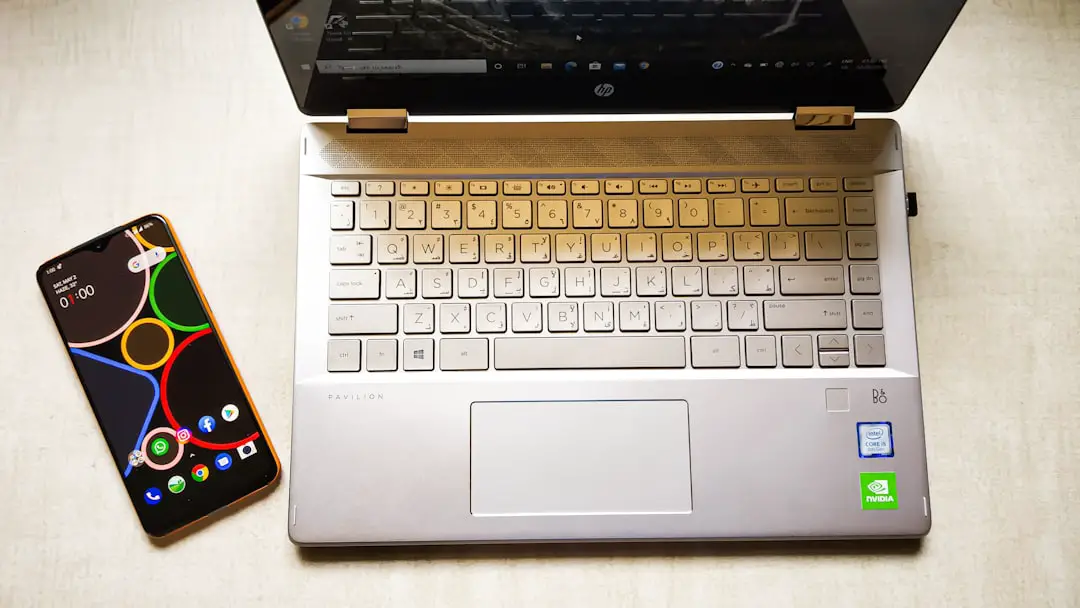
If the drive fails the test, replace it.
SSDs are affordable in 2026.
Fix Comparison Chart
| Fix Method | Difficulty | Time Needed | Best For |
|---|---|---|---|
| Hard Reset | Very Easy | 5 Minutes | Minor glitches |
| Safe Mode | Easy | 10 Minutes | Driver issues |
| Startup Repair | Easy | 15 Minutes | Boot errors |
| Check Disk | Medium | 30–60 Minutes | Drive corruption |
| System Restore | Easy | 20 Minutes | Recent update problems |
| Reset Windows | Medium | 1 Hour | Severe system damage |
| Replace Drive | Advanced | 1–2 Hours | Hardware failure |
When to Replace the Hard Drive
Your drive may be dead if:
- Laptop freezes repeatedly
- You hear clicking noises
- CHKDSK reports many bad sectors
- HP Diagnostics shows SMART errors
Upgrading to an SSD is a smart move.
It makes your HP laptop much faster.
How to Prevent This Problem Again
Prevention is simple.
- Keep Windows updated
- Avoid forced shutdowns
- Use antivirus software
- Back up files regularly
- Use a surge protector
- Monitor drive health yearly
Small habits prevent big headaches.
Final Thoughts
An HP laptop stuck on the loading screen looks scary.
But most of the time, the fix is simple.
Start small. Try a hard reset. Then Safe Mode. Then Startup Repair.
Work step by step.
Only move to hardware fixes if software solutions fail.
In 2026, laptops are powerful. But they still need care.
Follow this guide patiently.
And your HP should be back up and running in no time.
If one method does not work, try the next.
Stay calm. You’ve got this.