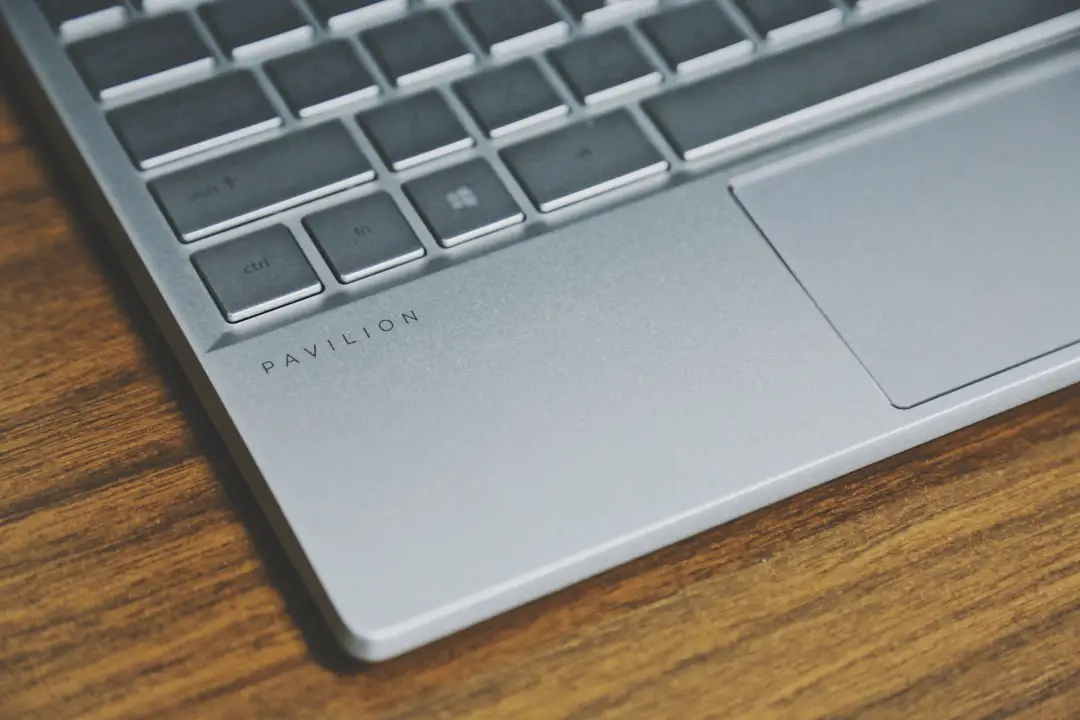
Finding the power button on an HP laptop might seem like a simple task—until you’re staring at a sleek keyboard with barely any visible buttons. HP designs vary widely across models, from traditional business laptops to ultra-slim Spectre and Pavilion devices. The location, style, and even appearance of the power button can differ significantly depending on the model you own. If you’re unsure where to look, this guide will walk you through the most common placements and design variations so you can power up your device with confidence.
TL;DR: The power button on an HP laptop is usually located above the keyboard on the top-right or top-left side. On newer models, it may be integrated into the keyboard as a slim rectangular key or located along the side edge of the device. Some HP Spectre and Envy models hide the power button near the hinge or on the side panel. If you can’t find it, check your model’s manual or look for a small button with a power symbol (a circle with a vertical line).
Common Locations of the Power Button on HP Laptops
HP has produced many laptop series over the years, including Pavilion, Envy, Spectre, ProBook, EliteBook, and Omen. While there is no universal placement, most power buttons fall into a few predictable categories.
1. Above the Keyboard
This is the most traditional and common placement. The power button is typically located:
- On the top-left corner above the keyboard
- On the top-right corner above the keyboard
- Centered above the function key row
In many Pavilion and older HP laptops, the power button is a slightly raised rectangular or circular button positioned just above the keyboard deck.
If your laptop has a visible strip above the keyboard housing speakers, the power button is often integrated into that area.
2. Integrated Into the Keyboard
Modern HP laptops—especially ultra-thin models—often integrate the power button directly into the keyboard. In this case, it may look like:
- A slightly different-shaped key
- A key separated from the rest with a small gap
- A key with a power symbol (a broken circle with a vertical line)
You’ll commonly find this design in HP Envy and Spectre laptops. The key is typically located in the top-right corner, replacing what might otherwise be a Delete or function key.
Tip: The power key is often firmer and requires a slightly longer press than regular keys to prevent accidental shutdowns.
3. On the Side Panel
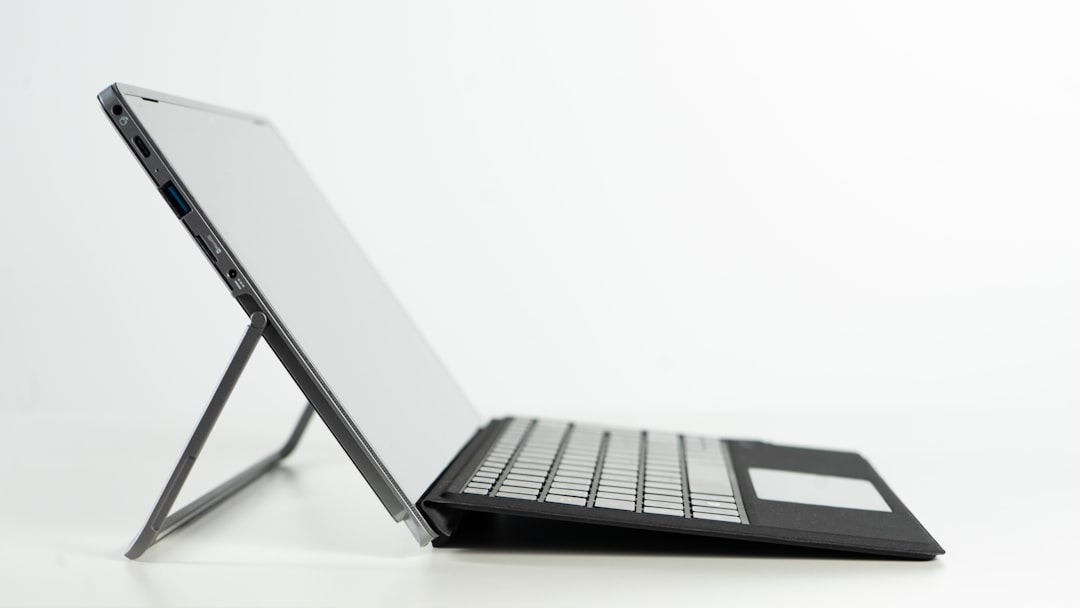
Some HP models, particularly 2-in-1 convertible laptops, place the power button on the side of the device. This makes it accessible in both laptop and tablet modes.
You may find it on:
- The left side edge
- The right side edge
- Near the USB or HDMI ports
In these cases, the button is usually small and flush with the chassis to maintain the slim profile of the laptop.
4. Near the Hinge
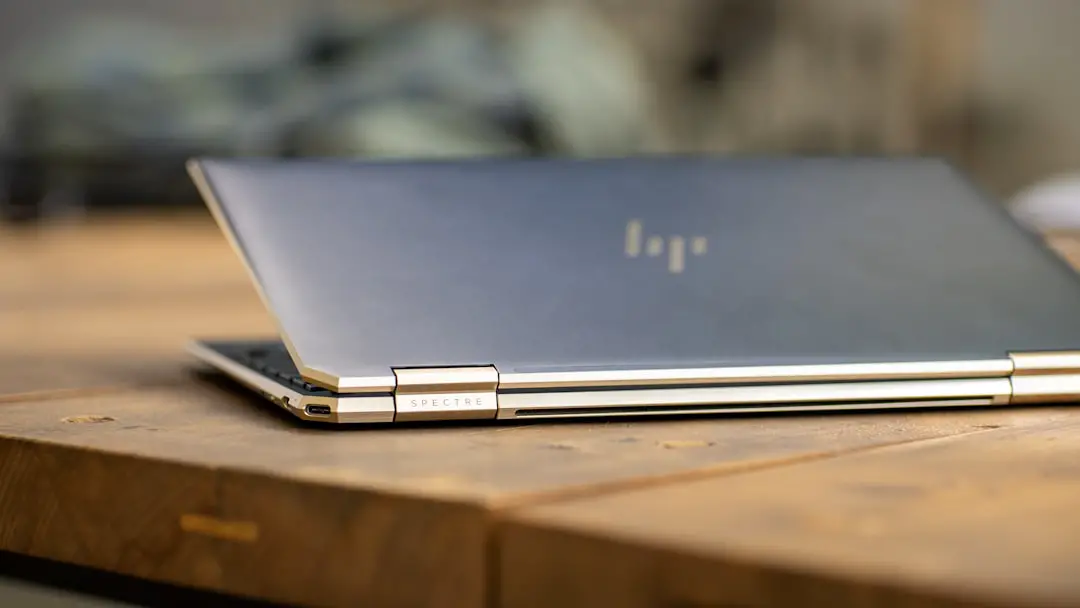
Premium models like the HP Spectre sometimes hide the power button near the back corner of the laptop, close to the hinge. It may even be angled as part of the device’s distinctive design.
This placement serves both aesthetic and functional purposes, keeping the keyboard layout clean while maintaining easy access.
How to Identify the Power Button
If you’re unsure which button is the right one, look for these distinguishing features:
- Power symbol icon (circle with a vertical line)
- Slight separation from other keys
- Different texture or material
- Small LED indicator light nearby
On most HP laptops, pressing the power button briefly will:
- Turn the laptop on (if fully powered off)
- Wake it from sleep mode
- Do nothing if the battery is completely drained
Power Button Locations by Popular HP Series
Here’s a helpful comparison chart outlining typical power button placement across major HP laptop lines:
| HP Series | Common Power Button Location | Design Style |
|---|---|---|
| HP Pavilion | Above keyboard (left or right) | Separate physical button |
| HP Envy | Integrated into keyboard (top-right) | Keyboard key style |
| HP Spectre | Corner near hinge or keyboard top-right | Slim, minimalist button |
| HP ProBook | Above keyboard (center or left) | Raised rectangular button |
| HP EliteBook | Top-left above keyboard | Small circular or rectangular |
| HP Omen | Above keyboard, sometimes with logo styling | Distinct gaming design |
| HP 2-in-1 Models | Side panel | Flush edge button |
What If You Still Can’t Find It?
If the power button seems invisible, here are a few steps you can take:
1. Check the User Manual
Search for your exact model number (usually found on the bottom of the laptop). The manual will include a labeled diagram showing the button location.
2. Examine the Edges Carefully
Run your finger gently along the device edges. Some side-mounted buttons are almost flush with the surface.
3. Look for LED Indicators
Many HP power buttons include a small LED light that turns on when the system is powered.
4. Connect the Charger
If the battery is fully drained, the laptop may not respond. Plug it in and wait a few minutes before attempting to power it on.
How to Turn On an HP Laptop Without the Power Button
If your power button is damaged or unresponsive, there are alternative methods you can try:
- Open the lid: Many modern HP laptops power on automatically when you lift the screen.
- Use an external keyboard: If enabled in BIOS, pressing a key on a USB keyboard might power it on.
- Enable Wake-on-LAN: Advanced users can configure network wake features.
However, these options typically require prior system configuration. If your button is physically broken, professional repair may be necessary.
Why HP Power Button Design Varies
HP adjusts power button placement based on:
- Device thickness
- Cooling system layout
- Keyboard design
- Convertible functionality
- Aesthetic considerations
For example, gaming laptops like the HP Omen emphasize bold styling, so the power button may be more prominent. Business models like the EliteBook prioritize subtle, secure placement to prevent accidental presses.
FAQs About HP Laptop Power Buttons
Is the power button always labeled?
Not always. Some newer models rely on minimalistic icons rather than text labels.
Why is my HP power button not responding?
Possible reasons include battery drain, hardware faults, internal board issues, or system crashes. Try holding the button for 10–15 seconds to force a hard reset.
Can I disable the power button?
Yes. In Windows settings, you can change what the power button does (sleep, shutdown, or nothing) when pressed.
Final Thoughts
The power button on an HP laptop is usually easy to find once you know what to look for. While older models feature clearly defined physical buttons above the keyboard, newer designs often integrate the button into the keyboard itself or relocate it to the side for a cleaner aesthetic. Understanding your specific HP series makes identification much easier.
If you’re ever in doubt, remember these three checkpoints: above the keyboard, top-right key area, or along the side edges. One of those locations almost certainly houses your laptop’s power control.
With this knowledge, you’ll never be left searching awkwardly for the button again—whether you’re setting up a new HP laptop or helping someone else get theirs started.